Time windows, service time, priority, and load
By Nathan ColeUpdated
An order needs only an address to be placed on a route. The optional per-order fields set when service may start (Opening hours), how long it takes (Service duration), when goods are ready at the depot (Release time), which orders stay on the routes when not everything fits (Priority), and the load (Delivery and Pickup). Every field has a matching spreadsheet column.
All of them are set in the order editor, opened from any order on the Orders page. This example plan has morning and afternoon delivery windows:
Opening hours (time windows)
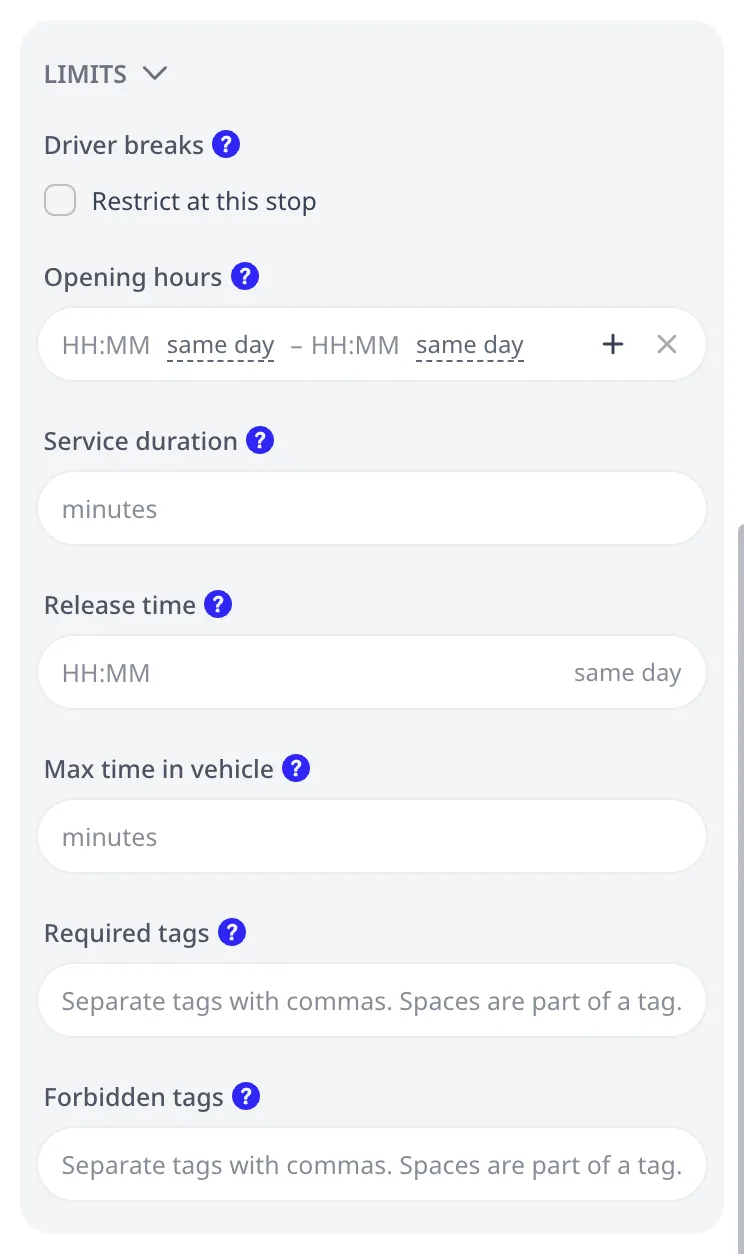
Opening hours is the window in which service may start at the stop. A vehicle may arrive early and wait (the routing plan shows the wait). It may not start service after the window closes.
- Both ends are optional. Only a start means "not before". Only an end means "not after".
- An order can have up to 4 alternative windows (press + to add one). The optimizer serves the order within exactly one of them, whichever suits the route best. A shop closed for lunch needs two windows: 08:00 to 12:00 or 14:00 to 18:00.
- Each window edge takes a day offset for multi-day planning: "+1 day" means the window is tomorrow.
Tight windows are costly to satisfy. Each one-hour window forces the route to reach its stop within that hour. Use wide windows and save the tight ones for the stops that need them.
Service duration
Service duration is the time the driver spends at the stop, in minutes: parking, unloading, paperwork. Without it, the vehicle departs the moment it arrives, which makes every ETA after the first stop optimistic.
Set at least an approximate default. Ten stops at 10 minutes each is over an hour and a half of the working day the optimizer would otherwise plan as driving time.
Release time
Release time is when the goods become available at the depot. A vehicle cannot load this order before that time, so a route serving it cannot leave earlier. Use it when the morning bakery run cannot start until the bread leaves the oven, or when a supplier delivers to your depot mid-morning. The field also accepts a day offset.
Max time in vehicle (shelf life)
Both fields in this section are Pro features. The free tier can use them within the free paid-feature optimizations.
Max time in vehicle caps how long the order may be on board before delivery, in minutes. On a plain order the clock starts when the vehicle leaves the depot, at the departure the routing plan shows. Service must start within that many minutes of the departure. Chilled goods under a 90-minute cold-chain contract take a value of 90. A route leaving the depot at 06:00 must then serve the order by 07:30, and a route leaving at 10:00 has until 11:30. An order that no route can deliver in time goes unassigned with the reason attached. Empty means unlimited.
The optimizer sets the departure as late as it can without making the route longer. Waiting for a stop that opens later therefore does not count against the limit. Only the waiting that no departure can remove counts.
A Release time on the order keeps the vehicle from leaving before the goods are ready. It does not start the clock. On a vehicle that reloads, every trip has its own departure. An order served on the second trip counts from that trip's departure, not the first one's.
This tutorial plan uses both forms of the field. It contains chilled depot orders and a transfer with a ride limit:
On a plain order the limit covers the Delivery load, which is on board from the depot. A plain order may also set a Pickup load. Max time in vehicle does not apply to such an order. The vehicle collects the goods at the stop and carries them to the depot. The limit does not cover that span.
The import ignores the value with a warning and keeps the order unconstrained. The order editor accepts the same combination. The optimizer then leaves that one order unassigned with the reason "Sets a field that does not apply to this kind of order". The rest of the plan optimizes normally. Split the collection into its own order, or model the movement as a transfer.
On a pickup & delivery transfer, the field instead limits the ride time from the end of service at the pickup to the start of service at the delivery. The optimizer delays the pickup service where that shortens the ride, keeping the consignment at its origin instead of loading it early. As a result, only waiting that no feasible loading time can avoid counts toward the limit. A reload does not reset the clock. In the tutorial plan above, the hotel accepts its delivery from 10:00. The van reaches the gelato lab well before that, waits there with the goods still at the pickup, and loads late enough that the ride fits the 30-minute limit.
Set the same value on every end of the transfer, alternative pickup and delivery locations included. The import flags ends that disagree. The optimizer then skips the whole transfer.
A break placed between a transfer's pickup and its delivery counts toward the ride time this field limits. Driver breaks and driving-time limits states how the optimizer places breaks around a ride limit.
Max ride overtime applies to a transfer end only. It allows the ride to exceed Max time in vehicle by a limited additional time, in minutes. The vehicle's Ride overtime cost per hour prices that overtime. Beyond the allowance the limit is hard. The field requires Max time in vehicle on the same transfer. Without it, the optimizer stops with an error. Set the same value on every end. The optimizer skips the transfer when the ends disagree, as above. Empty means no allowance, so the limit is hard with no priced overtime.
Priority
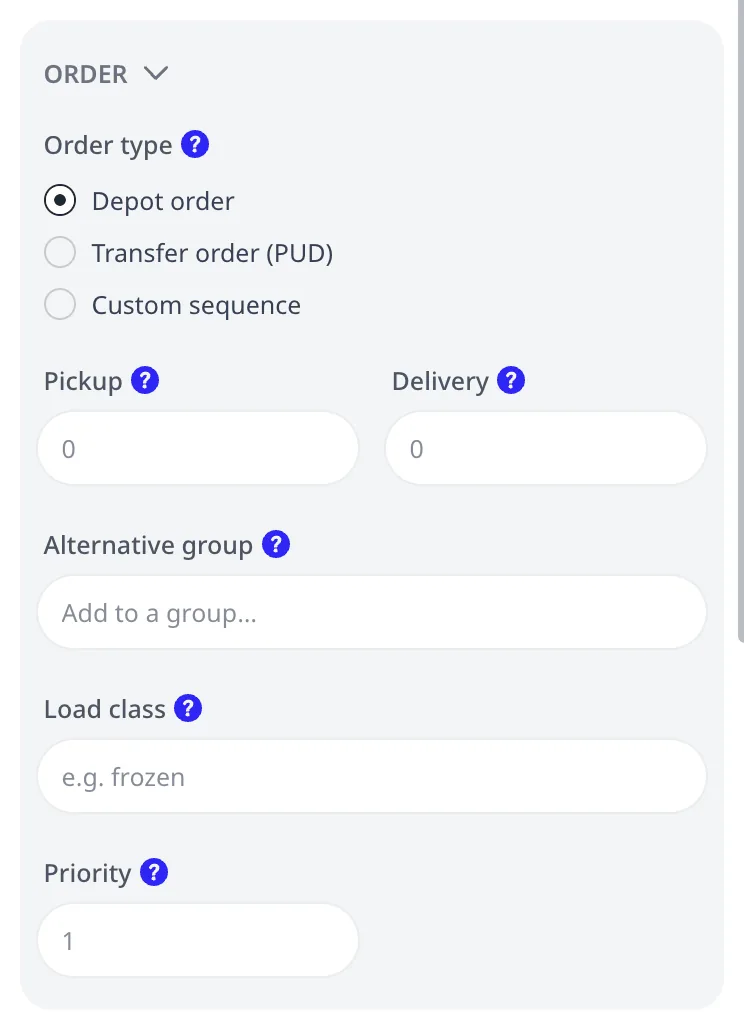
Priority is a number from 1 to 1000 (default 1) that decides which orders the optimizer drops when not everything fits. Every order is optional. When the fleet cannot serve them all, the optimizer keeps the higher-priority orders. The lower-priority ones go unassigned first.
Priority is a ranking, not a schedule. It does not place an order earlier in the route. It makes the order survive when capacity or time runs out. Use a large value such as 1000 for "serve this unless physically impossible". Why an order went unassigned covers how the optimizer reports dropped orders.
Pickup and Delivery loads
Delivery is the load the vehicle carries from the depot to the stop. Pickup is the load the vehicle collects at the stop and carries back to the depot (returns, empties). One order can have both. Loads are unitless. Pick one unit (parcels, kilograms, crates) and use it consistently across orders and vehicle capacity. Two exceptions move goods between stops instead of via the depot: pickup & delivery transfers and order sequences, where a pickup at one stop supplies the deliveries after it.
The optimizer computes the load on board after every stop and checks it against each vehicle's capacity. Capacity, deliveries, and pickups covers the details, including how reloads interact.
The Pro fields
The remaining order-editor fields cover specialized setups. Max time in vehicle and Max ride overtime have their own section above. These are the others:
- Required tags / Forbidden tags restrict which vehicles may serve the order, for example "freezer van only". See Tags: vehicle-order compatibility.
- Transfer order (PUD) and Transfer id turn two orders into a pickup-delivery pair that one route moves address to address. See Pickup & delivery transfers.
- Custom sequence and Sequence put several orders on one route in a fixed order. See Order sequences.
- Alternative group marks orders as interchangeable. The optimizer serves at most one order per group (deliver to the door OR the pickup point). It reports the rest as "not chosen" rather than unassigned.
- Load class sets the product class of the order's load. Two classes listed in one of a vehicle's Do not mix load classes groups are never mixed on that vehicle's route, reload trips included. See Product segregation.
Next step
Per-order details cover one side of the plan. Vehicle limits cover the other. Continue with Shifts, working hours, and route limits.
FAQ
What happens when a vehicle arrives before the opening hours start?
The vehicle waits. Opening hours bound when service may start, not when the vehicle may arrive. The routing plan shows the wait as a blue line under the stop, such as Waits 25 min for the window to open. Service may not start after the window closes. An order no vehicle can reach inside any window goes unassigned.
Can an order have two delivery windows?
Yes, up to four. Press the plus button next to Opening hours to add a window. The optimizer serves the order within exactly one of them, whichever suits the route best. A shop closed for lunch gets two windows, 08:00 to 12:00 and 14:00 to 18:00. Each window start and end also takes a day offset for multi-day plans.
Does priority make an order come earlier in the route?
No. Priority is a ranking from 1 to 1000, default 1, that decides which orders the optimizer keeps when not everything fits. Higher-priority orders stay on the routes and lower-priority ones go unassigned first. Priority does not change the position of an order within a route. Use 1000 for an order that must be served unless it is physically impossible.
What is the difference between Delivery and Pickup on an order?
Delivery is the load the vehicle carries from the depot to the stop. Pickup is the load it collects at the stop and carries back to the depot, such as returns or empties. One order can set both. Loads are plain numbers in a unit you choose. The vehicle Capacity uses the same unit.
Why should I set a service duration?
Without it, the vehicle departs the moment it arrives, so every ETA after the first stop is optimistic. Service duration is the time the driver spends at the stop, in minutes, for parking, unloading, and paperwork. Ten stops at 10 minutes each take over an hour and a half that the optimizer would otherwise plan as driving time.