The AI assistant in Routing24
By Nathan ColeUpdated
Routing24 has a built-in AI assistant that internally has full access to the currently loaded plan, and can perform operations on it from your prompts.
Everything you can do in Routing24 can be done via the assistant by prompting it. It has full access to application internals and exposes every button and setting so the AI is able to control and drive the process.
This page covers how to open the assistant, everything it does, the guardrails, and your AI budget.
Open the assistant
To open the assistant, press ASSISTANT in the header.

The assistant pane opens beside the plan, and has a similar look and feel to other AI assistants around you, with chat input, file attachments, and a send button.
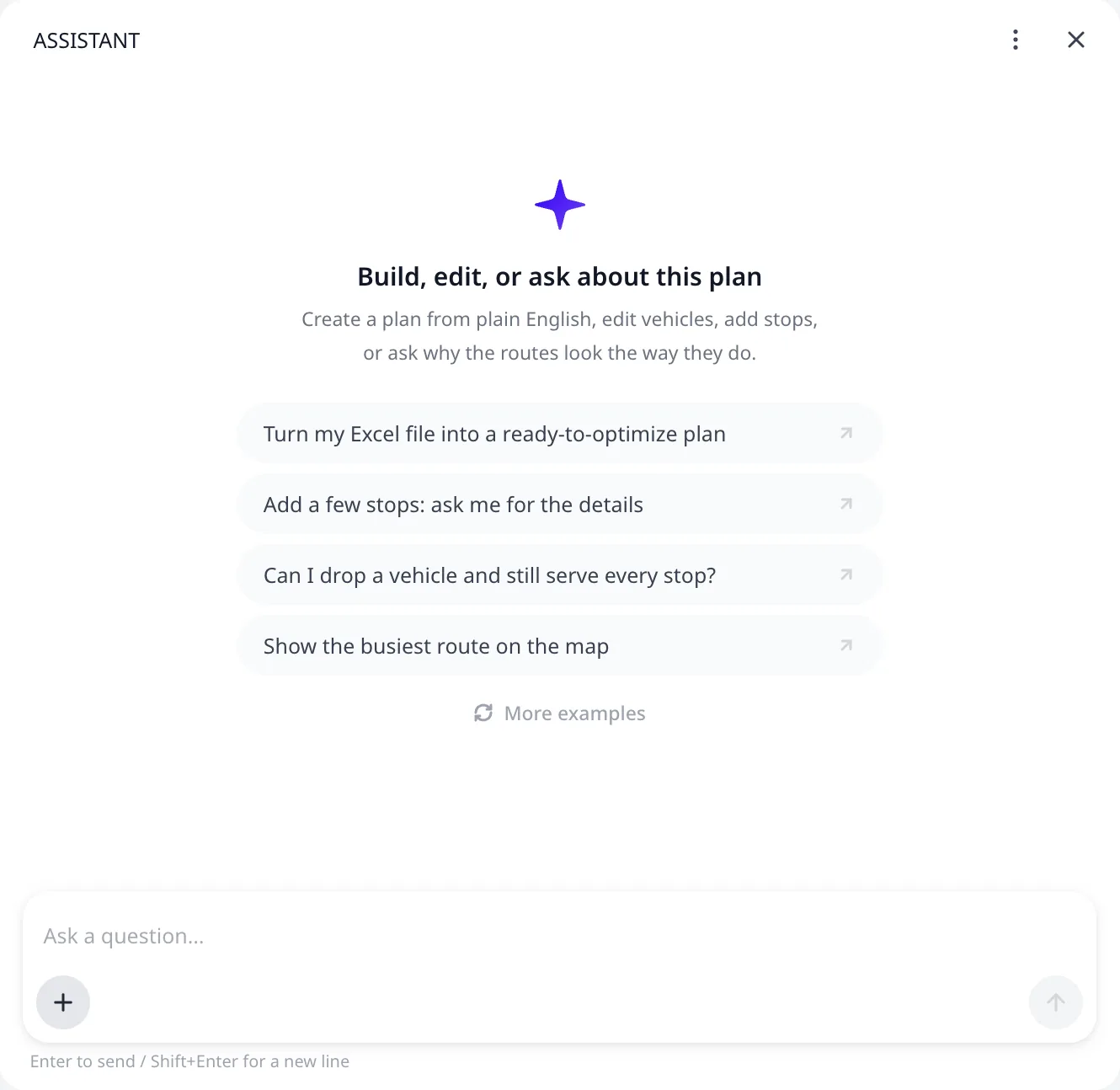
The chats in the assistant are saved with the plan. When you start a new chat, the previous one is archived and stays with the plan, available to you in the chats history menu.
The menu also opens MCP server connection, which is a utility page showing the current MCP connection in case you are using an external AI assistant to control this Routing24 browser tab, see Routing24 as an MCP server.
What the assistant does
Anything you can do in Routing24 manually can be done via the AI assistant in plain language, without learning the Routing24 interface or constraints setup complexity.
The Routing24 assistant maps your instructions to internal tool calls:
- import custom data
import orders from this file map columns - create from text
import addresses: ... and create orders for them each 1 unit delivery service time 5 minutes - modify existing data
orders S001 S002 S003 make time window 8a-4pm and increase service time by 10% - edit plan
add one more vehicle optimize and explain how it's different,move orders in area X to route Y - analyze
find routes where time windows are at risk with risk defined as high probability of being late by >20 minutes due to delays
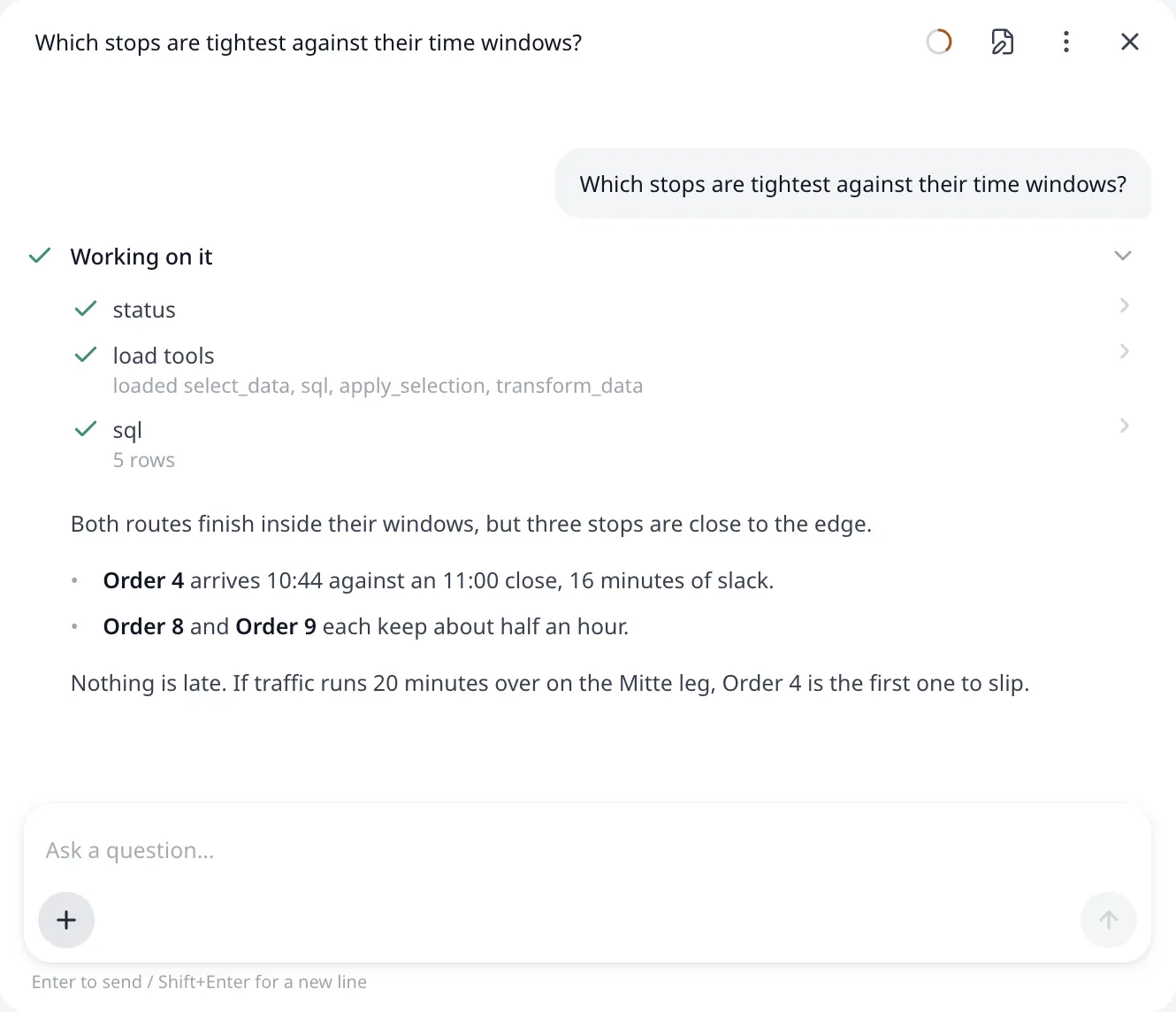
The assistant decides which internal tools to call, writes code to modify, query, or analyze data, and updates results directly in the page in front of you:
- Plan data. Imports an attached Excel or CSV file. Writes a converter for a supplier layout the importer does not accept, saves it, and re-runs it on next week's file. Creates, updates, and deletes orders, vehicles, and depots by their id. Checks an address list against the geocoder before it creates orders from it. See Convert any data and fix every address.
- Addresses. Repairs the addresses the geocoder could not place, and the ones it placed far from the rest of the plan.
- Bulk changes. Selects rows from a plain-language description, queries the plan with SQL, and changes a field across many rows at once.
- Constraints. Turns operating rules stated in words into time windows, capacities, shifts, breaks, tags, sequences, and costs. See Describe constraints in plain language.
- Optimization. Starts an optimization, re-sequences one route on its own, and cancels a run in progress.
- The routing plan. Reads the whole routing plan back, down to one stop's arrival time. See Query, edit, and export a plan with AI.
- Route edits. Moves, unassigns, splits, merges, and re-crews routes, marks stops as placed manually, and undoes and redoes. See Query, edit, and export a plan with AI.
- Output. Opens any page of the app, flies the map to an order or depot, and downloads the Excel workbook. Saves the plan and returns its link.
The assistant can access the plan in the tab and nothing outside the app. The AI is physically decoupled from the page and runs in a "sandbox" where it can only see the plan data and nothing else. What a message sends outside Routing24, and to whom, is stated in Privacy and data handling.
To draft the driver emails, post a summary to a dispatch channel, or push the routes into another system, bring your MCP-enabled AI agent. See Routing24 as an MCP server.
Questions and reviews
Where a request leaves a choice open, the assistant asks inside the chat. The question arrives as a set of options, a checkbox list, a yes or no, a row of buttons, or a free-text box. A free-text question also accepts a file.
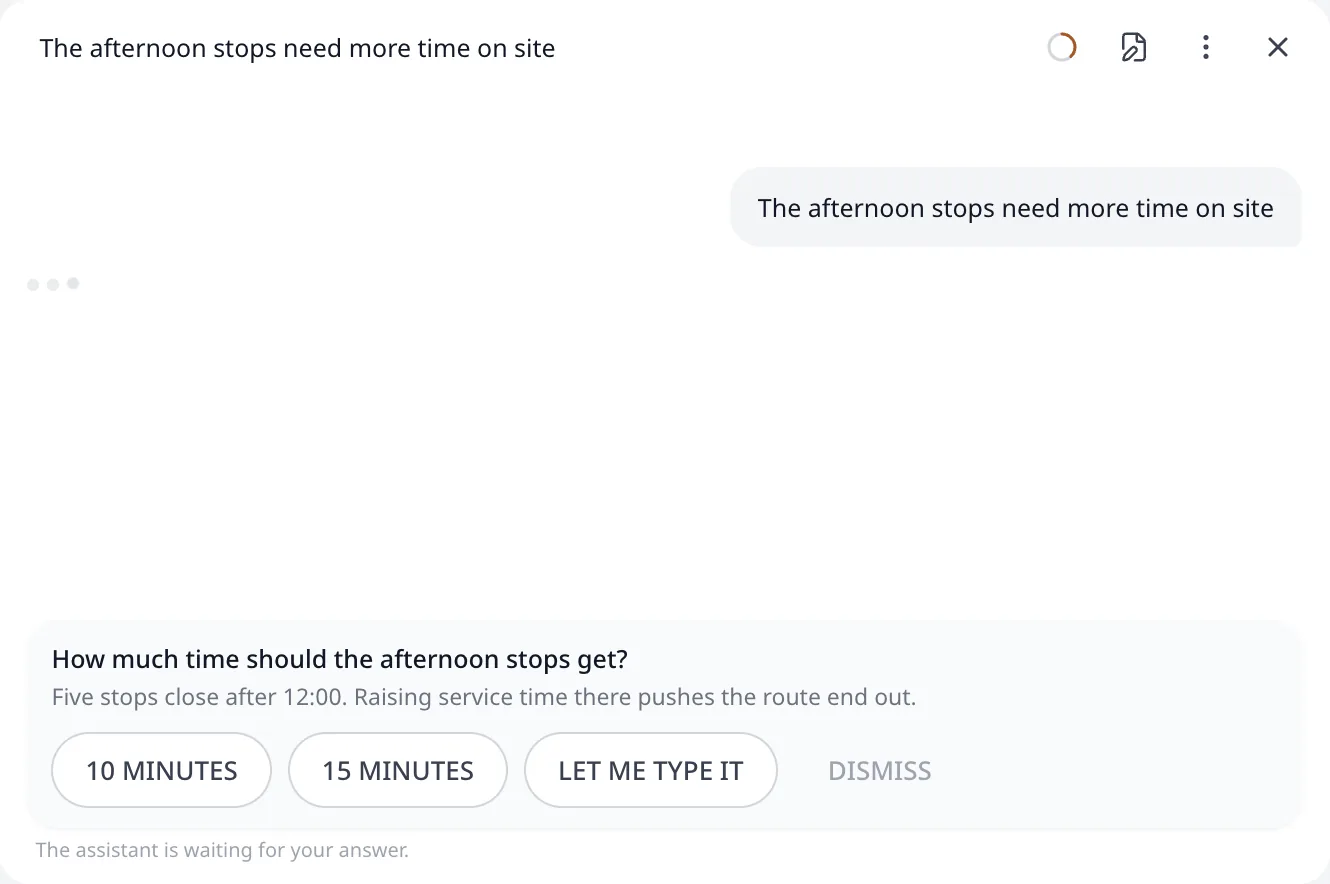
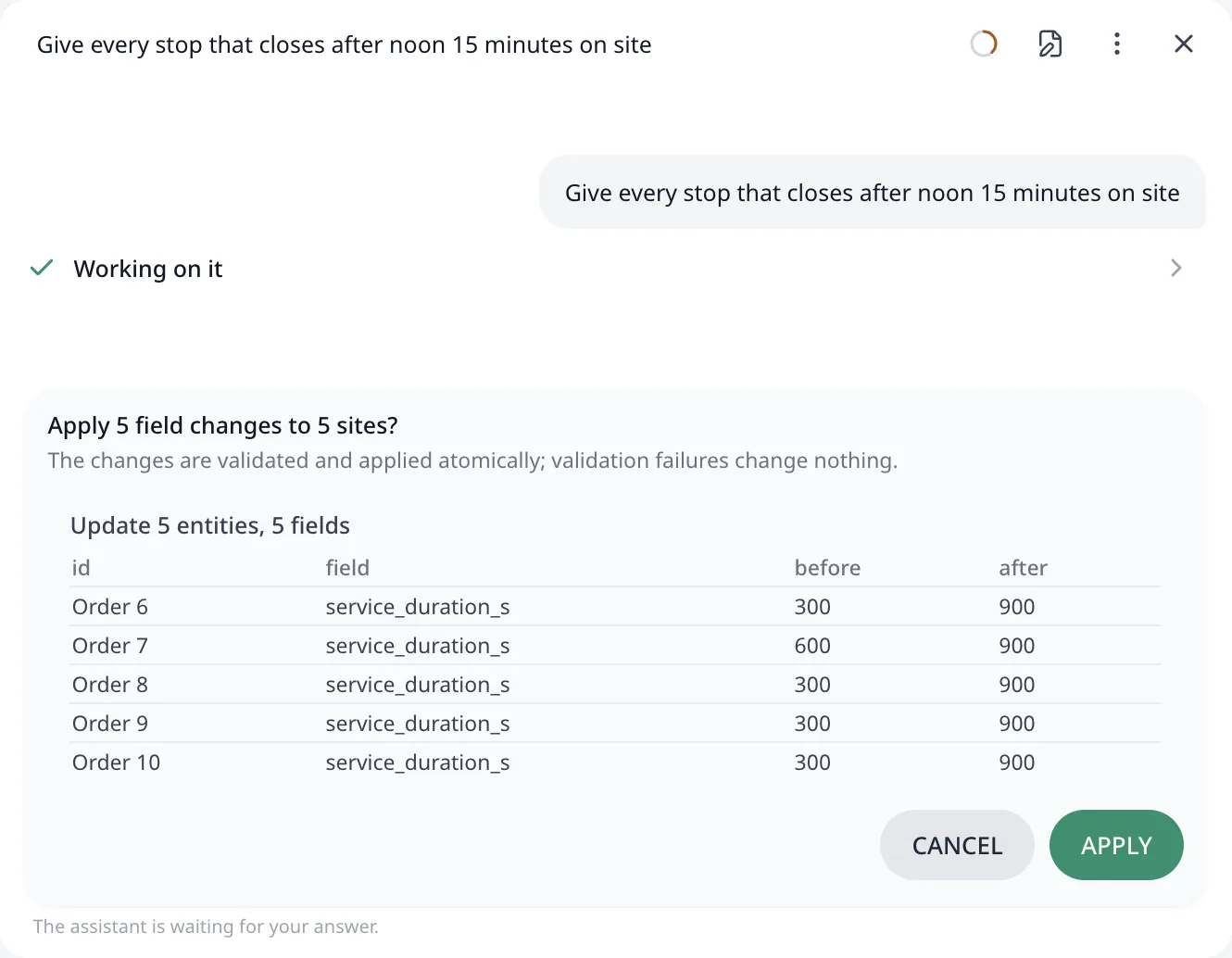
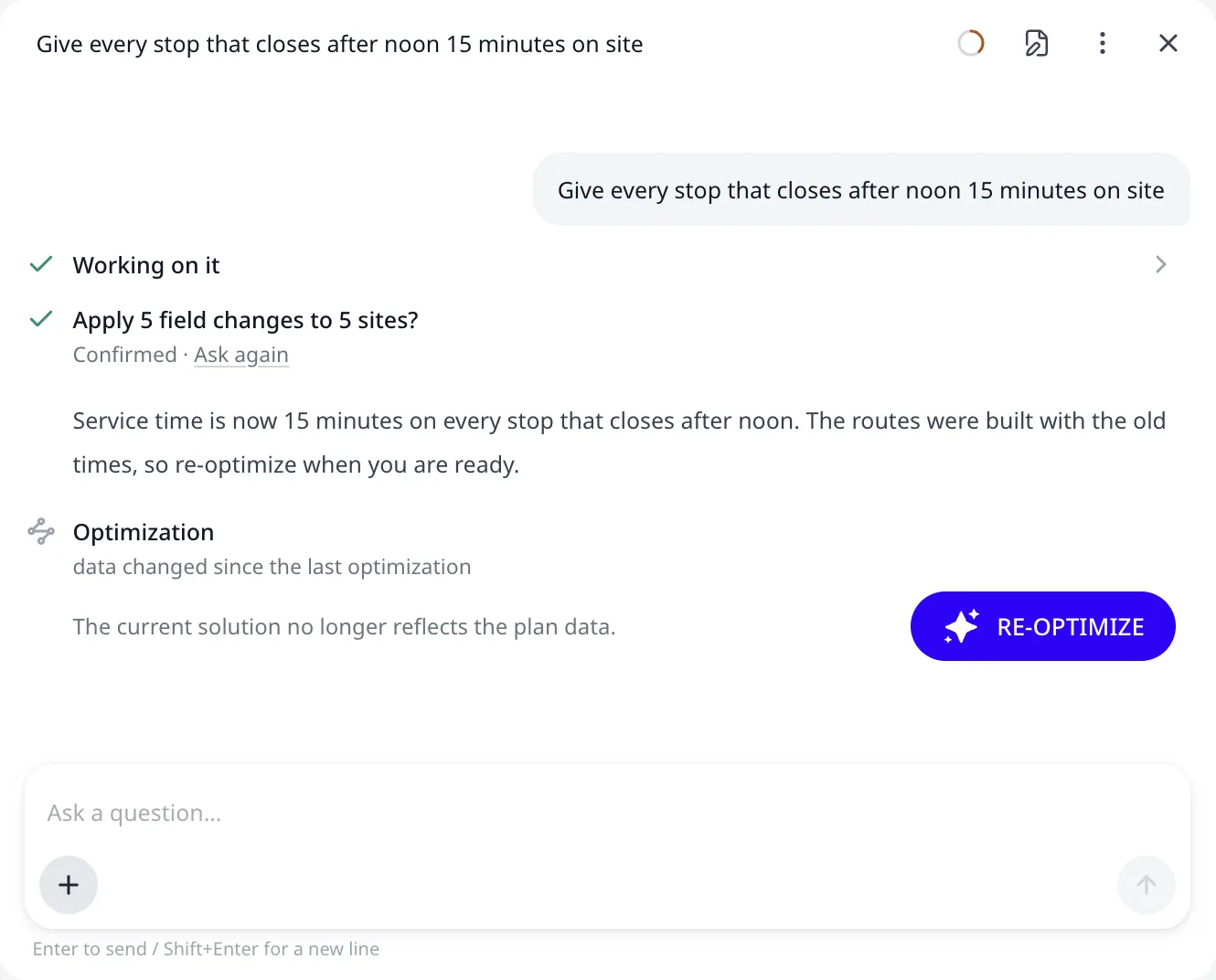
A change that touches many data rows at once is always presented to you as a review. The assistant lists the rows it is about to write, before and after, and the change applies only when you confirm it. Three actions require this review:
- A field change across many rows, asked as "Apply 12 field changes to 8 sites?"
- An address repair, asked as "Fix 6 of 9 unlocated addresses?" See Convert any data and fix every address.
- A delete, which lists every entity by id before it removes it.
Optimization and data changes
In Routing24, a routing plan and the data it was built from are always in sync. If you change an order's location or add a vehicle, the whole plan can change drastically.
Routing24 detects such changes automatically, and the AI assistant will always offer to re-optimize on a source data change.
After re-optimization, the assistant can see the full history of changes, as well as the difference between previous and current plans, displaying changes in main plan metrics in the chat.
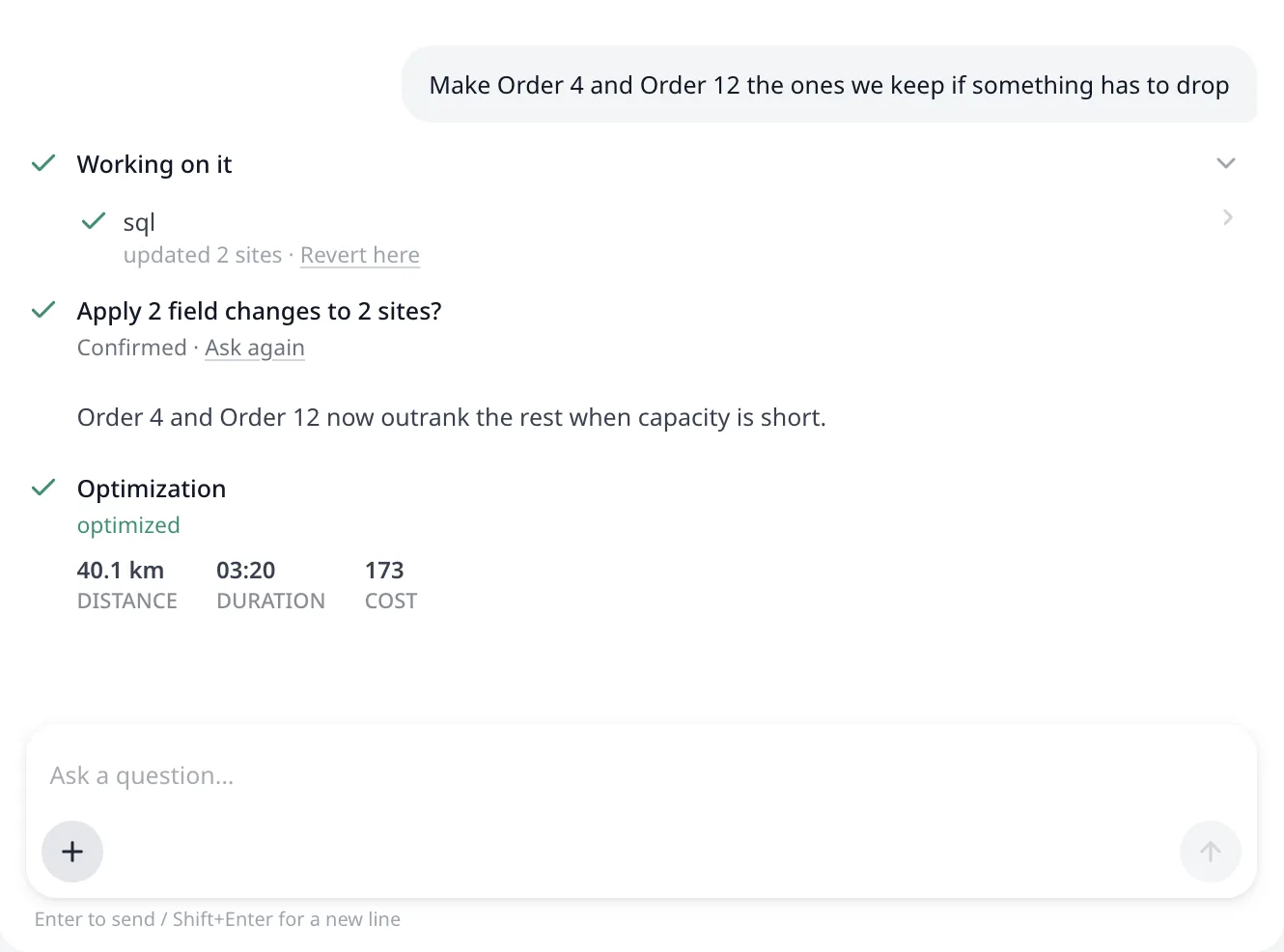
Revert to a point in the conversation
Every row in the transcript that changed the plan shows a Revert here link. It returns the plan to its state before that row, and deletes the conversation after it. The confirmation states what the revert covers, for example "Changes made after this point (3 data edits and 1 manual route re-arrangement) are undone."
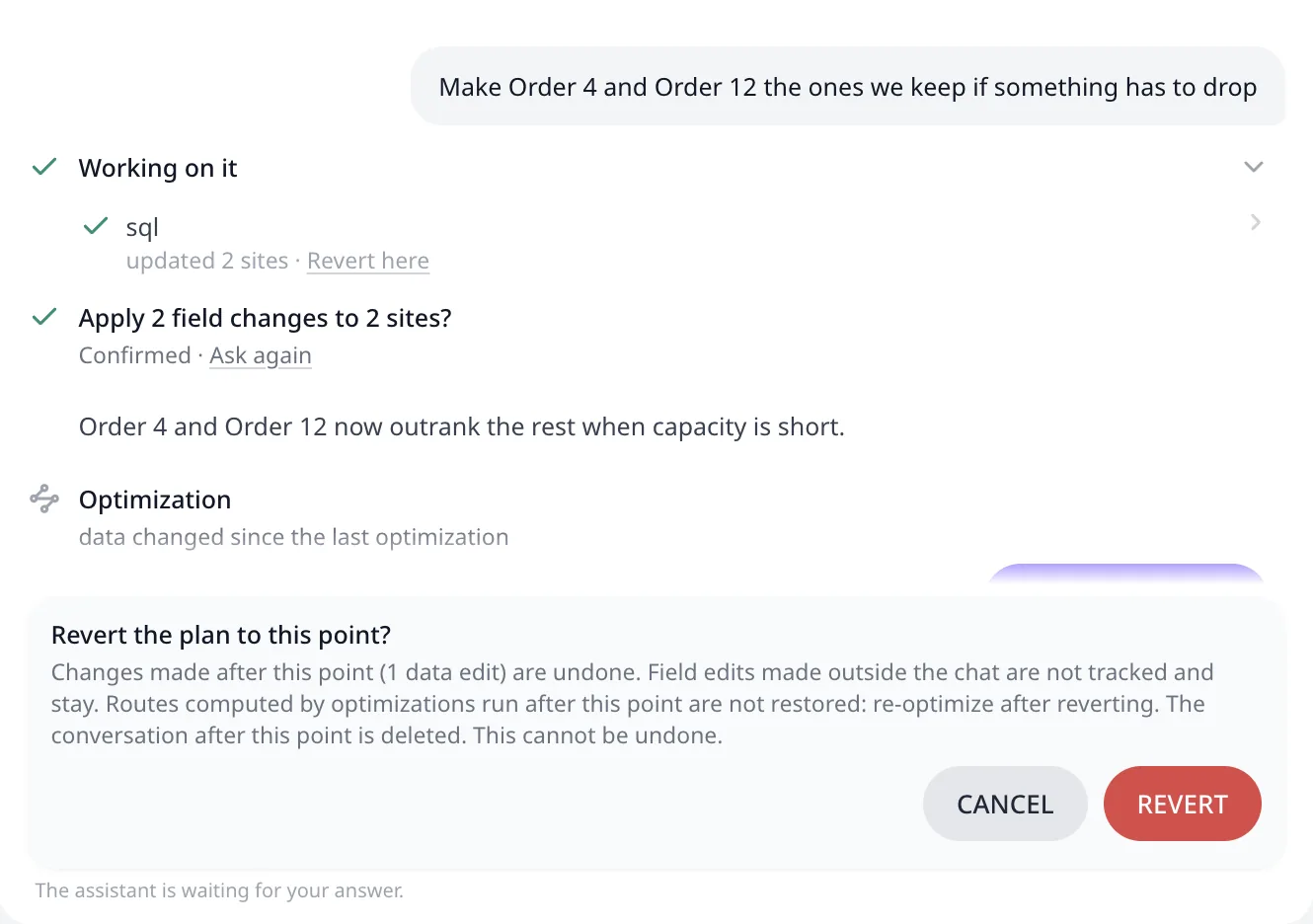
Three limits apply. The confirmation states each one:
- Field edits made outside the assistant are not tracked, and they stay.
- Routes computed by optimizations run after that point are not restored. Optimize again after reverting.
- The revert cannot itself be undone.
A grayed Revert here link shows its reason on hover: "Wait for the current optimization or edit to finish" while the plan is busy, or a note that the point is no longer available once the undo history has moved past it.
The links exist only while the pane stays in the same session. A conversation restored with a reopened plan renders no Revert here links, even though the text of the conversation is all there. Revert while the conversation is live, or edit the plan back manually.
Where the conversation is saved
Routing24 saves the conversation with the plan. Opening another plan opens that plan's conversation. Routing24 keeps the conversation with your account, so signing out makes it unavailable until you sign in again. When the same plan is open in two tabs, the tab that writes last wins, and the two conversations do not merge.
The assistant's edits and your own edits share one undo history. See Query, edit, and export a plan with AI.
The AI budget
The STARTER and PRO plans have a daily and monthly AI budget, included in the subscription.
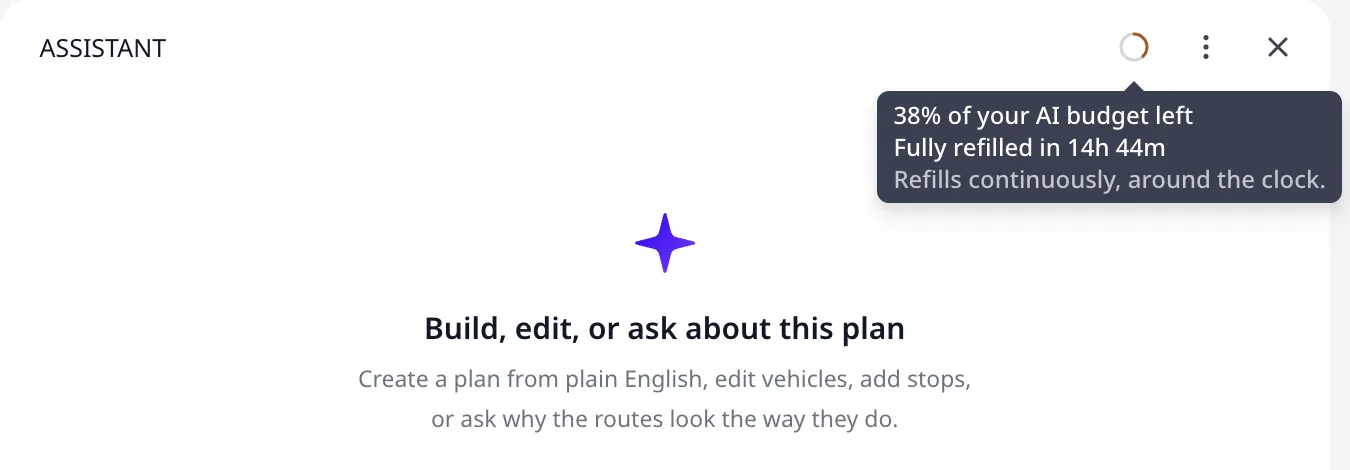
The ring beside the pane title appears once the budget drops below 95%. The ring turns amber at half and red below a fifth, and the tooltip contains information about the budget left. An exhausted budget stops the assistant until the next refill.
Next step
A connected assistant runs the same tools, and reaches your files and your other systems as well. Connect Claude and ChatGPT covers the connection: one URL, one approval, and the first run.
FAQ
What can the AI assistant in Routing24 do?
Everything the app does manually, the assistant does from a prompt. It imports files, creates and updates orders, vehicles, and depots, repairs addresses, turns rules stated in words into constraints, starts and cancels optimizations, edits routes, reads the routing plan back, and downloads the Excel workbook, all on the plan open in the current tab.
How do I open the assistant?
Press ASSISTANT in the app header. The pane opens beside the plan, with a chat input, file attachments, and a send button. Chats are saved with the plan: starting a new chat archives the previous one into the chats history menu, and opening another plan opens that plan's conversation.
Can the assistant change my data without asking?
A change that touches many rows at once always arrives as a review. The assistant lists the rows it is about to write, before and after, and applies the change only when you confirm it. A field change across many rows, an address repair, and a delete all require this review.
Can I undo what the assistant did?
Every transcript row that changed the plan shows a Revert here link. It returns the plan to its state before that row and deletes the conversation after it. Field edits made outside the assistant stay, routes from later optimizations are not restored, and the links last only for the session.
What does the assistant cost to use?
The Starter and Pro plans include a daily and a monthly AI budget in the subscription. A ring beside the pane title appears once the budget drops below 95 percent, and its tooltip shows what is left. An exhausted budget stops the assistant until the next refill. A connected assistant spends its own provider budget instead.