Add orders manually
By Nathan ColeUpdated
Orders are added one at a time on the Orders page. The page shows the list of orders on the left and the map on the right. Adding manually is the method for small plans, single additions, and corrections to an imported list. This page covers the order editor, the address search, manual pin placement, the row actions, and editing several orders at once.
For batches, paste a list of addresses or import a spreadsheet instead. All three methods can be combined in one plan.
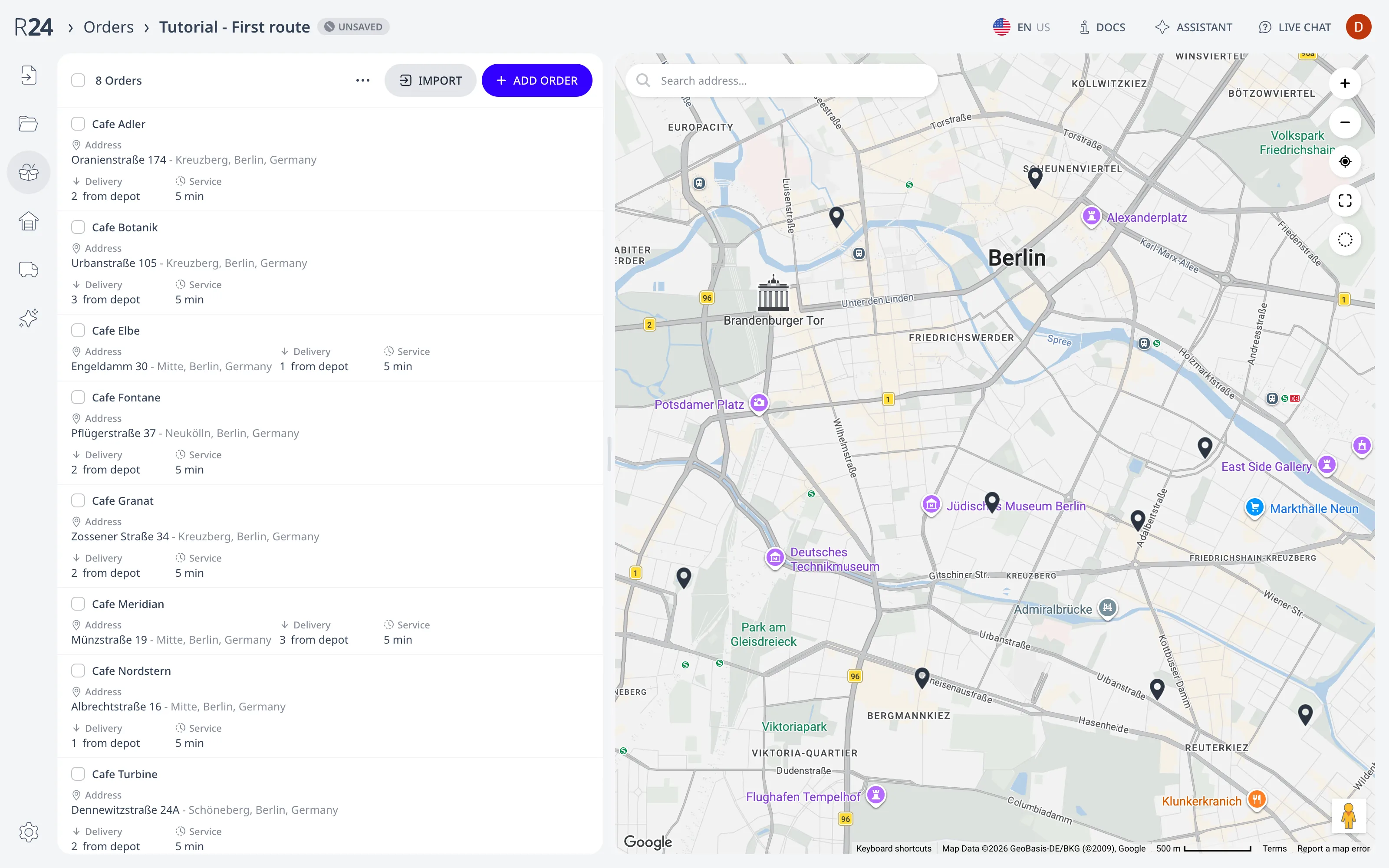
Add an order
On the Orders page, press Add order. The order editor opens on the left with two required fields:
- ID: any unique name, such as "Order 12" or a customer reference. The ID appears on the route and in exports.
- Address: type the address and select a match from the suggestions. The list shows the plan's saved addresses first (marked with a star), then map search results. Select a suggestion to place the pin.
Press Save order. The order appears in the list and on the map. Close discards the draft.
The remaining editor fields are optional. Time windows, service time, priority, and load covers what each field does.
When multiple orders have the same address, the address location is shared among the orders. Editing the address location in any of such orders updates all their locations at once. If the address is used by any depot, the depot's location is updated automatically too.
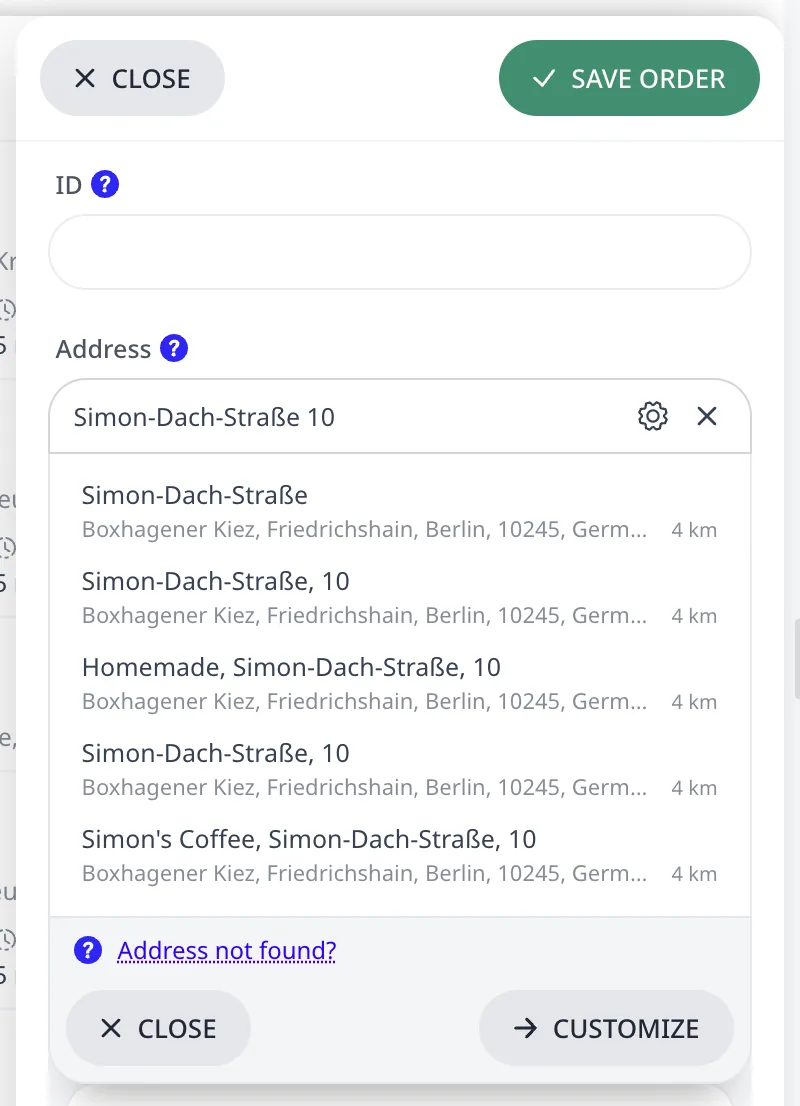
When the address will not resolve
When the search finds nothing, or places the pin at the wrong location:
- Change the address text. Remove anything that is not part of the postal address, such as an apartment number or driving instructions, and keep the street, the house number, and the city. Search again.
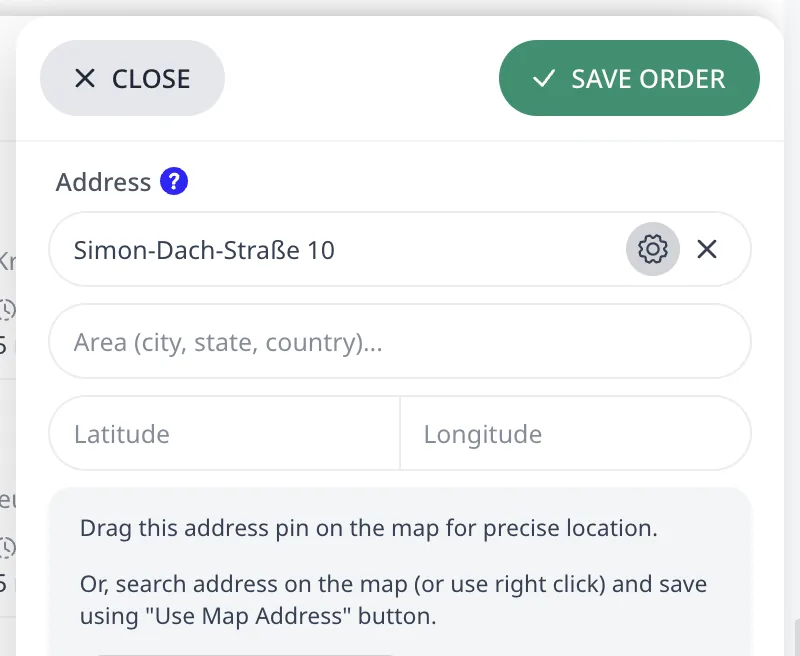
- Press Customize in the editor. The single search field
expands into separate Address, Area, Latitude, and
Longitude fields.
- Drag and drop the map pin, and the coordinates will update automatically.
- Type the coordinates manually, or copy-paste them from another online map service.
- Find the place with the map's search field, or right-click the map to look up the address at that point, then press Use map address.
Fix unrecognized or mislocated addresses covers the remaining fixes.
Edit, locate, and delete
Hover an order row. The row shows three action buttons:
- Edit opens the order in the editor. A click anywhere on the row does the same.
- Show on map centers the map on the order and opens its pin card. The button is disabled until the address has a location.
- Delete removes the order after a confirmation.
Work with many orders at once
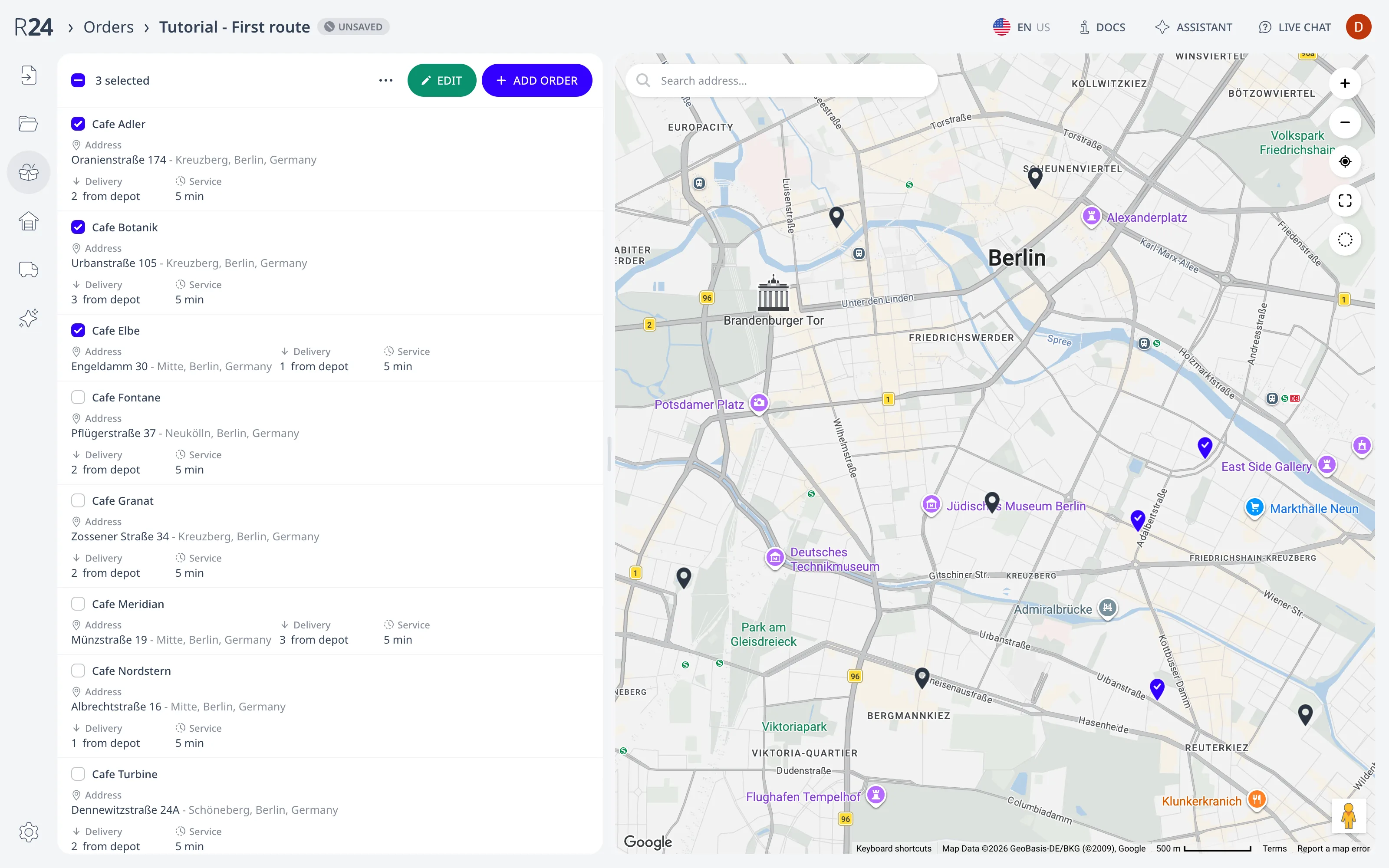
Selected orders can be edited or deleted together. Orders are selected in the list with the checkbox on each row, or on the map with Select on map. The Depots and Fleet pages have the same selection controls, and Select on map is also available on Depots.
Selecting orders
Each order row has a checkbox. The checkbox above the list selects every order, and clears the selection when every order is selected. From a partial selection, it selects the remaining orders.
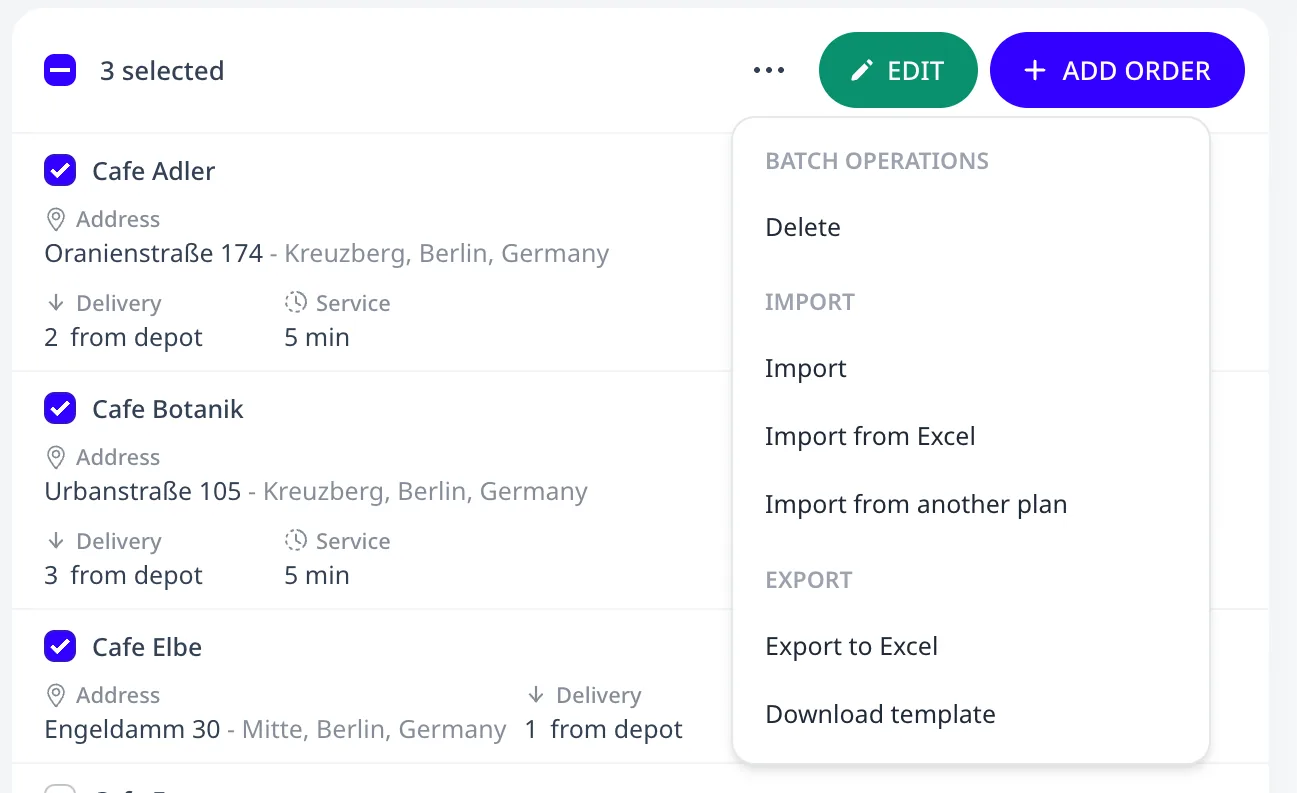
While orders are selected, the list shows the number of selected orders in place of the order count, and Edit for the selection. Delete for the selection is in the ⋯ menu under Batch operations, and Import moves into the same menu. Selected orders are also marked on the map. The pin card offers Select and Unselect for one order at a time: see Edit orders, depots, and addresses on the map.
Select on the map
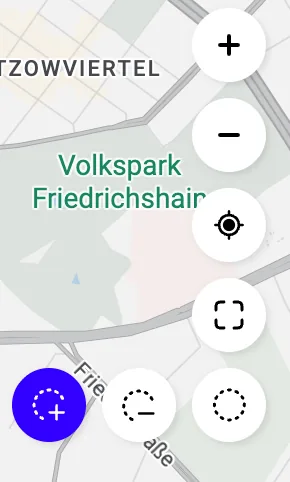
Select on map selects orders by their pins. It is in the map's control stack on the Orders and Depots pages, available while the map has pins and no editor is open. With the tool on, a lasso drawn around pins applies to every order whose pin lies within it. A pin on the lasso line counts as enclosed. The tool turns off when the lasso is released.
The tool has two modes. Add to selection, the default, selects the enclosed orders. Remove from selection unselects them. A lasso that encloses no pin leaves the tool on. Escape, or Select on map again, turns the tool off and keeps the selection. While the tool is on, clicking a pin opens no card.
Deleting the selection
Delete in the ⋯ menu removes the selected orders after a confirmation. Deleting cannot be undone.
Editing the selection
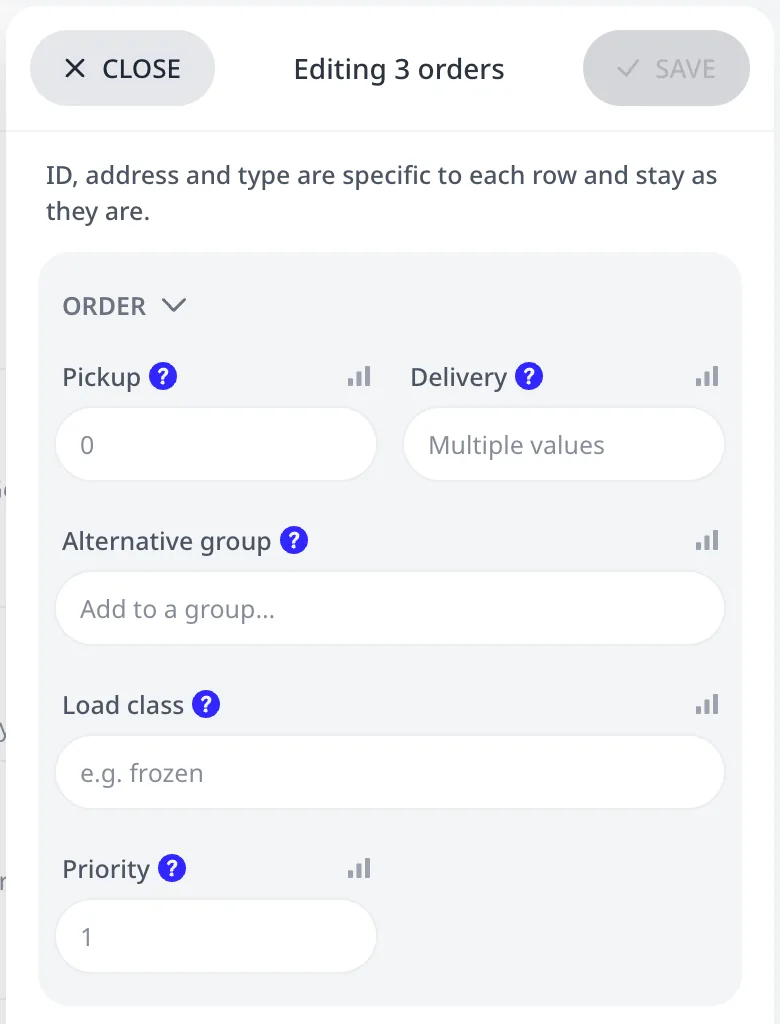
Edit opens the selected orders in the order editor. A single selected order opens as usual. Two or more open in one editor, titled with their number (Editing 3 orders), and every change applies to all of them. The editor has every field of the order editor except ID, Address, and the order type, which are specific to each order and keep their values.
A field shows the value shared by all selected orders. A field whose values differ is blank and shows Multiple values. For example, with Delivery values of 2, 3, and 1, the field shows Multiple values. The icon next to each field label opens a tooltip with the current values of the selected orders for that field.
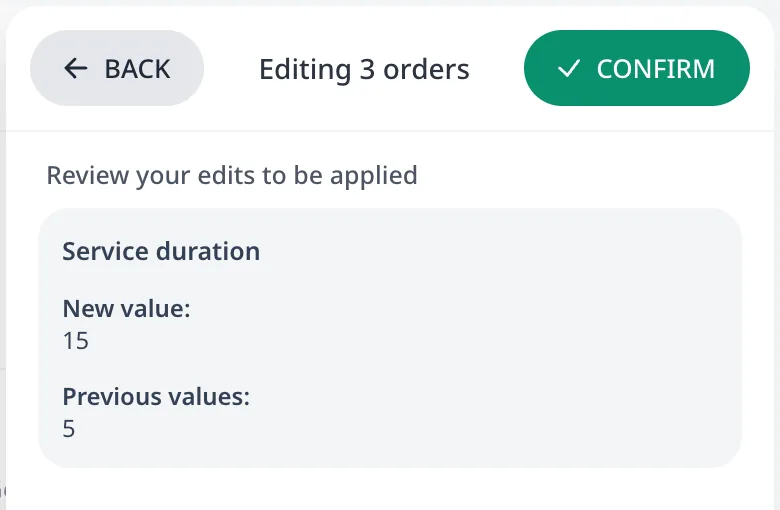
A value entered in a field is written to every selected order. A cleared field is cleared on every selected order. An untouched field keeps its value on each order. Save opens a confirmation that lists each changed field with its new value and the previous values, and Confirm writes the changes. For example, 15 entered in Service duration and confirmed sets a service duration of 15 minutes on every selected order. The selection is kept for a further edit.
Orders can also be imported and exported in bulk:
- Import, the button next to Add order, opens the Import from address list widget: see Paste a list of addresses.
- The ⋯ menu also provides spreadsheet import and export for this list: see Import from Excel or CSV.
Next step
Add a vehicle and a depot next. Add vehicles and depots covers both.
FAQ
What does an order need at minimum?
An order needs two fields: an ID, any unique name such as a customer reference, which appears on the route and in exports, and an Address, selected from the suggestions offered while typing. Every other editor field is optional. Press Save order and the order appears in the list and on the map.
What if the address search cannot find the place?
First change the address text: remove anything that is not part of the postal address, such as an apartment number or driving instructions, and search again. If that fails, press Customize: the search field expands into Address, Area, Latitude, and Longitude fields. Drag and drop the map pin, type the coordinates manually, or copy-paste them from another online map service.
How do I delete several orders at once?
Select the orders with the checkbox on each row, or select every order with the checkbox above the list. The count above the list changes to 3 selected. Open the ⋯ menu, choose Delete under Batch operations, and confirm the Delete 3 orders? dialog. Deleting cannot be undone.
How do I select orders on the map?
Press Select on map, the round button under Show all features in the top-right corner of the map. Draw a lasso around the pins with the mouse button held down. On release, Routing24 selects the enclosed orders and turns the tool off. With Remove from selection pressed, the lasso unselects the enclosed orders instead.