Fix unrecognized or mislocated addresses
By Nathan ColeUpdated
Routing24 geocodes every address to a map point. An address it cannot resolve still imports, but its order cannot be routed. An address that resolves to the wrong point shows no error and sends the driver to the wrong place. Three fixes apply: rewrite the address text, place the pin by hand, or right-click the map.
This page covers finding both cases and each fix.
Find the problem addresses
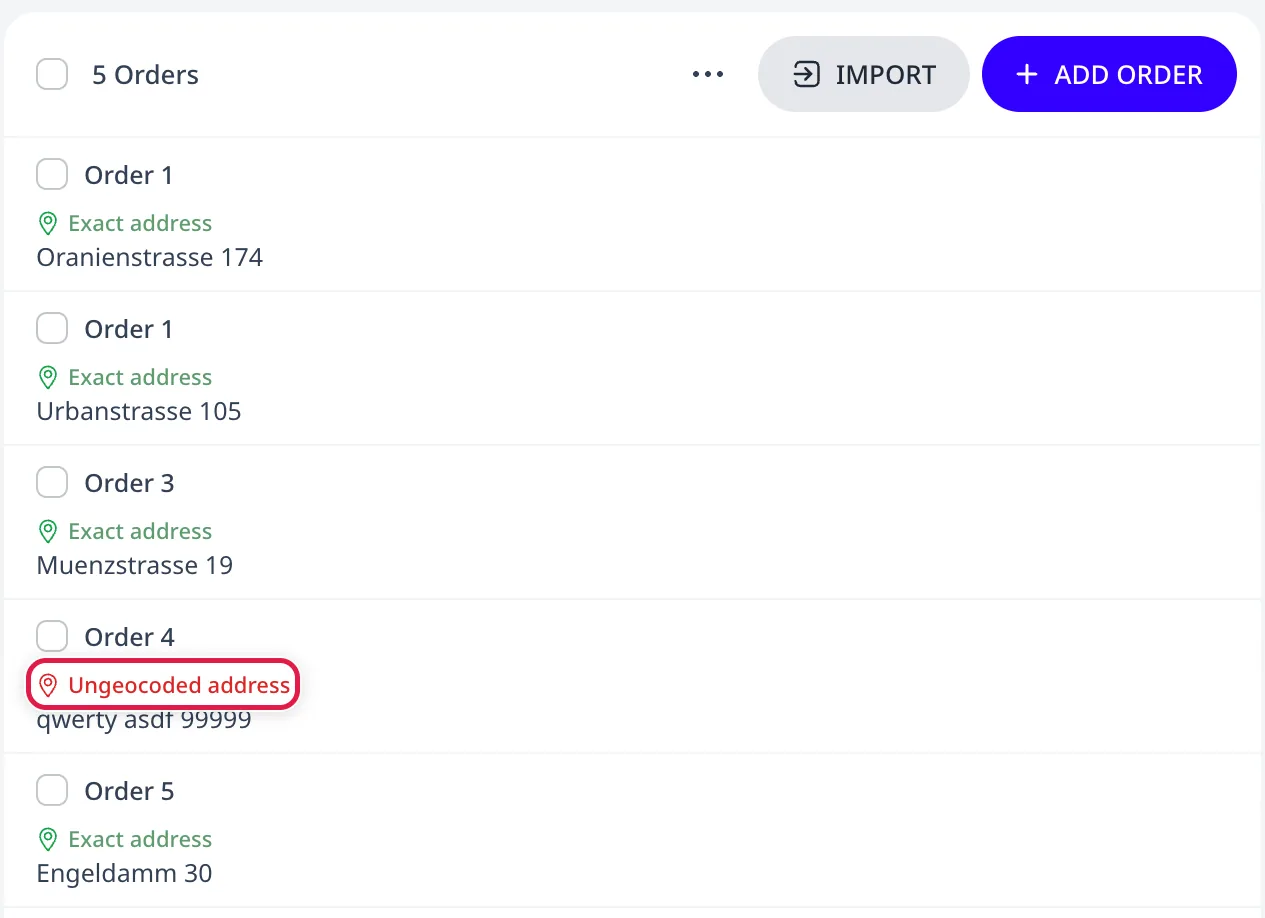
On the Orders and Depots pages, every row shows a status label above its address, in the color of the pin icon before it. The label states how the geocoder resolved the address text, and its tooltip explains the status:
- Exact address (green): the address resolved to a building or a named place.
- Approximate address (blue): the address resolved to a street or an area, not to a building. The pin is placed at its center. The tooltip shows the place it resolved to under Located as.
- Ungeocoded address (red): the address did not resolve to a map point. The order cannot be routed until the address resolves. The map shows no pin for it.
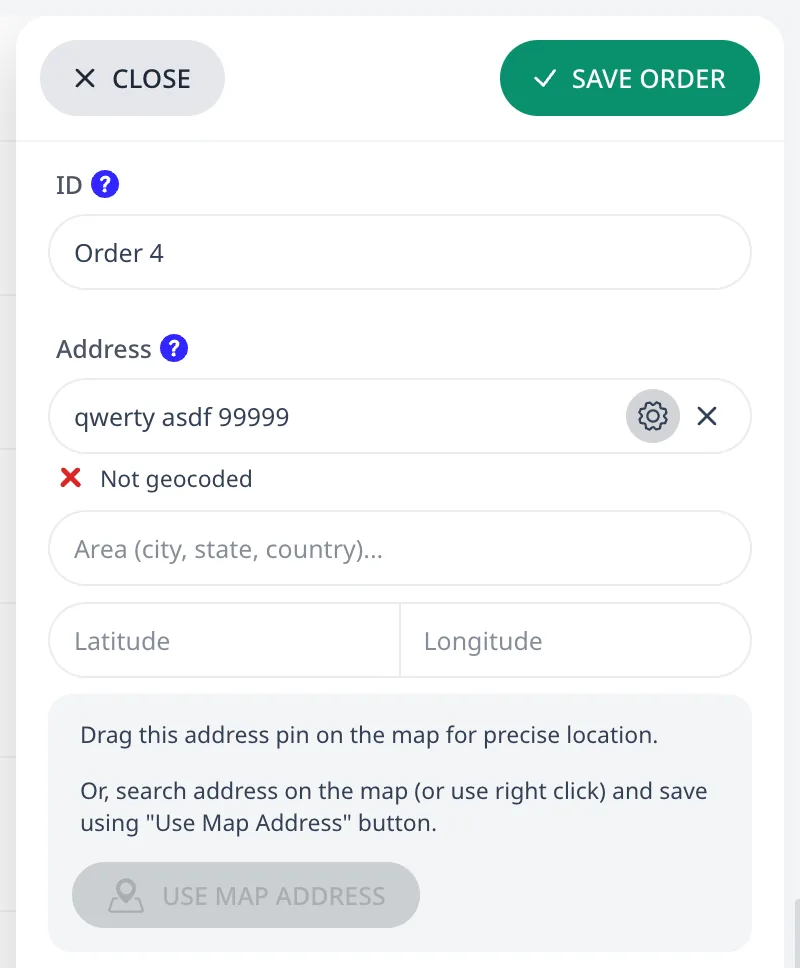
The address field in the order and depot editors shows the same status: a green check and Exact match, a blue check and the place the address resolved to, or a red cross and Not geocoded.
An Approximate address stands where the geocoder could place it, not at the door, so check its pin first. An Exact address can be misplaced as well. After an import, check the map: a pin in a river or in the wrong town is misplaced.
Fix 1: Rewrite the address text
Most failures are in the address text itself. Hover the row and press Edit, or click the row. The order editor opens with the address in Customize mode. Improve the text and pick the right suggestion:
- Remove apartment numbers, company names, and personal names. "Acme GmbH, attn. Meyer, Hauptstr. 5" fails where "Hauptstr. 5" resolves.
- Add a postal code, city or state, and country.
- Find the place on Google Maps™ and copy the address exactly as shown there.
When the pin is correct, press Save order. Every order and depot using that address moves with it. The editor warns when the address is shared, with a line such as "This address is shared by 2 orders and 1 depot. Changing its location moves all of them."
Fix 2: Place the pin manually
When no address text will resolve (a new development, a field gate, "the third warehouse on the left"), skip geocoding and place the pin manually in the order editor:
- Drag the pin on the map to the exact spot. Zoom in first. Pin placement is only as precise as the current zoom.
- Or type Latitude and Longitude manually, or paste a "lat, lng" pair copied from another online map service. Both fields are filled at once.
- Or search the place with the map's search field, then press Use map address to adopt the found name, area, and coordinates.
With manual coordinates the address text is a label only and does not need to be resolvable.
Fix 3: Right-click the map
When the correct spot is visible on the map but its address is unknown, right-click the spot on the map. A card opens with the nearest known address for that point and its coordinates:
- On the Orders page the card's button reads Add order. It opens the order editor with that point as the address. On the Depots page the button reads Add depot and opens the depot editor.
- With an order or depot editor already open, the button reads Set address instead and fills the editor from the clicked point.
The free tier uses OpenStreetMap-based search and geocoding. The paid tiers use Google Places, which resolves business names, new addresses, and partial input that OpenStreetMap does not. See Plans and billing.
Deleting a depot also deletes every vehicle that uses it. The confirmation dialog says so. Prefer fixing the depot's address over deleting the depot.
Writing addresses that resolve first time
The pattern that geocodes most reliably is:
street + number, postal code + city, country
Keep names, phone numbers, and delivery notes in other columns, or out of the file. For locations you already know, supply Lat/Lng columns directly: coordinates skip geocoding entirely. Both columns are in the spreadsheet column reference.
Next step
Once no row shows Ungeocoded address, run the optimizer.
FAQ
How do I find orders whose address did not geocode?
On the Orders and Depots pages, a row whose address has no location shows the red Ungeocoded address label above its address. The import review dialog also counts resolved and unresolved addresses before you accept an import, so the number of rows to fix is known in advance. The Import from address list widget counts them as well.
Why is my pin in the wrong place when the address looks correct?
The geocoder matched part of the text. A pin at the exact center of a city means it matched only the city name. Company names, personal names, and apartment numbers are common causes. Remove them, add the postal code and country, and pick the right suggestion. When no text resolves, drag the pin or enter coordinates.
Can I enter coordinates instead of an address?
Yes. In the address editor, type Latitude and Longitude directly, or paste a lat, lng pair copied from another online map service to fill both fields at once. The address text is then a label only and does not need to resolve. In a spreadsheet, supply Lat and Lng columns. Rows with coordinates skip geocoding entirely.
Does fixing an address fix every order that uses it?
Yes. A plan stores one entry per address, and orders and depots refer to that entry. When several of them use the address you edit, the editor warns that the address is shared and that changing its location moves all of them. Save the corrected address and every order and depot at that address moves with it.