Import from Excel or CSV
By Nathan ColeUpdated
Routing24 imports orders, depots, and vehicles from one XLSX, XLS, or CSV file. Columns match by header name, in any order, with accepted aliases. Every import ends on a review dialog that lists what was found, what was skipped, and why. The plan changes only when you accept. Re-import an updated file whenever the data changes.
This page covers the accepted formats and sheets, the ways to import, the review dialog, and the export round-trip.
File formats and sheets
Routing24 reads XLSX, XLS, and CSV files. An Excel workbook can contain up to three data sheets, each optional:
| Sheet | Contains |
|---|---|
| Orders | One row per order: ID, address, and any per-order details |
| Depots | Start and reload locations |
| Vehicles | Vehicle types: capacity, shifts, costs |
Routing24 skips any sheet you leave out. It matches column headers by name, in any order. Most columns have accepted aliases: the full list is in the spreadsheet column reference.
A file that does not follow the template still imports, with fewer columns recognized. A CSV, or a workbook whose sheets do not use the names above, falls back to a simple import: Routing24 looks for an ID and an address column in the first sheet, creates one order per row, auto-creates a default vehicle, and ignores other columns (time windows, loads). When the file contains per-order details, name the sheet Orders.
Download template in any editor page's ⋯ menu downloads that entity's sheet with the right headers, one example row, and a Documentation sheet explaining its columns. Download template on the Home page downloads a full example plan as a workbook. Its Documentation sheet covers every column.
Ways to import
- Home page: press Import Excel file to start a plan from a file.
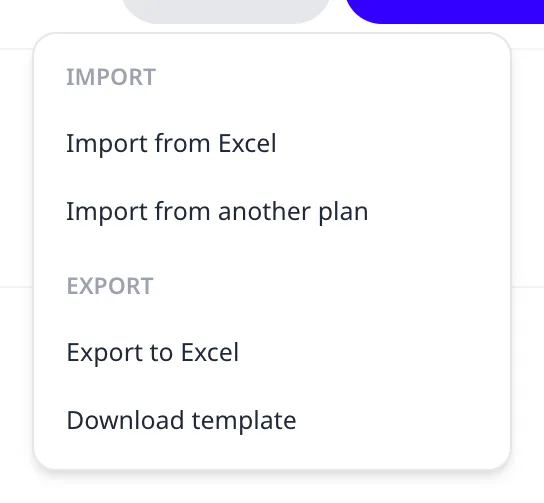
- Any editor page (Orders, Depots, Fleet): open the ⋯ menu and choose Import from Excel. This imports into the current plan, merging with what is already there.
- ⋯ > Import from another plan copies orders, depots, or vehicles directly from one of your saved plans, with no file involved. A typical use is reusing a fleet across daily plans.
The review dialog
Every import ends on a review dialog. Nothing imports until you accept it. The dialog reports each section, for example "24 orders, imported without errors" or "not provided, skipped", and the count of geolocated versus not geolocated addresses.
When rows have problems, an error table lists every one with its #, SHEET, CELL, and ERROR. Each error also states its consequence:
- Sheet will be skipped: the sheet is unusable (for example, a required column is missing). Nothing from it imports.
- Row will be skipped: the row is invalid and does not import. The rest of the sheet still does.
- "Row will be imported without address location": the row imports, but its address has no location yet. Its row shows the red Ungeocoded address label on the Orders or Depots page: see Fix unrecognized or mislocated addresses.
Copy errors to clipboard copies the table.
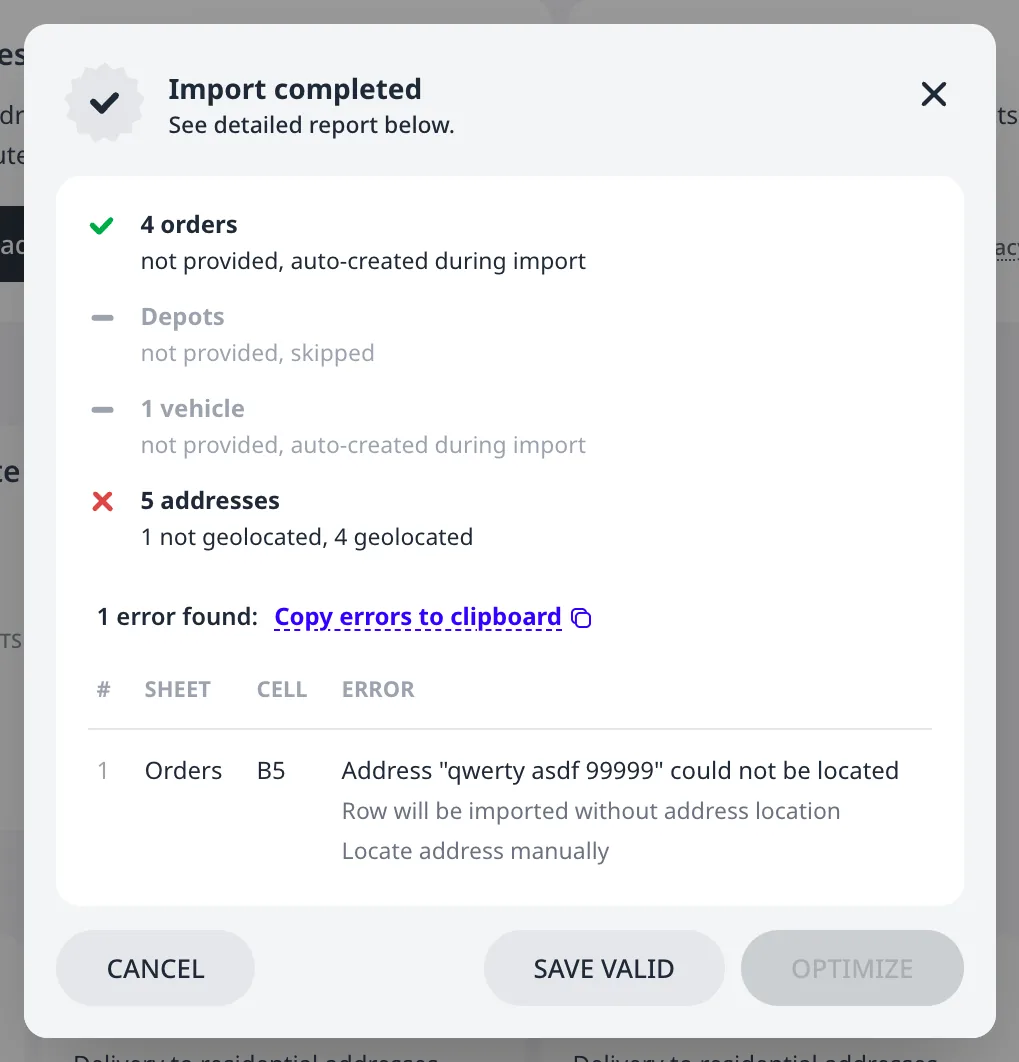
Then choose:
- Continue accepts the import. When errors exist alongside valid data, the button reads Save valid instead: it imports the valid rows and drops the rest.
- Optimize accepts the import and starts the optimization at once. It stays disabled while any errors exist.
- Cancel discards the whole import, leaving the plan untouched.
Export and round-trip
The same ⋯ menu also exports:
- Export to Excel downloads the current list (that sheet alone) as an .xlsx file.
- Download template downloads a correctly-headed sheet for that entity, with one example row and a Documentation sheet.
An exported file re-imports cleanly: to make bulk changes, export, edit in Excel, and re-import. The routing plan itself, with routes and ETAs, exports separately: see Export routes to Excel.
Next step
The spreadsheet column reference documents every recognized column with aliases and examples.
FAQ
Which file formats does Routing24 import?
Routing24 imports XLSX, XLS, and CSV. A workbook can contain up to four sheets named Orders, Depots, Vehicles, and Addresses, each optional. A CSV, or a workbook without those sheet names, falls back to a simple import that reads an Id and an address column from the first sheet and creates one order per row with a default vehicle.
Do my column headers have to match the template exactly?
No. Routing24 matches a column by its header text, in any position, and most columns accept aliases. Delivery and Quantity both import as the delivery load. Id and Code both import as the id. Unrecognized columns are ignored. Only Id and Address are required on an order row. Download template in the More menu downloads the expected headers.
What does the review dialog do?
It reports every section before the plan changes, for example 24 orders imported without errors. It also lists each problem row with its sheet, cell, and consequence. Continue accepts a clean import. The Save valid button imports the clean rows and drops the rest. Optimize accepts and starts an optimization, but stays disabled while errors remain. Cancel discards the import.
Can I re-import a file I exported from Routing24?
Yes. An exported list re-imports column for column. To make bulk changes, export the Orders list with More, then Export to Excel, edit it in Excel, and import it back with More, then Import from Excel. Importing into an open plan merges with what is already there. The routing plan workbook with routes and ETAs is a separate export.