The workspace: pages, map, and routes
By Nathan ColeUpdated
Routing24 stores your work in plans. A plan contains all data and settings for a single planning run: the orders to serve, the depots, the vehicles, and the resulting routes. This page walks the workspace: the pages the left menu opens, the plan name and ID, how tabs and saving behave, and how to copy data into a new plan.
The screenshots below use the ready-made Time windows plan (12 orders, 2 vans). Load it to work with the same data.
A plan contains all data
An opened plan is one document or project, with three pages where you set up plan data:
| Page | What it contains |
|---|---|
| Orders | The orders to serve, with time windows, load, service time |
| Depots | Where vehicles start and finish |
| Fleet | The vehicles and their capacity, shift, and costs |
Things to remember:
- A plan is self-contained. Everything the optimizer needs is inside it.
- Nothing is global. There is no company-wide vehicle list and no company-wide address book. The 5 vans you set up in yesterday's plan are not in the empty plan you start today. You copy them over from that plan. See Copying data into a new plan.
- The export contains everything the plan was built from, so you can re-import it later.
One browser tab, one plan
A browser tab shows one plan at a time. The editor pages and the optimization page all work on the plan in that tab.
To open another plan or start a new one, open another Routing24 browser tab. Each tab then keeps its own plan, and each saves on its own.
Two tabs on different plans are independent. Two tabs on the same plan both write to the same record: the tab that saves last wins, and the other tab reloads whatever was saved. Keep one plan in one tab.
Home > Start empty plan does not open a new tab: it replaces the plan in the current one, offering to save unsaved changes first. To keep the old plan on screen, open the new one in a second tab instead.
The plan ID is in the URL
A brand-new plan has no ID yet. The URL shows a placeholder:
/app/plan/new/orders
A few seconds after your first edit the plan auto-saves, and the plan's permanent ID replaces the placeholder:
/app/plan/8f2c41d6-9a07-4be1-b3f2-51c0d7e8a934/orders
Bookmark that URL or paste it into another tab. It always opens this plan.
The link is not public. Opening someone else's plan ID shows a Cannot Open Plan error. The URL opens your plan on any machine where you are signed in. See Accounts, saving, and sharing. To send a route to a driver, use Share a route, not the plan URL.
The header: plan name and save state

The top bar shows, left to right, the Routing24 logo, the current page name, the plan name, and its save state.
To rename a plan, click its name in the header and type. Press Enter or click outside to commit. The new name saves like any other edit.
- New plans are called New planning until you name them. A plan created by
an Excel import is named after the file, so
Monday routes.xlsxbecomes the plan Monday routes. - Leave the field empty and it falls back to the default name.
- You can also rename from My Plans: select the plan and click its name in the details panel on the right. That name is editable only for the plan currently loaded in this tab. Other plans show it read-only.
The badge next to the name shows SAVED, SAVING, or UNSAVED. Plans save automatically as you work. There is no save button.
The left menu
The narrow icon column on the left is the app menu. From top to bottom: Home, My Plans, Orders, Depots, Fleet, and Optimize, with Settings and Support pinned at the bottom. Hover any icon for its name. Each icon opens a page. Orders, Depots, and Fleet are the editor pages of the plan currently open in the tab. Optimize is its optimization page.
Work through them in order: Orders, then Depots, then Fleet, then Optimize. Start with Orders: they contain the real-world data (addresses, time windows, weights), and you set up the rest of the plan around them.
A card above each list states the next step. On a page whose own entities are missing, the card creates them: Add your orders on Orders, Add a depot on Depots, Set up your vehicles on Fleet. Once the page has its entities, the card points at the stage the plan still lacks, such as Add more orders or go to Depots, and then shows Ready to optimize, Plan optimized, or Plan modified. The x hides that card permanently. Settings > Show tutorials turns every card off and on. Add vehicles and depots describes the Depots and Fleet cards.
Orders
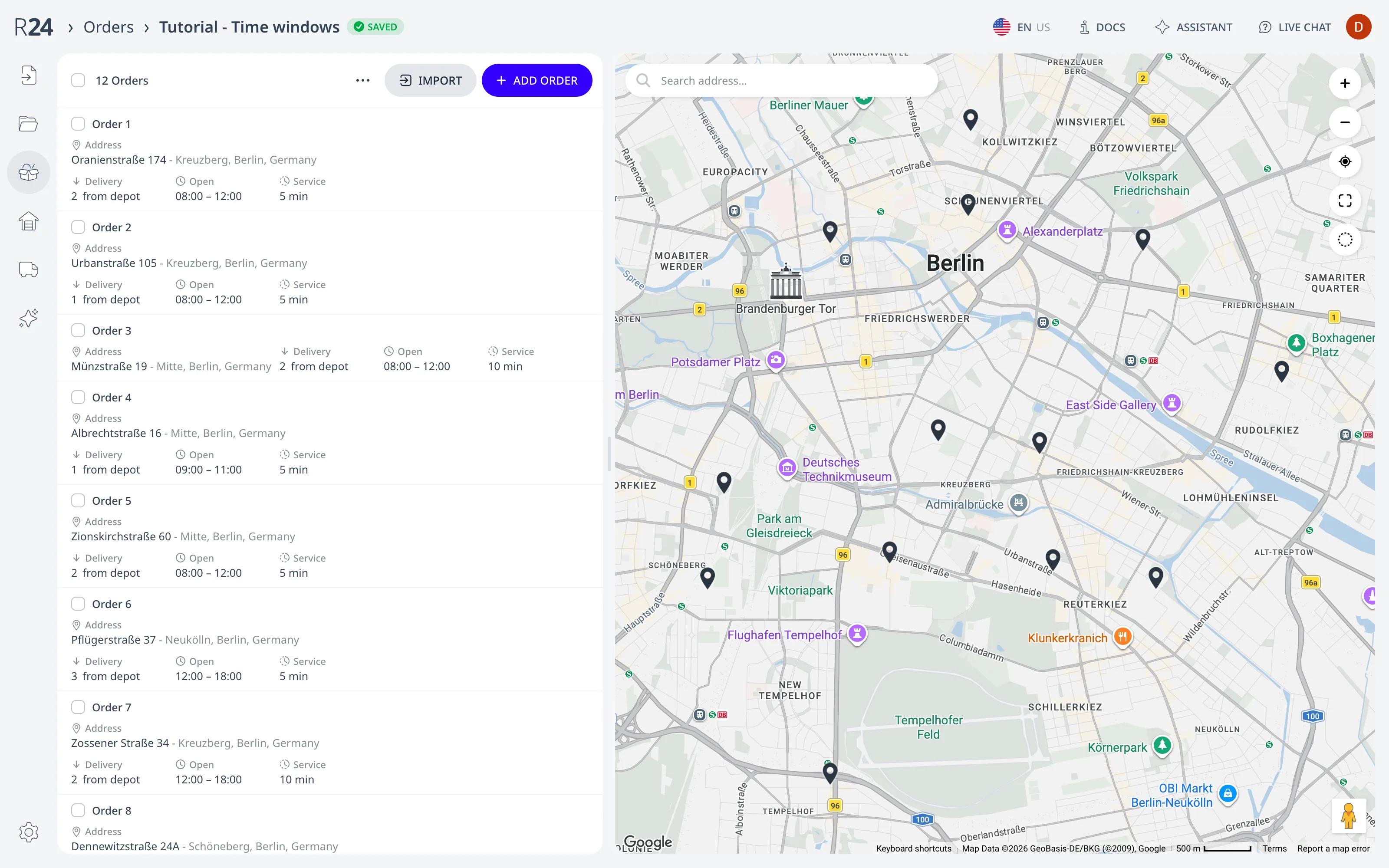
Each row is one order with its rules: time windows, service duration, load, priority. In the Time windows plan, Order 3 has a time window of 08:00 to 12:00, a 10 minute service time, and a load of 2. The full list of per-order rules is in Time windows, service time, priority, and load. Add rows one at a time with Add order, paste a list with Import, or import in bulk via the ⋯ menu next to them. Rows can be selected with their checkboxes and edited or deleted together, as described in Add orders manually. The list and the map stay in sync. Click a row and Routing24 highlights its pin. Click a pin and Routing24 highlights its row and scrolls the list to it.
Depots
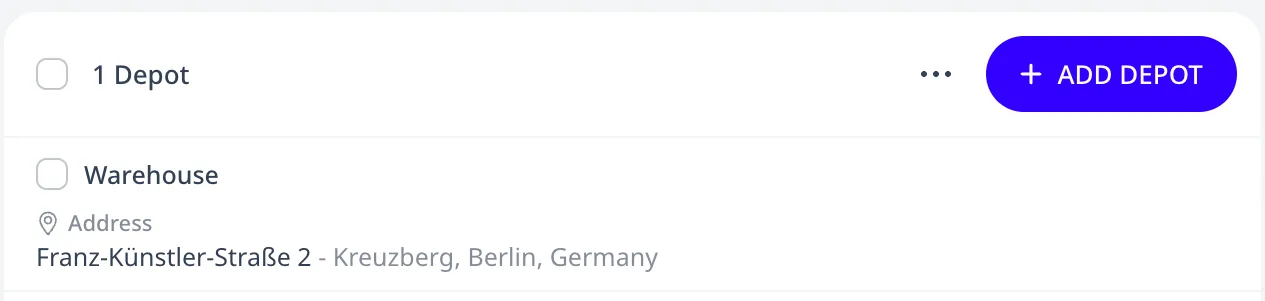
Depots are where vehicles start and end their day. A plan can have several depots, and each vehicle picks its own start and finish. The Time windows plan has one depot, the Warehouse, used by both vans.
Fleet
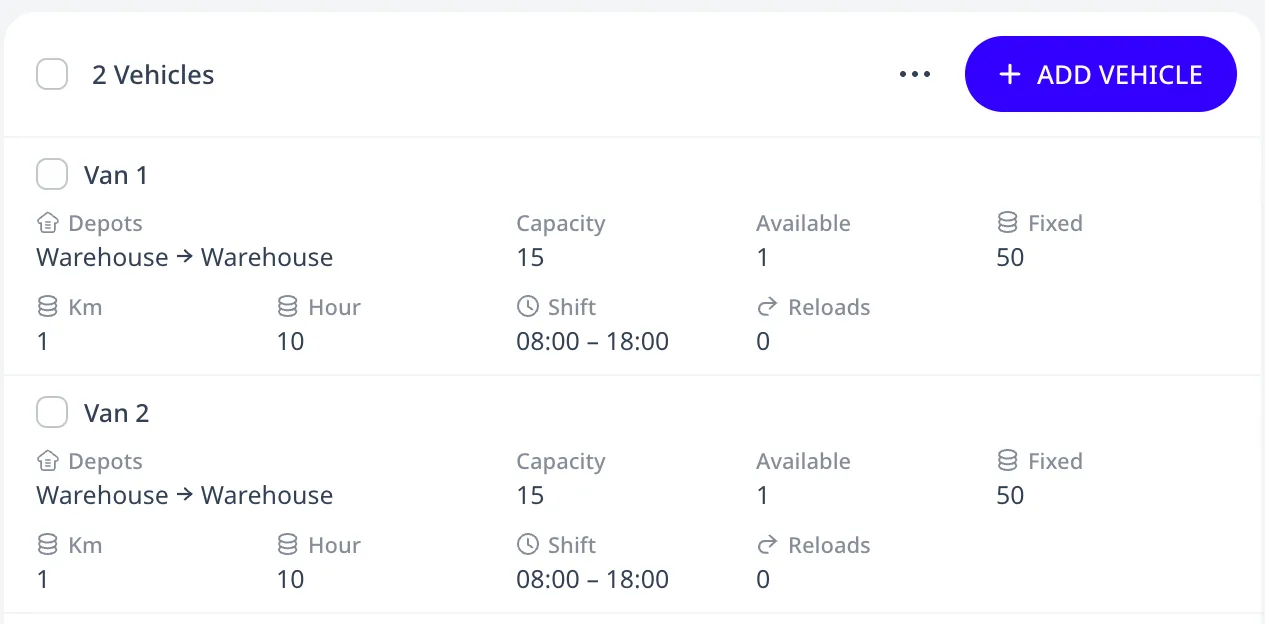
The Fleet page lists your vehicles with their capacity, the Available count, costs, and working-hour limits. The optimizer only uses vehicles listed here. The Time windows plan has two vans, Van 1 and Van 2, each with a capacity of 15 and an 08:00 to 18:00 shift. Add vehicles and depots describes every field of the vehicle editor.
Optimize
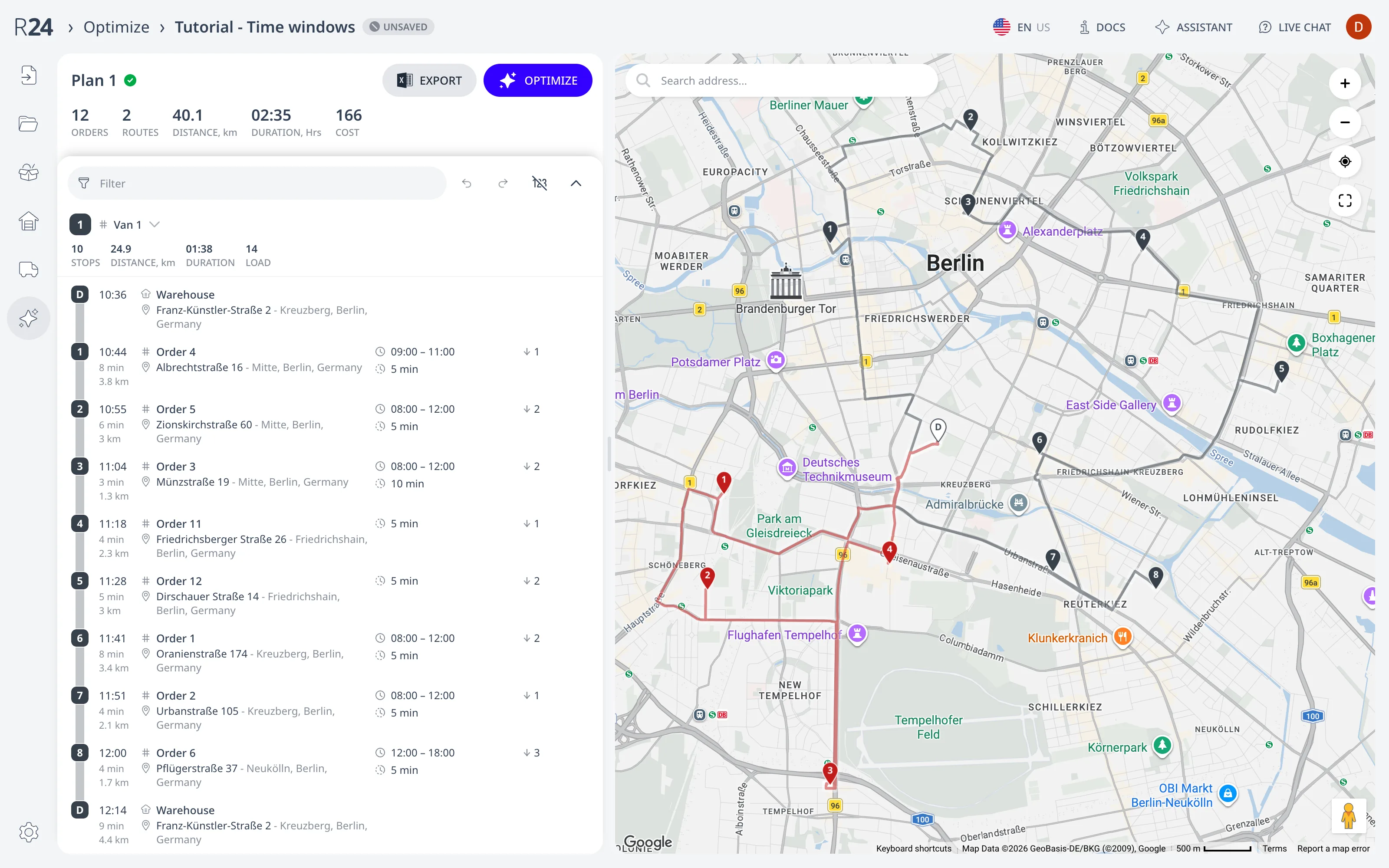
Press Optimize here to build the routes. The metrics strip totals the whole plan (orders, routes, distance, duration, cost). Below it, one card per route lists its stops in visiting order with an ETA for each. Orders that cannot be served appear in a red Unassigned section with the reason. This page is also where you edit routes manually and press Export to download the result.
Home
Home is where new plans start. Start empty plan replaces the current tab's plan with a blank one. The other cards start a plan from a pasted address list, an Excel file, or a Google Calendar™. The paste wizard is documented in Paste a list of addresses. Below that, Recent Plans shows your last plans as cards (⌘/Ctrl-click for a new tab) and Explore local examples loads ready-made datasets.
My Plans: every plan you have saved
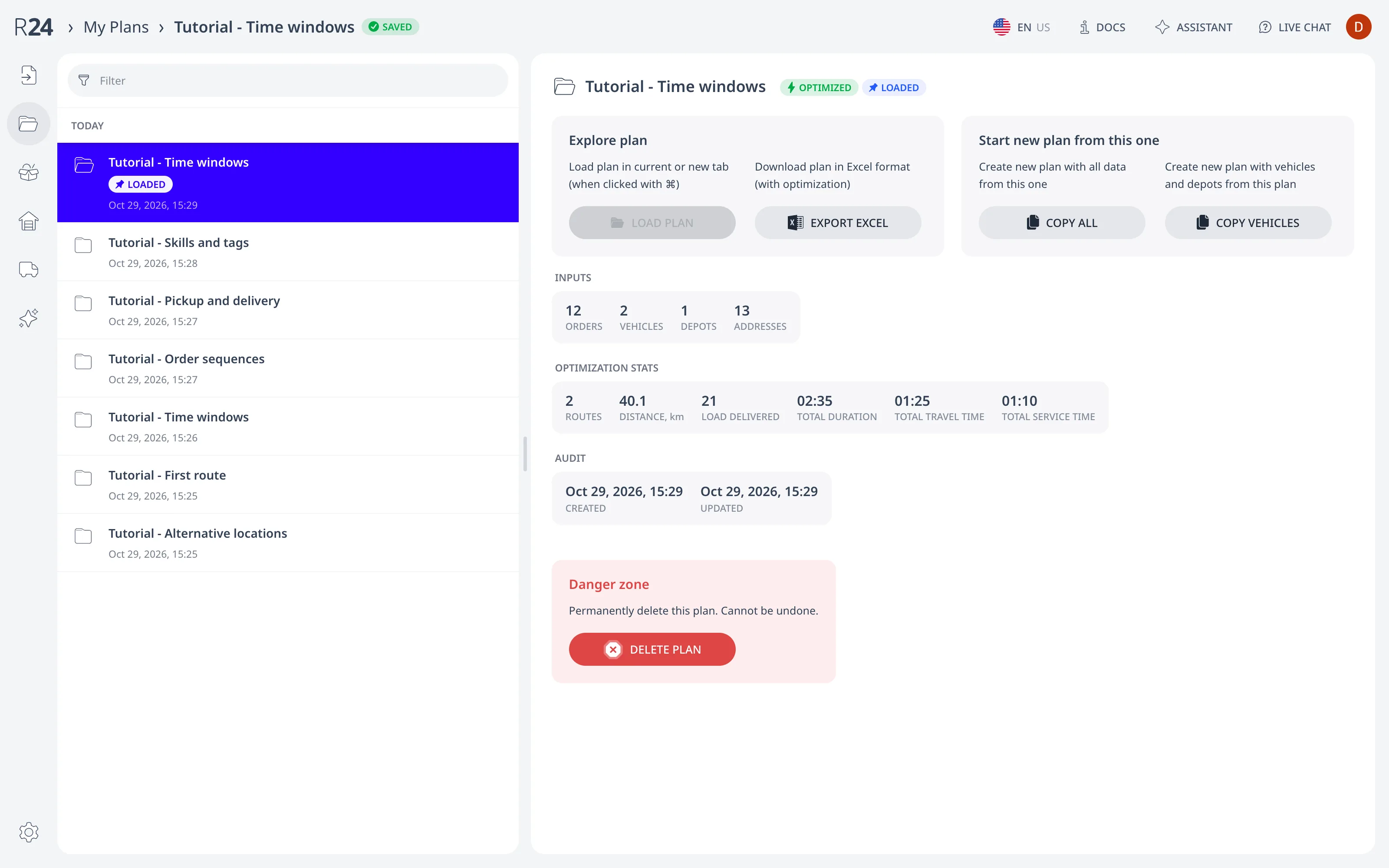
My Plans is the plan manager: a filterable list of your saved plans on the left, grouped by date, and a details panel for the selected one on the right. Clicking a row in the list only selects the plan. Loading it into the tab is a separate click. The list and the panel both mark the open plan LOADED. Each plan shows an OPTIMIZED or UNOPTIMIZED badge.
The details panel groups the per-plan actions under the Explore plan and Start new plan from this one cards and a Danger zone:
- Load plan opens the selected plan in this tab, or in a new tab with ⌘/Ctrl. It is greyed out for the plan already open.
- Export Excel downloads the plan as an Excel workbook without loading it. The workbook includes the optimized routes if the plan has any.
- Copy all creates a new plan named Copy of … with everything from this one: orders, depots, vehicles, addresses. It does not copy the optimization result.
- Copy vehicles creates a new plan with the depots, vehicles, and addresses but no orders.
- Delete plan, under Danger zone, is permanent.
Both copy buttons work on the plan currently loaded in this tab, so load a plan before copying from it. The new copy appears selected at the top of the list. Click Load plan to start working in it.
The panel also shows what is inside the plan (orders, vehicles, depots, addresses) and when it was created and last updated. If the plan has been optimized, the panel adds the optimization stats: routes, distance, duration, unassigned orders, problems. The same plans also appear under Recent Plans on Home.
Copying data into a new plan
Because a plan is self-contained, a new plan starts with no vehicles and no depots. There are two ways to copy them from another plan:
- From My Plans: select yesterday's plan, load it, then My Plans > Copy vehicles. The new plan has the fleet, the depots, and their addresses in place.
- From inside the plan you are building: on Orders, Depots, or Fleet, use ⋯ > Import from another plan. Pick the source plan and tick which parts to pull in (orders, depots, vehicles). Use this when the new plan already has data you want to keep, since it merges instead of replacing.
Keep one plan as your template, with the depots and vehicles set up and no orders. Each morning, load it, Copy vehicles, then import the day's orders into the copy. The template stays untouched.
The map
The right half of the screen is the same map on every page:
- Before optimizing, it shows your orders as pins.
- After optimizing, it draws each route in its own color, numbered by visiting order.
- Click a pin to highlight that order in the list and open its card. Drag a pin onto a route to move it. Right-click on the map to look up the address at that coordinate.
- Search the map with the address box in the corner.
A typical session follows the menu order: enter the orders, check depots and fleet, optimize, fine-tune. Edits on any page update the same plan. Change an order and the next optimization uses it. What is Routing24? walks one such session from import to dispatch.
Next step
Plan your first route in 5 minutes walks the whole flow with an example.
FAQ
What does a Routing24 plan contain?
A plan contains all data and settings for a single planning run: the orders to serve, the depots, the vehicles, and the resulting routes. A plan is self-contained and nothing is global: there is no company-wide vehicle list, so a new plan starts with no vehicles until you copy them over.
Can I open two plans at once?
Yes, in two browser tabs: a tab shows one plan at a time, and each tab keeps its own plan and saves on its own. Keep one plan in one tab, though. Two tabs on the same plan write to the same record, and the tab that saves last wins.
How do I reuse yesterday's fleet in a new plan?
Load yesterday's plan, then press Copy vehicles on My Plans: the new plan starts with the depots, their addresses, and the vehicles, but no orders. Alternatively, use More, then Import from another plan on any editor page to merge picked parts into a plan that already has data you want to keep.
Where do I find a plan again later?
Every saved plan appears on the My Plans page, a filterable list grouped by date with a details panel for the selected one. The plan's permanent ID is also in the URL after the first auto-save; bookmark it and it always opens this plan on any machine where you are signed in.
Is the plan URL a way to share with a driver?
No. The link is not public: opening someone else's plan ID shows a Cannot Open Plan error, and the URL only opens your plan where you are signed in. To send a driver a route, use Share route, which opens the driver's mobile view through its own allow-listed link.