Edit routes manually: drag, split, merge
By Nathan ColeUpdated
The optimizer knows only what the plan contains. For what it cannot know (a customer who must come first, a driver who knows a shortcut, a stop that belongs to tomorrow), the Optimize page supports direct edits to the routing plan. The optimizer that built the plan recalculates every edit, so ETAs, loads, and distances stay correct. This page covers dragging, parking, map edits, the route menu, unused vehicles, validation, and undo.
Dragging stops
Grab a stop row by its grip handle and drag. A blue insertion line shows where the stop will land. Nothing moves until you release.
Reorder inside a route, move to another route, unassign, and cancel.Valid targets:
- Another position or route. Drop between two stops and the route recalculates around it.
- The Unassigned panel. Dropping here takes the order off the routes. The panel lists it with the reason "Removed from planned route manually." Drag it back at any time. The panel appears only when something is unassigned: on a plan with nothing unassigned it stays hidden until the first order is placed in it.
- An empty route's "Empty route, drag and drop orders here" zone. Dropping here starts that route with this stop.
- An unused-vehicle row. The row shows "Drop to start a new route", and the drop creates a fresh route for that vehicle.
Reading the highlights
Each drop target highlights differently:
| What you see | What it means |
|---|---|
| A blue line between two stops | The stop is placed in that gap |
| The whole row filled blue | An empty route, the Unassigned panel, or an unused-vehicle row: the stop goes to the end of it |
| A dashed gray outline where the stop was | Its old place, held open during the drag |
| That same outline turned blue | The cursor is back over the stop's own gap, so releasing changes nothing |
| A card following the cursor, badged "3 orders" | The drag moves a whole selection, not one stop |
Canceling a drag
Press Escape while dragging and the stop returns to its original position. Nothing changes. Releasing over empty space is not a cancel: it parks the order, which is a real edit. See Parking: a staging area for stops.
Parking: a staging area for stops
Drop a stop on empty space, anywhere that is not a list, and it becomes a small floating card labeled P1, P2, and so on. Parked orders are out of every route but still in the plan.
Select two stops, park them out of the way, then drop them into another route.To move several stops together, Cmd/Ctrl-click rows to multi-select, then drag the block in one gesture. The block keeps its internal order. A parked card can contain all of it.
Each card has a Put back action that returns the order to where it came from.
Dragging pins on the map
The map supports the same edits. Press and hold a stop's pin, then drag: a tooltip follows the cursor and shows the route and position the stop joins on release.
Drag a pin onto another route, then undo it.Hold the press for a moment before moving, or the map pans instead. Escape cancels here too. Releasing away from any route animates the pin back. Nothing changes.
The route menu
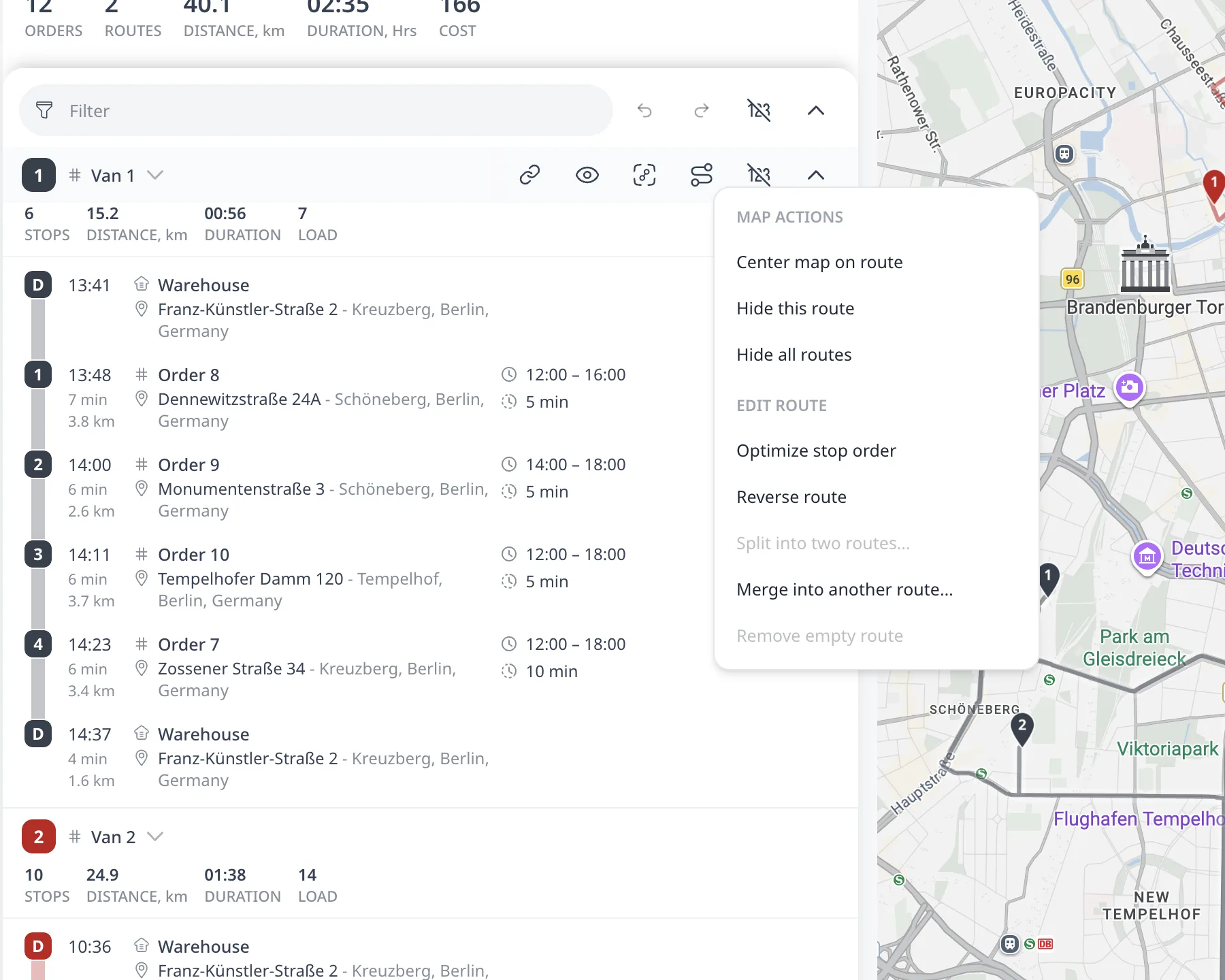
Each route card has a Route actions button in its hover toolbar (the winding route icon). The actions in the menu operate at route level:
- Optimize stop order re-optimizes this route's sequence and leaves every other route untouched. Use it after a series of manual moves.
- Reverse route reverses the order of the stops on this route. On a route with the stops 1, 2, 3, the driver then visits 3, 2, 1. The route still starts at its start depot and ends at its end depot. On a route with reloads, the optimizer reverses the stops of each trip and keeps every reload at its position. Every stop of the route then shows the red asterisk ("Manually edited"). Undo restores the previous order in one step.
- Split into two routes… divides the route and assigns the second part to another vehicle.
- Merge into another route… folds this route's stops into another one.
- Remove empty route deletes a route with no stops left.
- Map helpers: Center map on route, Show/Hide this route, Show/Hide all routes. These change what the map draws, not the plan. See View a single route vs. all routes.
To move a whole route to a different vehicle, click the vehicle id on the route card and pick another one.
Unused vehicles and new routes
Below the routes, an Unused vehicles section lists vehicles the routing plan did not use. Click Add route on a row, or drop a stop on it, to open a new route for that vehicle.
Validation and undo
The optimizer applies each edit atomically:
- If the optimizer cannot apply the move at all, the message "Could not apply the change" appears and nothing happens.
- If the move succeeds but breaks a rule (a missed window, an overload), the optimizer applies it and flags the violation instead of refusing it.
A violation shows in three places: a red line under the stop stating the rule and the size of the miss, a red PROBLEMS count on the route card, and a # PROBLEMS figure in the plan totals at the top. If none of those appear, the edit broke no rules. Problems and warnings, explained covers each message and how to clear it.
Undo and Redo above the routes step through the whole edit history. They are buttons, not keyboard shortcuts: Cmd-Z has no effect. Stops placed manually show a red asterisk ("Manually edited"). The optimization header shows an EDITED badge with the date.
There is no lock or pin on a stop. Pressing Optimize again runs a fresh optimization that replaces the whole routing plan, manual edits included. Export first to keep a version. To improve one route without losing the rest, use Optimize stop order on that route instead.
Next step
Once the routes are final, read Export routes to Excel or Share a route with a driver.
FAQ
Can I move a stop to a different route manually?
Yes. Grab a stop row by its grip handle and drag it to another position or route, to the Unassigned panel, to an empty route, or to an unused-vehicle row to start a new route. A blue insertion line shows where the stop will land, and nothing moves until you release.
What happens when a manual edit breaks a rule?
The optimizer applies the move and flags the violation instead of refusing it. The violation shows in three places: a red line under the stop stating the rule and the size of the miss, a red PROBLEMS count on the route card, and a problems figure in the plan totals.
Can I undo a manual route edit?
Yes. Undo and Redo above the routes step through the whole edit history. They are buttons, not keyboard shortcuts, so Cmd-Z has no effect. Stops placed manually show a red asterisk meaning manually edited, and the optimization header shows an EDITED badge with the date of the last manual edit.
What is parking a stop?
Dropping a stop on empty space, anywhere that is not a list, turns it into a small floating card labeled P1, P2, and so on. Parked orders are out of every route but still in the plan, and each card has a Put back action that returns the order where it came from.
How do I re-optimize one route without losing the rest?
Open the route actions menu on the route card and press Optimize stop order. It re-optimizes that route's sequence and leaves every other route untouched, so it is the tool to use after a series of manual moves. A full Optimize run would replace the whole routing plan instead.