Import your orders
By Nathan ColeUpdated
Orders enter Routing24 four ways: add one by address, paste a list, upload a spreadsheet, or import Google Calendar™ events. All four are available from the Home page or the Orders page. You can mix them in one plan.
Add a single order by address
On the Orders page, press Add order, type an address, and pick the right match from the suggestions. Routing24 geocodes it to an exact point on the map and saves it as an order.
Use this for a one-off order or to replace a missing one. When an address does not resolve, place the pin manually: choose Customize in the order editor and drag the pin to the exact door.
Paste a list of addresses
On the Orders page, press Import, the button next to Add order above the list of orders. The Import from address list widget opens above the list. Paste the addresses into it, one address per line, and press Continue. Routing24 geocodes each line and creates one order per line. On the Home page, Paste address list starts a new plan and opens the same widget.
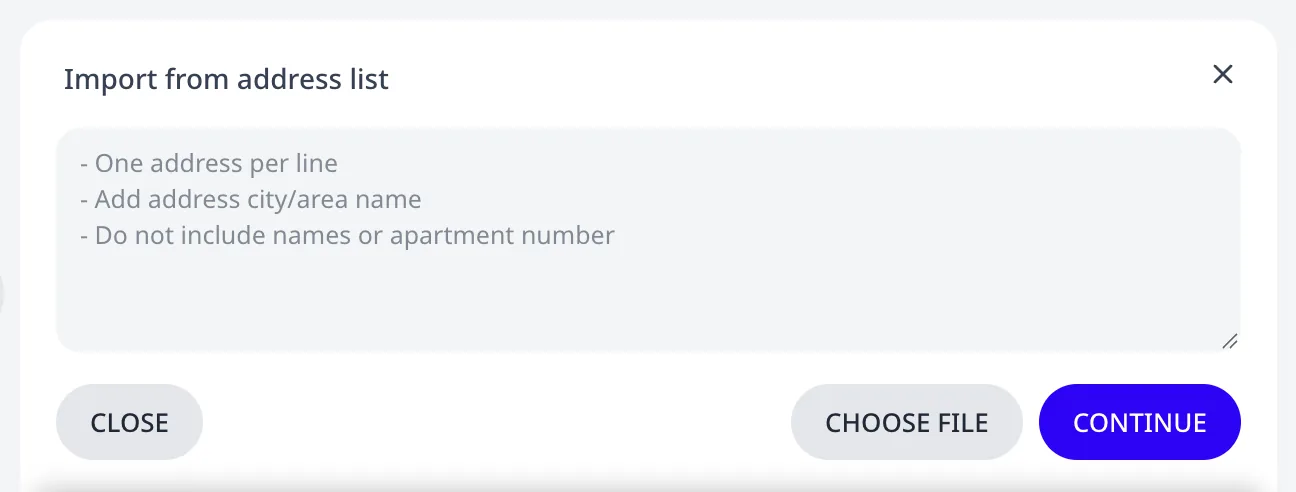
When Routing24 cannot locate some lines, the widget lists them before
anything is imported, so that they can be corrected and retried, submitted
to the assistant, or imported without a location. A .txt, .csv, or
.xlsx file can also be dropped onto the widget or selected with
Choose file.
Paste a list of addresses
describes every step of the widget.
Include enough detail per line (street, city, postal code where you have it) so each address resolves to the right place. If you have a full address from Google Maps™, use it instead. Remove personal data (names, floor and apartment numbers). It can lead to incorrect geocoding.
Upload a spreadsheet
For larger or recurring routes, press Import Excel file on the Home page, or ⋯ > Import from Excel on any editor page. Routing24 reads XLSX, XLS, or CSV: one row per order, with columns for the address and any per-order details you track. Orders, depots, and vehicles can all come from one file.
Every import ends on a review dialog that reports what Routing24 found:
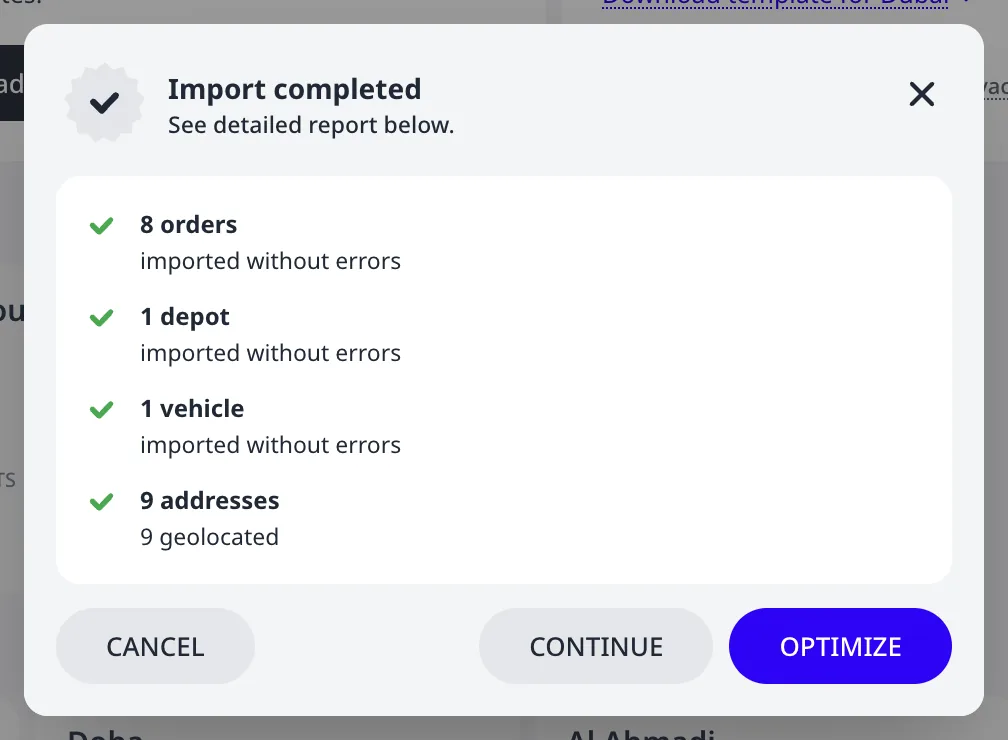
When some rows have problems, the dialog lists each one with its sheet, cell, and consequence. You can still import the valid rows.
Press Download template on the Home page (or ⋯ > Download template on any editor page) to get a spreadsheet with the right headers and example rows for your area. Fill it with your data and re-import it.
Only the address column is required. The full set of recognized columns, including time windows, loads, priorities, and tags, is in the spreadsheet column reference.
Import from Google Calendar™
Press Import calendar on the Home page to turn calendar events into orders. You authorize your Google account, then pick the calendars and the date range. Routing24 creates one order per event, using the event location as the address and, optionally, the event time as the delivery time window.
After importing
Check the map: every order should appear roughly where you expect. An order whose address did not resolve shows a red NOT GEOLOCATED badge under its id on the Orders page. See Fix unrecognized or mislocated addresses.
Next step
Add a depot and a vehicle, then optimize. The card above the list of orders states which of them is still missing. Add vehicles and depots covers both. Plan your first route in 5 minutes walks the whole flow, with a ready-made example plan to practice on.
FAQ
How do orders get into Routing24?
Orders enter four ways: add one order by address on the Orders page, paste a list of addresses into the Import from address list widget, upload an XLSX, XLS, or CSV spreadsheet, or import Google Calendar™ events as orders. All four are available from the Home page or the Orders page, and you can mix them in one plan.
Which spreadsheet columns are required?
Only the address column is required. Routing24 reads one row per order, with optional columns for time windows, loads, priorities, and tags, and orders, depots, and vehicles can all come from one file. Press Download template to get a spreadsheet with the right headers and example rows for your area.
What happens when some imported rows have problems?
Every import ends on a review dialog that reports what Routing24 found. When some rows have problems, the dialog lists each one with its sheet, cell, and consequence, and you can still import the valid rows. Unresolved addresses show a red NOT GEOLOCATED badge on their rows on the Orders and Depots pages afterward.
Can I turn calendar events into orders?
Yes. Press Import calendar on the Home page, authorize your Google account, then pick the calendars and the date range. Routing24 creates one order per event, using the event location as the address and, optionally, the event time as the delivery time window.