Share a route with a driver
By Nathan ColeUpdated
Share route sends a driver one route as a link that opens in the phone's web browser. Only the emails on the route's allow-list can open it. The link becomes active once the plan shows SAVED.
This page covers the Share route dialog, the allow-list, and when the link becomes active.
Where to find it
Sharing is per route. On the Optimize page, hover a route header and use the Share route action in its toolbar. Each route gets its own link and its own allow-list, so the van driver never sees the bike courier's stops.
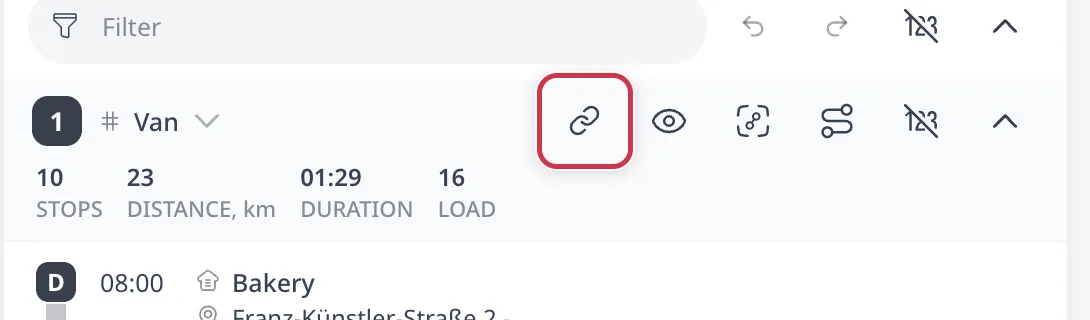
The Share route dialog
Clicking Share route opens a dialog with three parts:
- Route name. The title the driver sees for the route. It defaults to "Route N" plus your plan name. Rename it, for example to "Tuesday north loop".
- Mobile link. The URL the driver opens, with a Copy button.
- Allowed users. The email addresses that may open the link. Type an email and press Enter, or paste a whole list. The field splits it on commas, semicolons, and line breaks. The dialog marks invalid or duplicate entries red and does not save them.
Click Save to share.
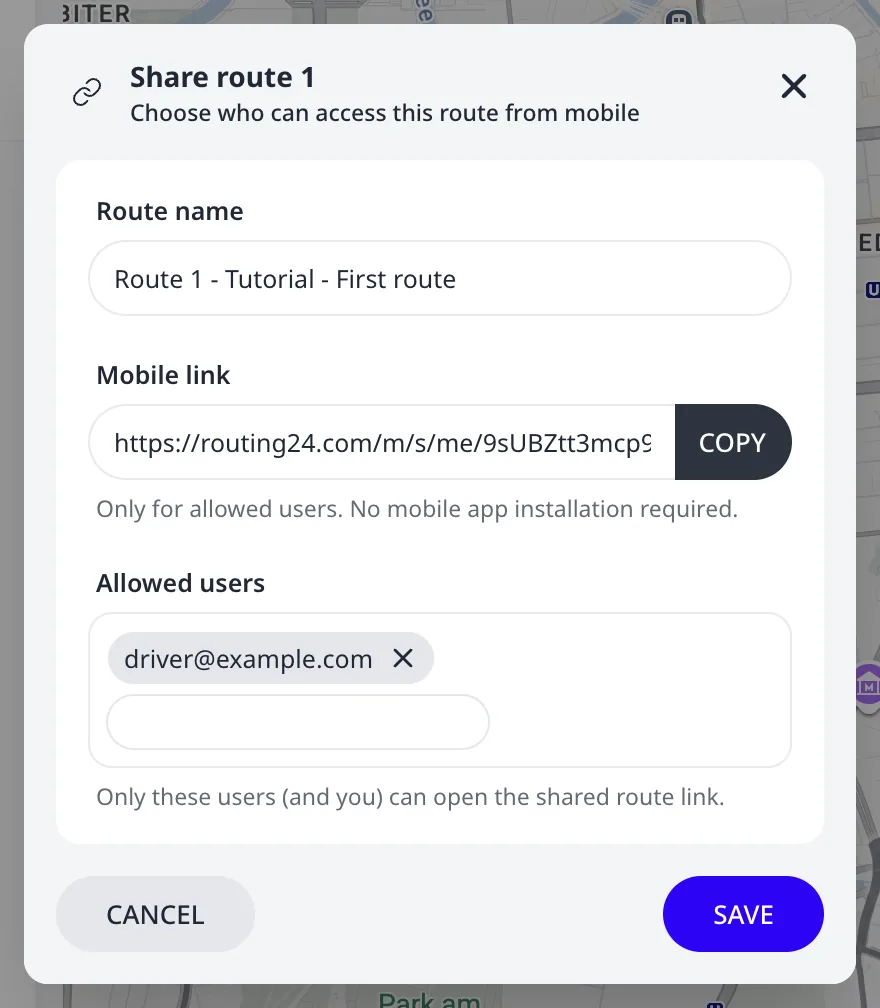
Who can open the link
The link is not public. The dialog reads: "Only these users (and you) can open the shared route link." A driver opening it must sign in with exactly one of the emails you listed. Anyone else sees "You don't have access to this route", even with the correct URL.
Drivers sign in with Google or with email and password. Either way, the account's email address must be one you put in Allowed users. If a driver uses a personal Gmail™, allow-list that Gmail™, not their work address.
When the link starts working
The link becomes active once the plan saves, which happens automatically. The badge next to the plan name reads SAVED. From that moment the driver can open the route. A driver who opened the link before then sees the route after a reload.
A full re-optimization replaces the routing plan, so a link shared from the old routing plan can stop working. When that happens, the driver sees "Route not found". Share the route again from the new routing plan and send the fresh link.
Stop sharing a route
Open the Share route dialog again, remove every email from Allowed users, and click Save. With an empty allow-list, the route is no longer shared and only you can open the link.
Removing a single email revokes that driver's access only. The rest of the list keeps working.
Plans
See Plans and billing for what each plan includes.
Sharing in the Excel export
The Excel routing plan export records sharing. The Routes stats sheet has a Shared with column listing the emails each route is shared with. The column is empty for unshared routes. See Export routes to Excel.
Next step
The driver's route view shows what the driver sees. Driver settings and the mobile view covers the Navigation app setting and the driver's account screen.
FAQ
Can anyone with the link open the shared route?
No. The link opens only for the email addresses in the route's Allowed users list, plus you. A driver must sign in with exactly one of those emails, with Google or with email and password. Anyone else sees You don't have access to this route, even with the correct URL. Allow-list the email the driver signs in with.
When does the shared link start working?
The link works as soon as the plan saves. The badge next to the plan name reads SAVED. From that moment the driver can open the route. A driver who opened it earlier sees the route after a reload. A full re-optimization replaces the routing plan, so an old link can show Route not found. Share the route again.
How do I stop sharing a route?
Open the Share route dialog again, remove every email from Allowed users, and press Save. With an empty allow-list the route is no longer shared. Only you can open the link. Removing a single email revokes that driver's access only. The Excel export's Routes stats sheet lists the emails each route is shared with.