Add vehicles and depots
By Nathan ColeUpdated
Every plan needs at least one depot and one vehicle to optimize. Add depots on the Depots page, with an address, Open hours, and a per-visit Service duration. Add vehicles on the Fleet page, with a Capacity, an Available count for identical vehicles, and optional costs and limits. The optimizer uses only the vehicles listed on the Fleet page. This page covers the cards that create the first depot and the first vehicles, the depot editor, the vehicle editor, and the minimum a plan needs to optimize.
Add a depot
A depot is any address a route may start or end at, such as a warehouse, a store, a kitchen, or your office.
The Add a depot card
While the plan has no depot, the Depots page shows the Add a depot card above its list. It reads "Set the location where your vehicles start and end their routes. If not defined, vehicles will start and end at random locations." The card has no controls of its own: press Add depot above the list to open the depot editor.

The depot editor
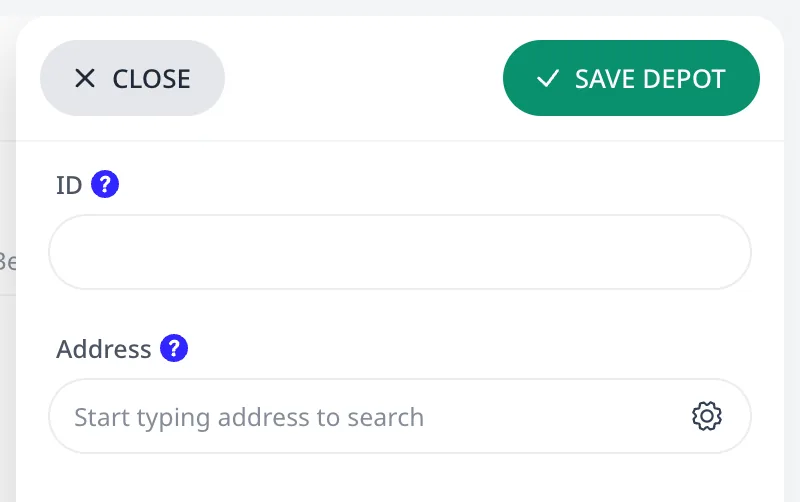
Open Depots and press Add depot above the list of depots. Fill in:
- ID and Address, the same fields as on an order.
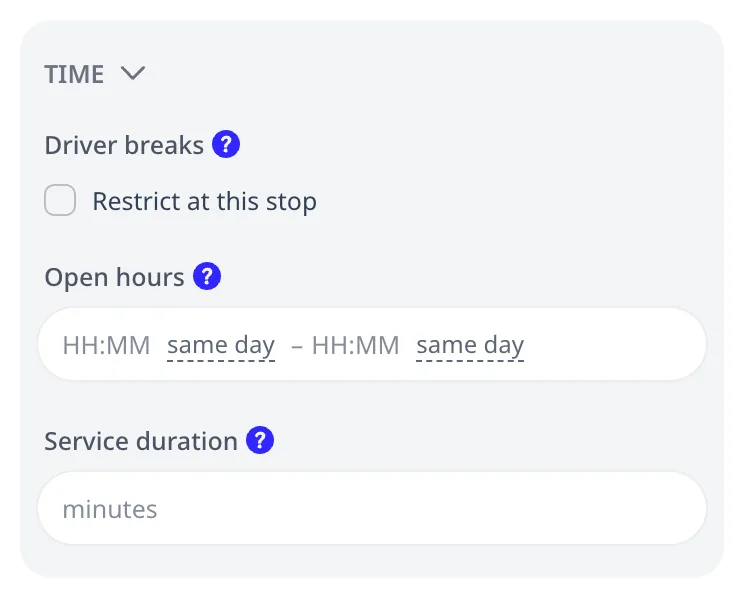
- Service duration: the loading time each visit takes. The optimizer adds it at every depot visit, including mid-route reloads.
- Open hours: the window in which vehicles may depart, return, and reload. A depot that opens at 08:00 loads no vehicle before 08:00, however early the vehicle's shift starts.
- Driver breaks, Restrict at this stop: check it when no driver break may be scheduled at this depot. See Driver breaks and driving-time limits.
A plan can contain any number of depots. Each vehicle starts, reloads, and finishes at the depots you choose for it in the vehicle editor. See Multiple depots, open routes, and reloads.
Selected depots can be edited or deleted together, as described in Work with many orders at once. Depots are selected with their checkboxes or with Select on map.
Add a vehicle
The Set up your vehicles card
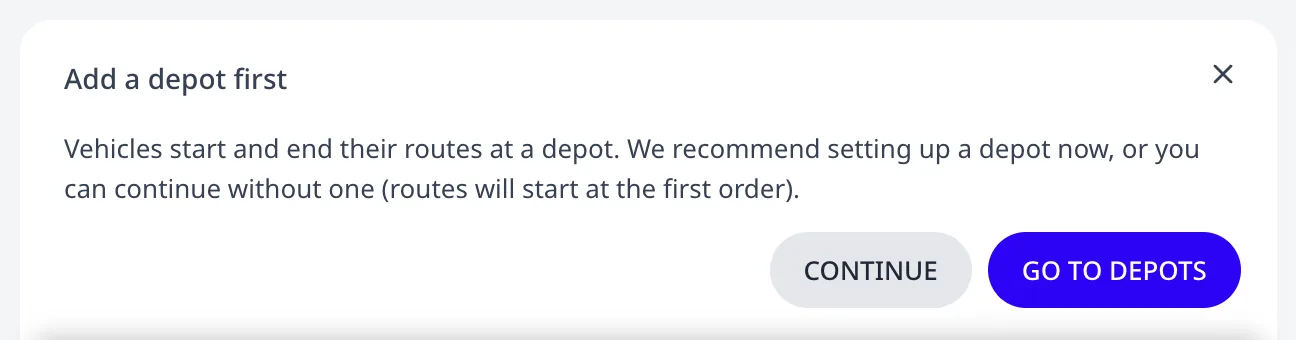
While the plan has no vehicles, the Fleet page shows a card above its list. When the plan also has no depot, the card reads Add a depot first. Go to Depots opens the Depots page. Continue sets the vehicles up without a depot. Their routes then start at the first order.
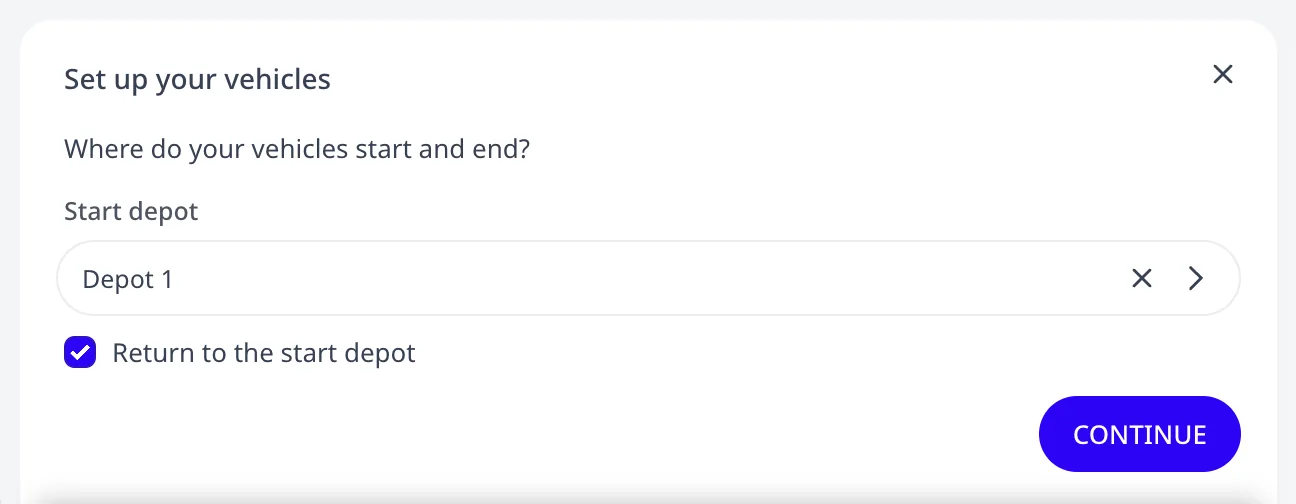
With a depot in the plan, the card reads Set up your vehicles and asks up to three questions, one step each:
-
Start depot, and whether the vehicles return to it. Untick Return to the start depot to pick a separate End depot. The plan in the screenshots has one depot, Depot 1.
-
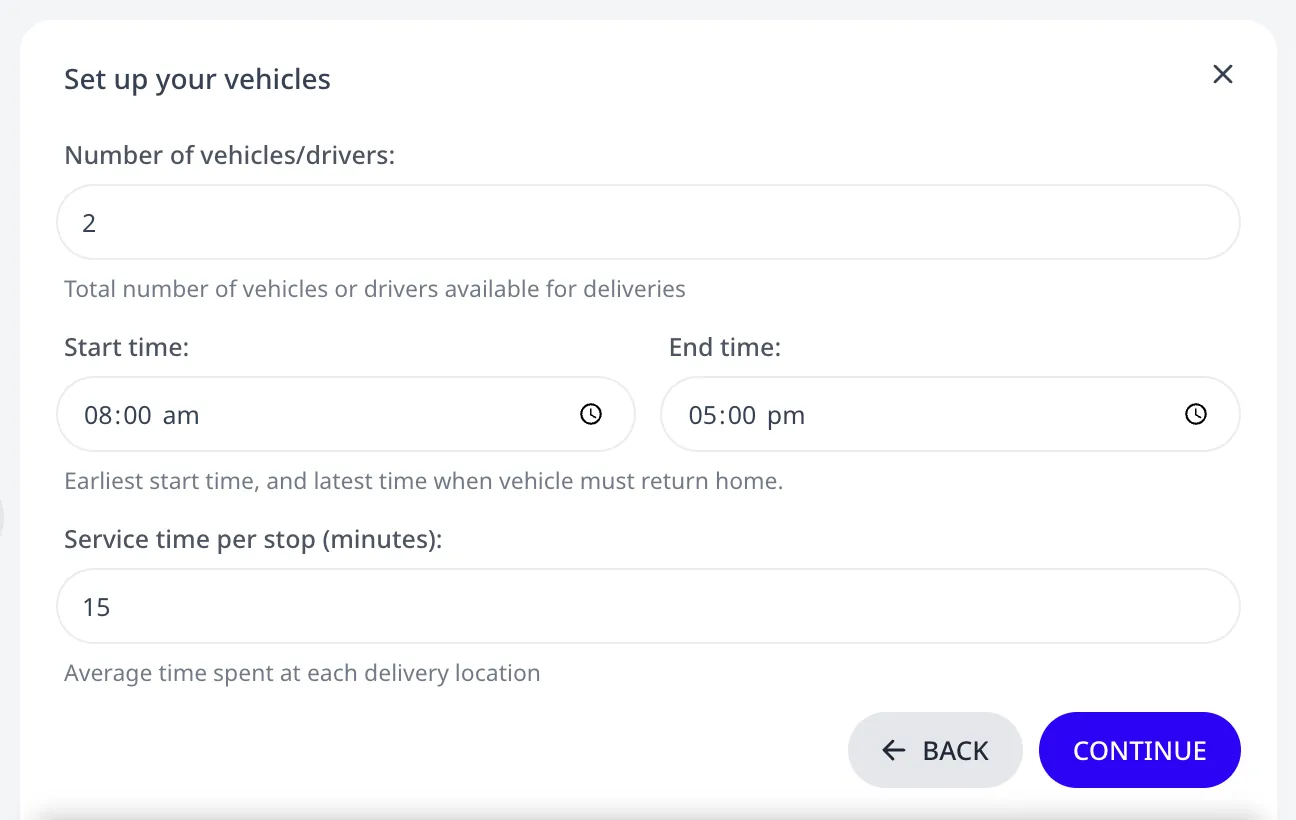
Number of vehicles/drivers:, Start time: and End time:. The times become the vehicle's Shift hours: the earliest start, and the latest time at which the vehicle must be back. An end time before the start time ends on the next day. When the plan has orders, the step also asks for the Service time per stop (minutes):. That value becomes the Service duration of every order that has none yet. The screenshot shows 2 vehicles, 08:00 to 17:00, and 15 minutes per stop.
-
How the work is distributed across the vehicles. The step appears only for more than one vehicle. A single vehicle takes every stop:
- Limits stops per vehicle: every vehicle receives the same number of stops. Orders without a load get a load of 1, and the vehicle's Capacity is set to the orders' share: 20 orders on 2 vehicles give a capacity of 10. Orders that have loads keep them, and the share is of their total.
- Only limit working hours: only the shift hours limit a vehicle. The optimizer may give one vehicle most of the stops.
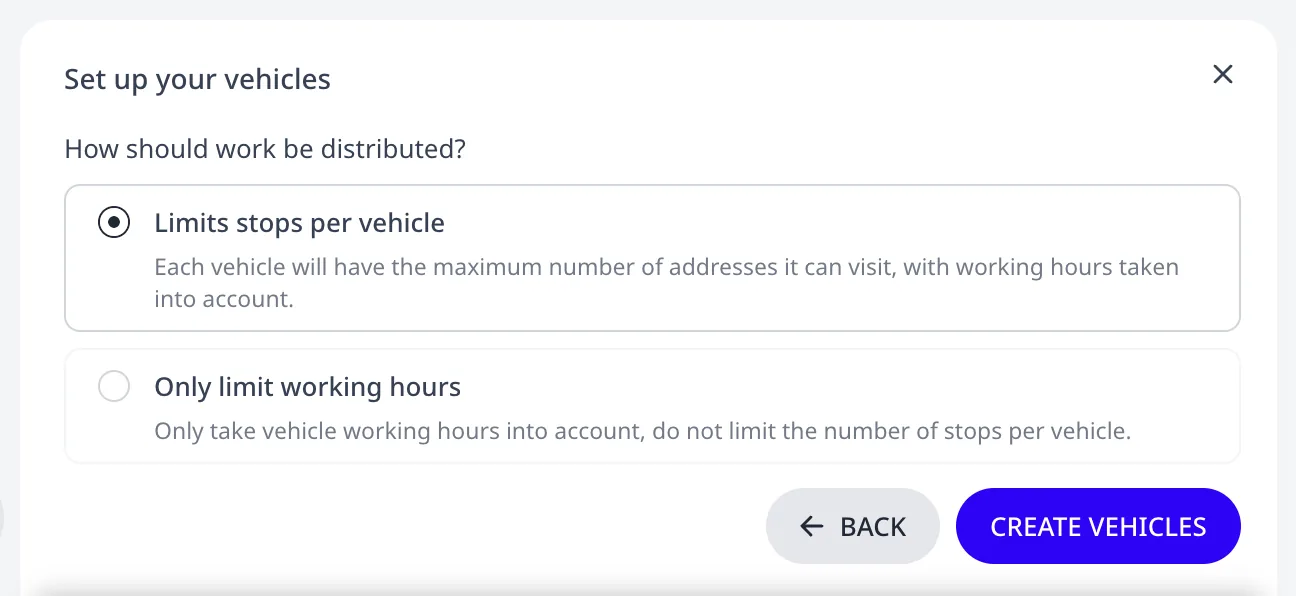
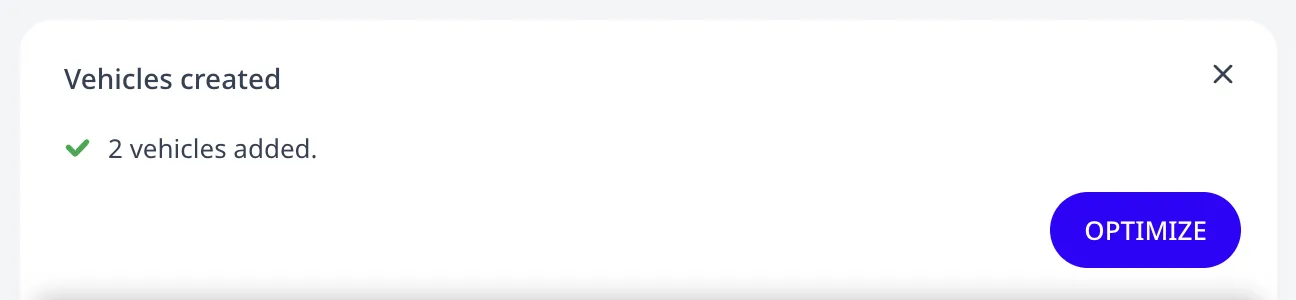
Press Create vehicles. The card creates one vehicle row with the id "Vehicle 1" and the Available count you entered, and reads Vehicles created. Optimize opens the Optimize page.
The vehicle editor
Open Fleet and press Add vehicle above the list of vehicles.
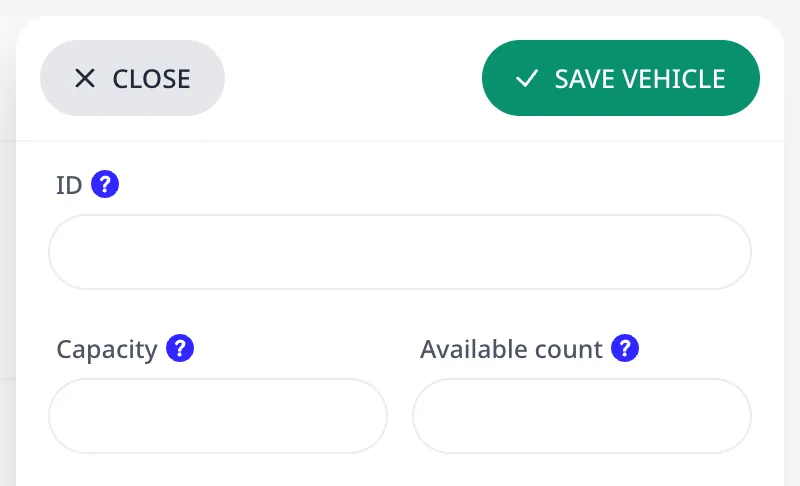
The top of the editor contains three fields:
- ID: the name that appears on route cards and in exports.
- Capacity: the load the vehicle can carry, in the same unit your orders use. See Capacity, deliveries, and pickups.
- Available count: how many identical vehicles this row describes. Five interchangeable vans are one row with a count of 5, not five rows. The optimizer uses as many as it needs. A vehicle it leaves unused adds no cost.
Four groups follow:
-
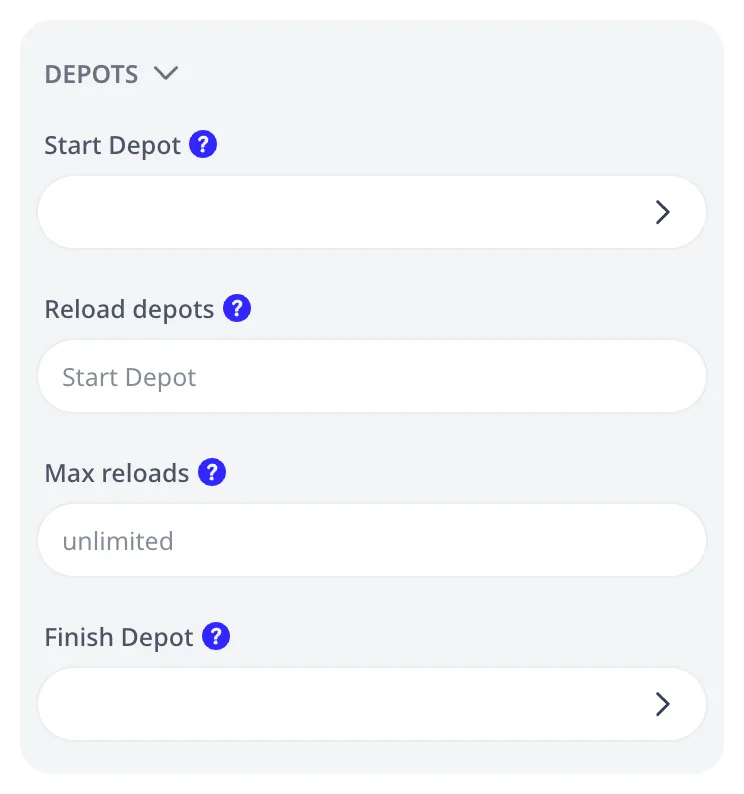
Depots: Start Depot, Reload depots, Max reloads, and Finish Depot. An empty Finish Depot ends the route at its last order instead of at a depot. See Multiple depots, open routes, and reloads.
-
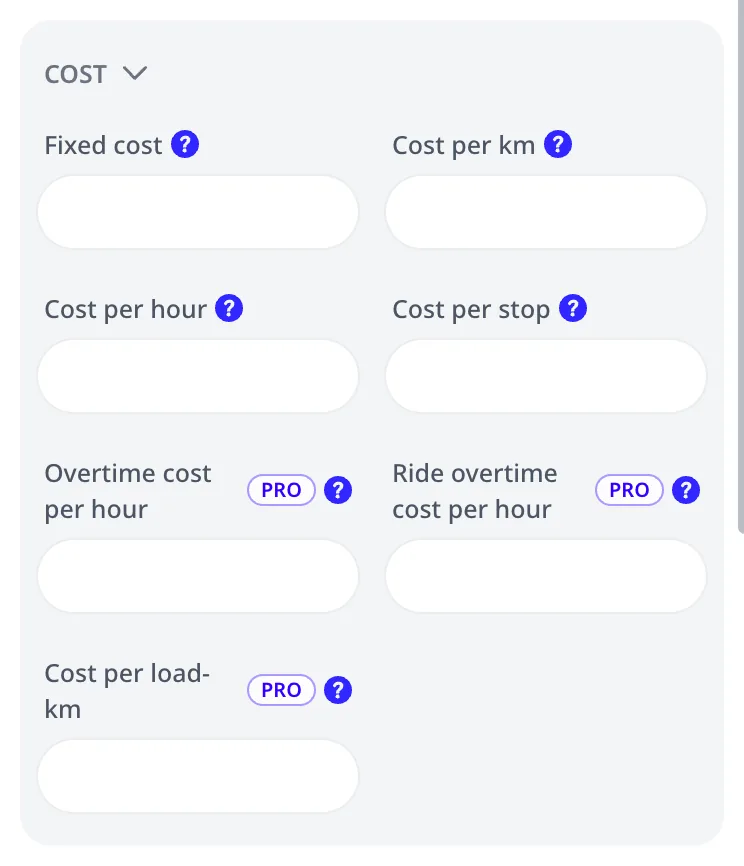
Cost: Fixed cost, Cost per km or Cost per mile, Cost per hour, Cost per stop, Overtime cost per hour, Ride overtime cost per hour, and Cost per load-km or Cost per load-mile. See Vehicle costs and the COST metric.
-
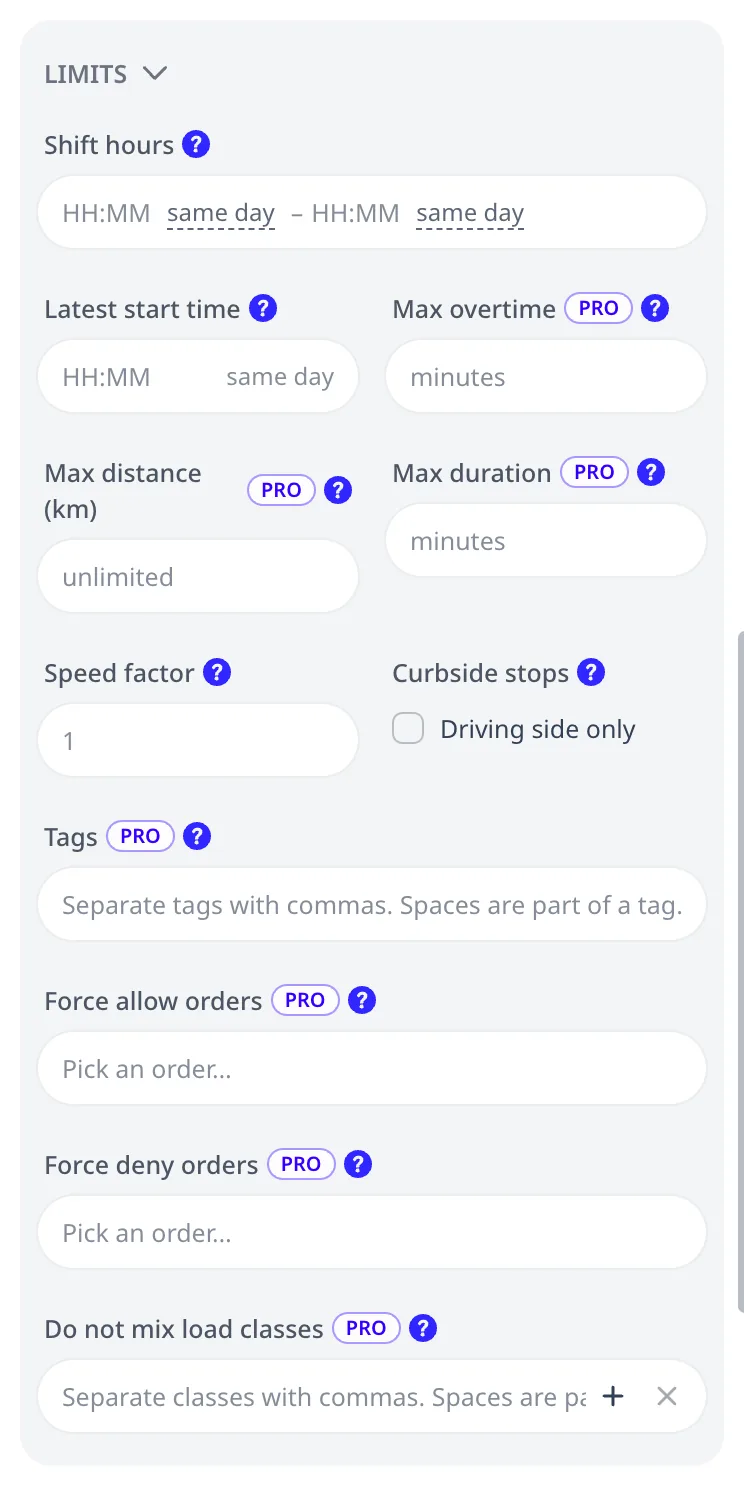
Limits: Shift hours, Latest start time, Max overtime, Max distance, Max duration, Speed factor, Curbside stops, Tags, Force allow orders, Force deny orders, and Do not mix load classes. The shift fields and the three route limits are described in Shifts, working hours, and route limits. Speed factor scales this vehicle's driving times against the map: 0.5 makes every leg take twice as long, 2 half, 1 (or empty) leaves them as the map says. Service and break times are not scaled; route duration limits, break triggers and the cost per hour follow the scaled time. Curbside stops makes the vehicle stop on the driving side of the street at every stop, never crossing the road to a stop on the far side, in both its travel times and its route lines. Tags, Force allow orders, and Force deny orders are described in Tags: vehicle-order compatibility. Do not mix load classes is described in Product segregation: do not mix load classes.
-
Breaks: the driver-break rules for this vehicle. See Driver breaks and driving-time limits.
Press Save vehicle. The list then shows the vehicle with its capacity, available count, cost summary, and limits:
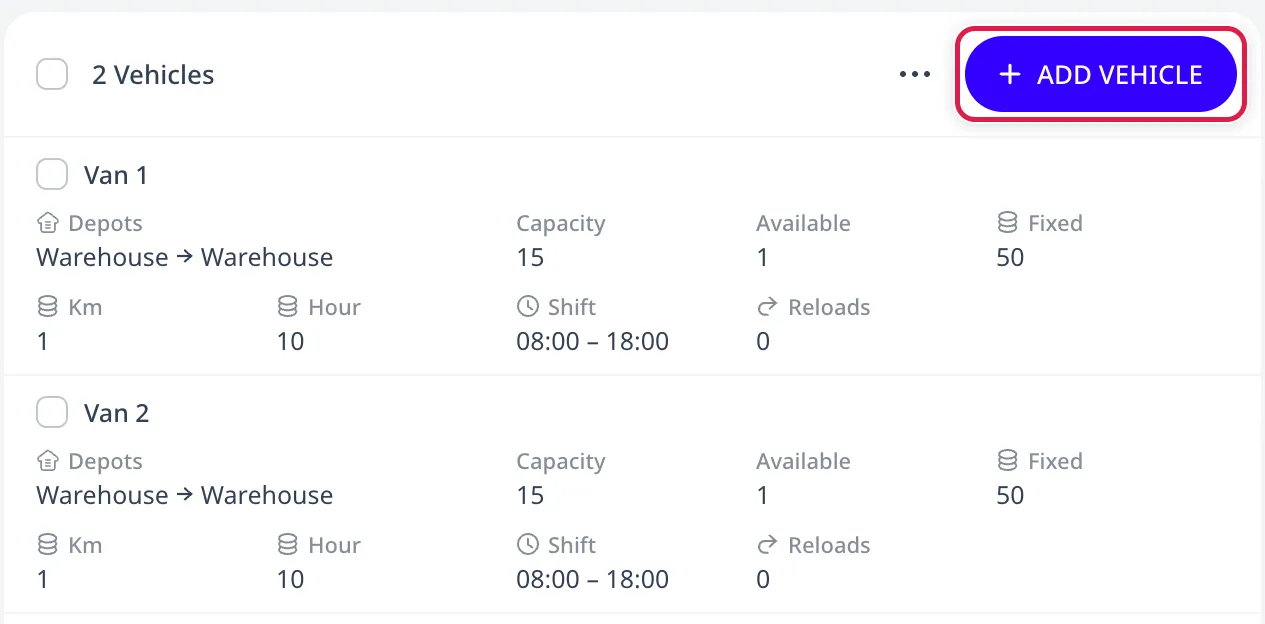
Selected vehicles can be edited or deleted together, as described in Work with many orders at once.
Minimum setup
One depot and one vehicle are enough to optimize a plan. The depot needs an address. The vehicle needs Shift hours. Without them the vehicle may start at midnight. Every other field is optional and covers a specific case:
- Set Capacity when the vehicle cannot carry every order at once. An empty capacity means unlimited.
- Set the cost fields when the optimizer should prefer fewer or cheaper vehicles.
- Set the route limits when a route would otherwise run longer than a legal working day.
- Set Tags when only some vehicles may serve some orders.
Import and reuse
Vehicles and depots can be imported the same way as orders. ⋯ > Import from Excel reads the Vehicles and Depots sheets of a spreadsheet. ⋯ > Import from another plan copies them from a saved plan. The spreadsheet column reference lists every column. To reuse one fleet every day, keep a plan as a template and press My Plans > Copy vehicles. The copy contains the vehicles and the depots and no orders.
Next step
To add working hours and route limits, see Shifts, working hours, and route limits.
FAQ
What is the minimum I need before I can optimize?
Required: one depot with an address, one vehicle with Shift hours, and orders. Without Shift hours the vehicle may start at midnight. Set Capacity when one vehicle cannot carry every order. Empty means unlimited. Set cost fields to prefer fewer or cheaper vehicles. Set route limits when routes exceed a legal working day. Tags restrict which vehicles serve which orders.
I have five identical vans. Do I add five vehicles?
No. Add one vehicle and set Available count to 5. One row stands for a pool of identical vehicles. The optimizer uses as many of them as it needs. A vehicle it leaves unused adds no cost to the plan. Add separate rows only for vehicles that differ in capacity, shift, costs, depots, or tags.
What are depot Open hours and Service duration used for?
Open hours are the window in which vehicles may depart, return, and reload. A depot that opens at 08:00 loads no vehicle before 08:00, however early the vehicle's shift starts. Service duration is the loading time each depot visit takes. The optimizer adds it at every depot visit, including a mid-route reload.
How do I reuse the same fleet every day?
Keep one plan as a template with the depots and vehicles set up and no orders. Each morning, load it on My Plans and press Copy vehicles. The copy contains the vehicles and the depots with their addresses. Import the day's orders into it. Vehicles and depots can also be imported from the Vehicles and Depots sheets of a spreadsheet.