Edit orders, depots, and addresses on the map
By Nathan ColeUpdated
On the Orders and Depots pages, Routing24 draws every located order and depot as a dark pin on the map. A click on a pin highlights the order or depot in its list and opens a card with Edit, Select, and Close. Right-clicking the map looks up the address at any spot, for places address search cannot find. Customize makes a mislocated pin draggable to its true spot.
This page covers the three map-side tools: the pin card, the right-click address lookup, and pin location fixes.
The examples use the Time windows plan (12 orders, 2 vans). Load it:
The pin card
Click any pin. A card opens on the map with the details of the order or depot:
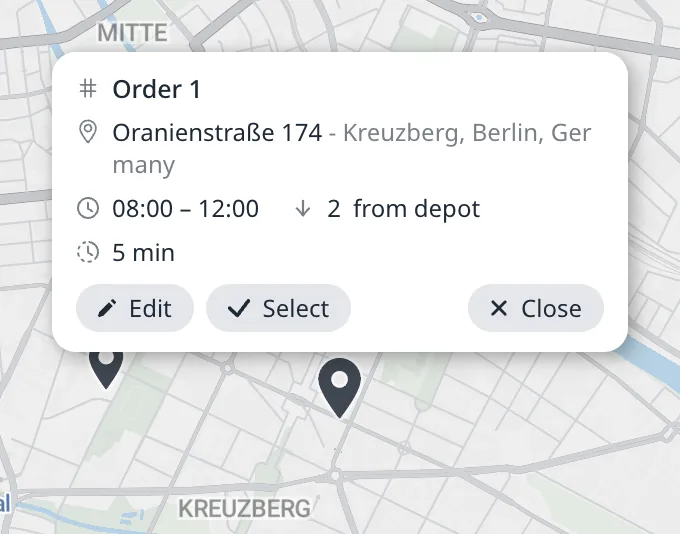
- For an order: the order id, the address, and the order's time windows, service duration, and load. In the screenshot, the card of Order 1 shows Oranienstraße 174, the time window 08:00 to 12:00, a load of 2, and a service duration of 5 minutes.
- For a depot: the depot's name and address.
Click any text line on the card to copy it.
Routing24 also highlights the row of the order or depot in its list and scrolls the list to it. When the pin belongs to another page, Routing24 opens that page first. A depot pin clicked on the Orders or Fleet page opens the Depots page with the depot's row highlighted. An order pin clicked on the Depots page opens the Orders page in the same way. The map keeps its position and zoom.
The card has three buttons:
- Edit opens the order or depot in its editor.
- Select adds the order or depot to the selection in its list, as the row's checkbox does. For a selected order or depot the button is Unselect and removes it from the selection. Selected rows can be edited or deleted together: see Add orders manually.
- Close closes the card. A click on empty map space closes it too.
Add a place from the map
Address search cannot find some destinations: a rear gate, a specific yard entrance, a kiosk in a park. On the Orders page, right-click that exact spot on the map. A card opens with the nearest known address and its coordinates. Press Add order and the order editor opens with that point, at those exact coordinates, as the order's address. On the Depots page the card offers Add depot instead, which opens the depot editor.
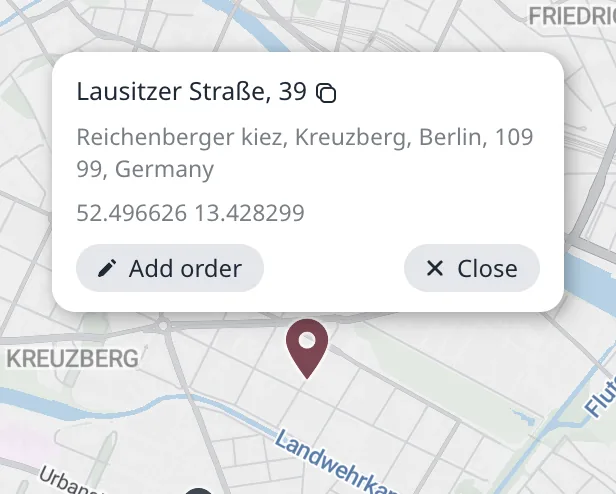
If an order or depot editor is already open, the card offers Set address instead, which fills the open editor with that point. The map search box results offer the same button.
Fix a mislocated pin
When geocoding puts an order's pin on the wrong building, correct the pin instead of editing the address text:
- Click the pin and press Edit (or open the order from the list).
- In the Address field, press Customize.
- The order's pin becomes draggable. Drop it on the true location and save.
Routing24 stores the location with the address, so every future plan using that address gets the corrected coordinates. More address repair strategies are in Fix unrecognized or mislocated addresses.
Next step
Choose which routes the map draws in View a single route vs. all routes.
FAQ
How do I edit an order from the map?
Click its pin on the Orders page. Routing24 highlights the order's row in the list and opens a card with the order id, address, time windows, service duration, and load. Press Edit to open the order editor, or Select to select the order in the list. Press Close, or click empty map space, to close the card.
How do I add a place that address search cannot find?
Right-click the exact spot on the map on the Orders page. A card opens with the nearest known address and the coordinates of the point. Press Add order and the order editor opens with that point as the address, at those exact coordinates. On the Depots page the card offers Add depot instead.
How do I move a pin that geocoding put on the wrong building?
Click the pin and press Edit, or open the order from the list. In the Address field press Customize. The pin becomes draggable. Drop it on the true location and save. Routing24 stores the corrected coordinates with the address, so every future plan that uses that address gets the corrected pin. Editing the address text is not needed.
Can I edit a stop from the map after optimizing?
Yes. On the Optimize page, click the stop's pin. Routing24 highlights the stop's row on its route card and opens a card with Edit and Close. Edit opens the order in its editor on the Orders page. Optimize the plan again afterwards. Dragging a stop pin on the Optimize page moves the stop to another route as a manual edit.