Optimization results on the map
By Nathan ColeUpdated
After an optimization, the map fills every stop pin with its route's color and numbers it in visiting order. The route lines connect the stops in the same color. Depots show as white pins with a colored rim and a D. The full pin glossary is in Navigating the map. Route corrections work directly on the map: drag any stop pin onto another route without touching the list. This page covers the stop card and dragging pins between routes.
The examples use the Time windows plan (12 orders, 2 vans). Load it and press Optimize:
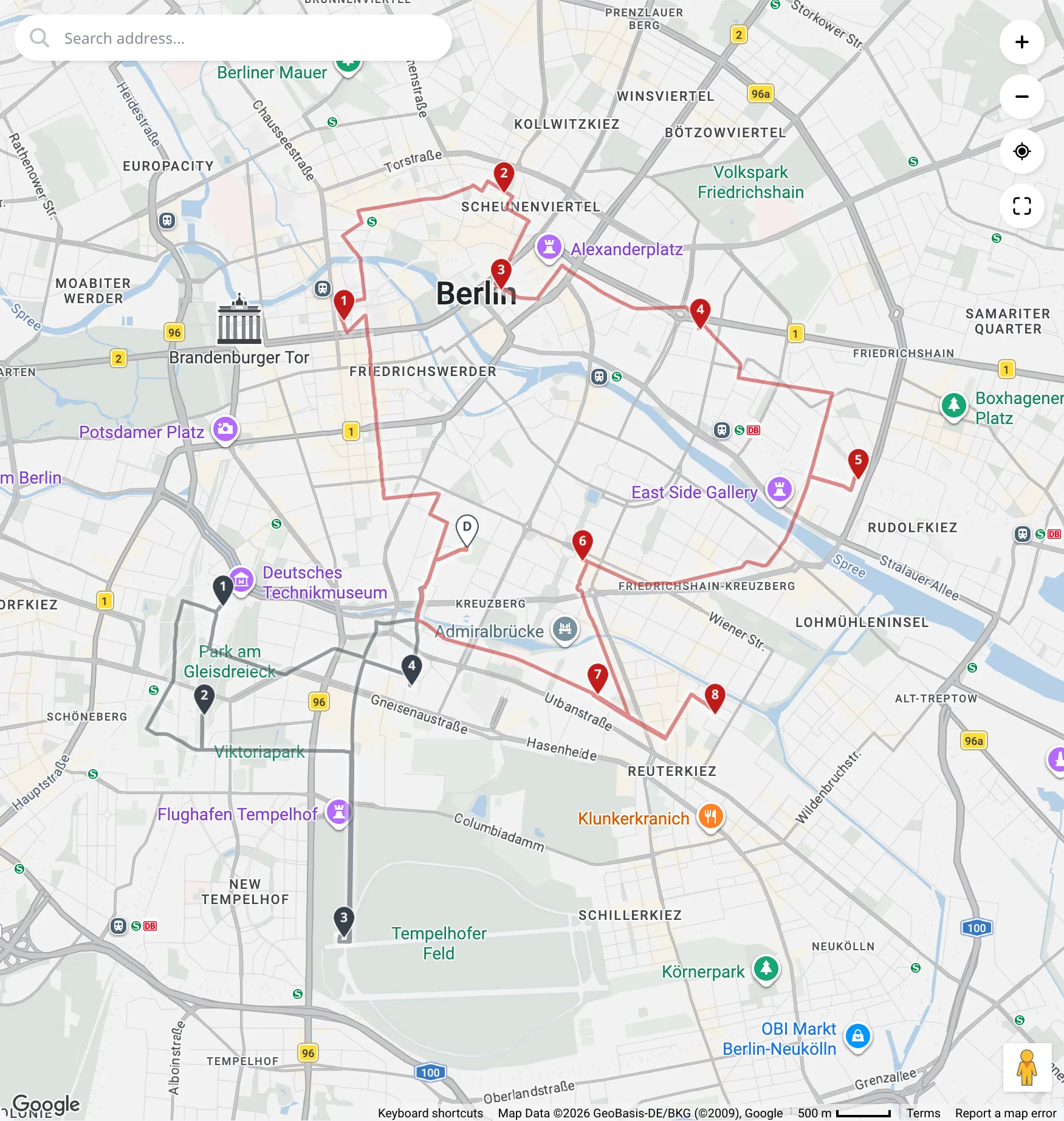
The route cards control which routes the map draws. See View a single route vs. all routes.
The stop card
Click a stop pin and a card opens. The top lines show the order id and the address. The next line shows the ETA and the travel time and distance from the previous stop. Below them are the order's time windows, service duration, and load. The card in the screenshot shows 11:41 8 min 3.4 km. The driver arrives at 11:41 after 8 minutes and 3.4 kilometers of driving from the previous stop. Click any text line on the card to copy it.
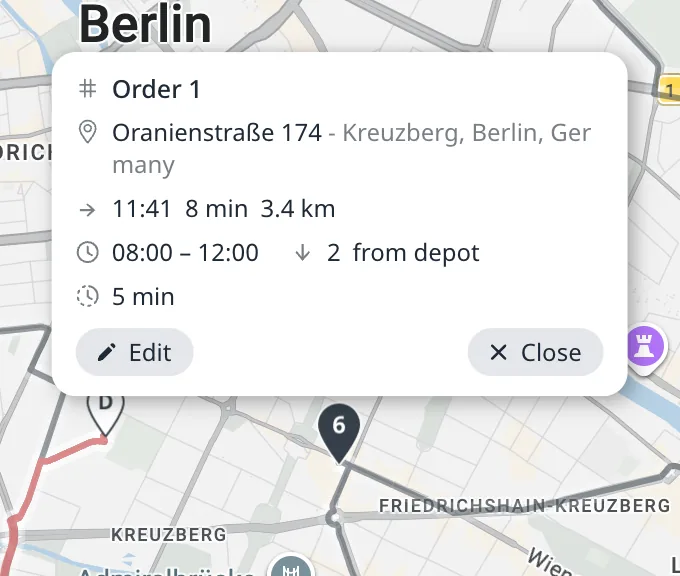
The same click selects the stop's row on its route card. Routing24 scrolls the routes list to the row and highlights the row and its route. A click on the depot's D pin selects the depot row on the first route card that contains the depot. A click on the pin of an unassigned order selects the order's row in the Unassigned panel. An order added after the optimization has no row on the Optimize page, so a click on its pin opens the Orders page with the order's row highlighted.
The card has two buttons:
- Edit opens the Orders page with the order in its editor.
- Close closes the card. A click on empty map space closes it too.
The depot's D pin opens the same kind of card for the depot. Its Edit opens the Depots page. The pin cards of the editor pages are described in Edit orders, depots, and addresses on the map.
Drag a pin to another route
To re-route an order on the map, press and hold its stop pin until it lifts, then drag it.
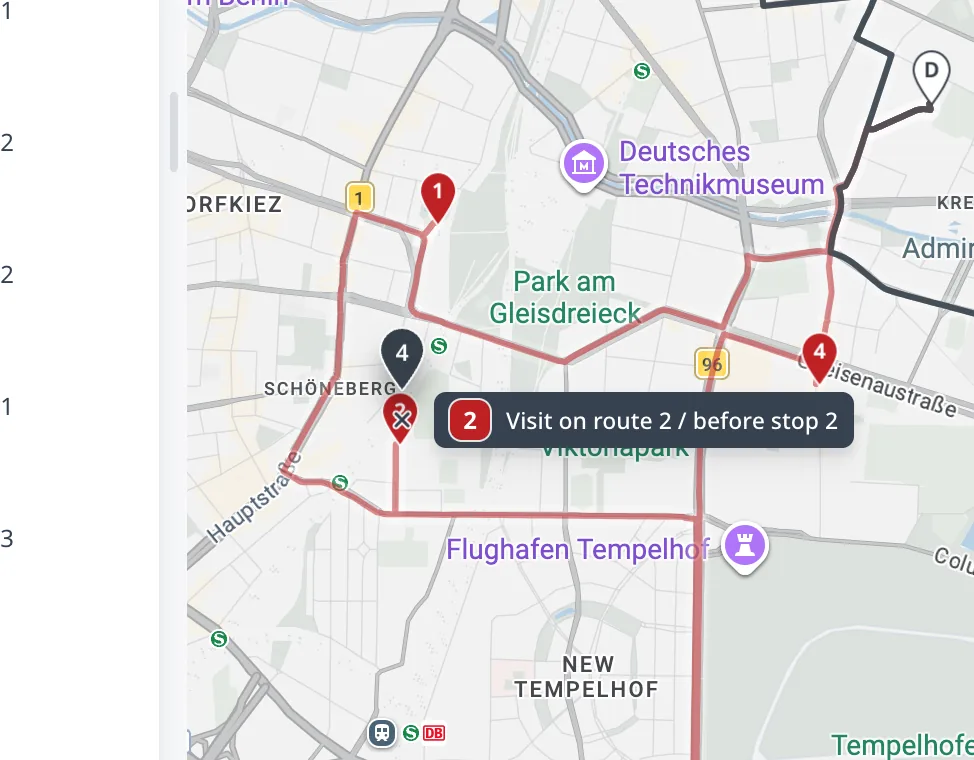
- As the pin nears a route line, a live tooltip previews the drop, for example Visit on route 2 / before stop 2, with the would-be stop number shown in the target route's color. Move along the line and the insertion point follows.
- Drop the pin and Routing24 applies the move like any other manual edit: it re-validates the route and updates the ETAs. The change enters the undo history described in Edit routes manually.
- While the tooltip shows drop anywhere to undo, releasing the pin cancels the move.
With several stops selected in the list first, dragging one pin moves the whole block. The tooltip shows the count, for example (3 orders).
Map edits behave like all manual edits: a full Optimize run replaces the current routing plan and does not preserve hand-made moves. Make map edits after the final Optimize run, not before it.
Next step
Basemaps and Street View™ covers the paid basemaps.
FAQ
What does a stop's pin card show after optimization?
The card shows the order id and the address, then the ETA and the travel time and distance from the previous stop, then the order's time windows, service duration, and load. A line like 11:41 8 min 3.4 km means the driver arrives at 11:41 after 8 minutes and 3.4 kilometers of driving. Click any line to copy it.
Can I move an order to another route on the map?
Yes. Press and hold its stop pin until it lifts, then drag it toward another route line: a live tooltip previews the drop with the would-be stop number in the target route's color. Drop to apply; the move re-validates the route, updates the ETAs, and enters the shared undo history.
Can I edit an order from the optimized map?
Yes. Click the stop's pin. Routing24 highlights the stop's row on its route card and scrolls the list to it. The card has Edit, which opens the order in its editor on the Orders page, and Close. The depot's D pin opens the same kind of card, and its Edit opens the Depots page.
Do map edits survive a re-optimization?
No. Map edits behave like all manual edits: a full Optimize run replaces the current routing plan and does not preserve hand-made moves, so make map edits after the final Optimize run. With several stops selected in the list first, dragging one pin moves the whole block.