Route balancing: fair vehicle utilization
By Nathan ColeUpdated
Route balancing is a Pro feature. The free tier can use it within the free paid-feature optimizations.
By default, the optimizer minimizes the total cost of the plan. The total cost is a weighted sum of the distance, duration, fixed, and other costs of all routes. As a result, the optimized plan can use fewer vehicles than available or required, and its routes can differ significantly in distance, duration, or vehicle utilization.
Depending on the business and operational objectives, you may want to override the default optimization behavior to:
- use a fixed number of vehicles, for example pre-contracted vehicles, even when an optimized routing plan uses fewer;
- distribute the work evenly among the drivers;
- reduce the risk of late or failed deliveries by using more vehicles.
Two groups of settings cover these scenarios:
- Optimize > Settings > Route balancing defines the plan-wide balancing and vehicle allocation rules.
- The Route balancing group of the vehicle editor on the Fleet page defines the balancing and allocation settings of each vehicle.
Balancing and forced vehicle allocation (required vehicles) are often used together. Without balancing, the optimizer can build significantly shorter routes (down to one-stop routes) for forced vehicles than for non-forced vehicles. Route balancing adds an optimization target that prevents this effect.
Optimization settings
Balance by
Balance by is set in Settings on the Optimize page. It defines the balancing metric used by the optimizer:
- Off: the optimizer does not balance the routes.
- Working time: balance by the total route duration, including driving, service, waiting, and breaks.
- Driving time: balance by driving time only.
- Distance: balance by the total route distance.
- Stops: balance by the number of orders and pickup or delivery steps on the route. Depot visits and breaks are not counted.
The optimizer builds the routes so that the values of the balancing metric are as equal as possible across the routes.
For example, in the first tutorial plan when balancing by total working time is on:
| Van 1 | Van 2 | |
|---|---|---|
| Without balancing | 10 orders, 5 h 59 min | 2 orders, 1 h 19 min |
| With balancing | 6 orders, 3 h 43 min | 6 orders, 3 h 33 min |
Balance strength
Strength is set in Settings on the Optimize page. It defines how much priority balancing has over normal cost optimization.
- Loose allows larger difference while still trying to balance routes.
- Normal is the default: route difference is minimized.
- Strict is the minimal route difference possible.
A higher Strength can produce more balanced routes and, at the same time, a higher total distance and time.
Require all vehicles
With Require all vehicles on, the optimizer builds a route for every vehicle of the plan. A vehicle stays without a route only when a hard constraint prevents the assignment of any order to it, for example when the orders are incompatible with the vehicle or unreachable.
In a plan with more vehicles than orders, this setting can produce a routing plan in which every order is served by a separate vehicle.
To force the use of specific vehicles only, use the Required option in the vehicle settings.
Vehicle settings
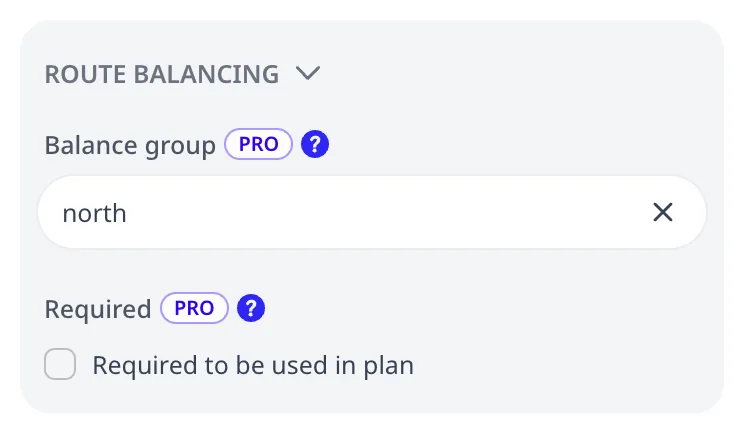
Balance group
Balance group is set in the vehicle editor on the Fleet page, in the Route balancing group. Vehicles with the same Balance group value form one group and are balanced together.
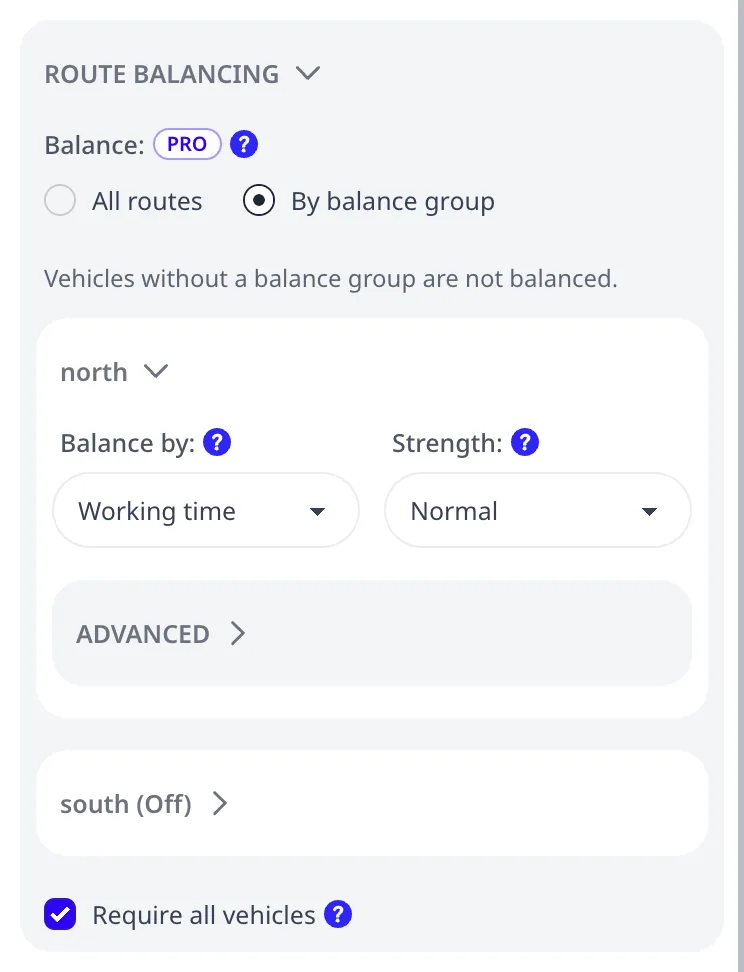
When at least one vehicle has a Balance group, Optimize > Settings > Route balancing shows the Balance setting. All routes applies one balancing rule to all routes. By balance group displays the settings of each named balance group. You can then choose the balancing rule for each group, or no balancing at all for a group. Routes of vehicles without a Balance group are not balanced.
This makes it possible to mix balanced and unbalanced routes, and different balancing targets, in the same plan.
Required vehicle
Required is set in the vehicle editor on the Fleet page, in the Route balancing group. The optimizer forces the use of a required vehicle in the routing plan.
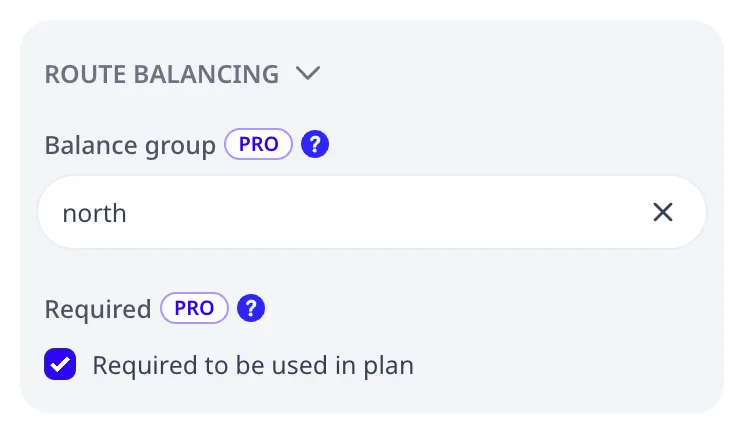
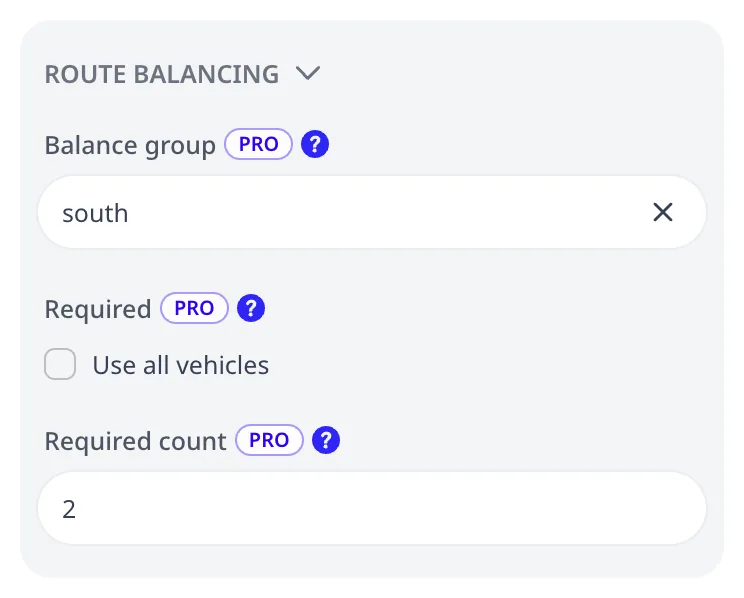
When a vehicle is defined as a vehicle type (Available count above 1), Required applies to all vehicles of the type. In case if a specific number of vehicles must be used (not all available), Required count field allows to specify the exact number.
Tutorial plans
Two tutorial plans demonstrate route balancing alone, and route balancing combined with Require all vehicles:
The plan has 12 orders (2 units each), a Service duration of 30 minutes per order, and two vans with a capacity of 20 units. Balance is set by working time.
Uses Route balancing.Same 12 orders, and 2 additional vans (4 vans in total). "Require all vehicles" is on, and Balance is also set to by working time.
Uses Route balancing.The result of the second plan depends on both settings:
- With Require all vehicles off and Balance by set to Off, two vans stay idle. The routes of the other two vans last 5 h 59 min and 1 h 19 min.
- With Require all vehicles on and Balance by set to Off, one van serves nine orders in 5 h 37 min. Each of the other three vans serves one order in about 40 minutes.
- With Require all vehicles on and Balance by set to Working time, as in the tutorial plan, every van serves three orders, and the routes last between 1 h 50 min and 2 h.
Analyzing balancing results
The Optimization page shows the result of balancing on each route card and in the plan header.
Route cards
Each route card shows the deviation of the route from the average of its group as a signed percentage, after the value of the balanced metric:
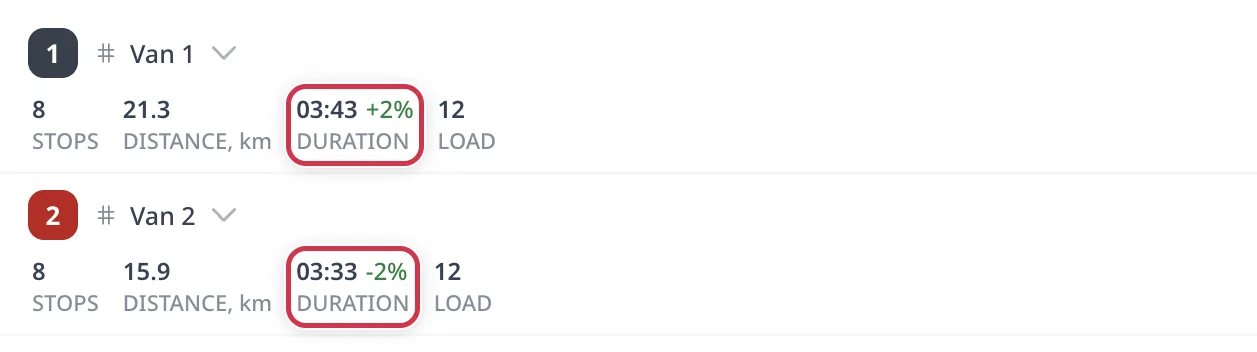
IMBALANCE metric
The IMBALANCE metric in the plan header shows the average deviation of the balanced routes, in percent. The metric is shown only when at least one route is balanced:

Routing plan export
The Routes stats sheet of the routing plan export has two columns for the result of balancing:
Deviation, %: the deviation of the route from the average of its group, as a signed percentage with one decimal place. For example, the export of the first tutorial plan contains 2.3% for Van 1 and -2.3% for Van 2.Balance group: the balance group of the route. The sheet contains this column only with By balance group.
The cells of a route that is not balanced are empty. The columns are described in Routes stats columns.
The export does not contain the IMBALANCE metric. The driver's mobile view does not contain the balancing figures.
Interactions with other rules
When balancing by Working time, it includes the waiting time before a time window. When the vehicles have no Cost per hour, waiting time adds no cost.
The optimizer can then equalize working time by scheduling an early arrival and waiting time, without moving orders between routes. To prevent this, set Cost per hour on the vehicles, or balance by Driving time, which does not include waiting time. See Cost per hour.
A break is included in Working time. It is not included in driving time, distance, or stops.
A reload trip is included in the Working time, Driving time, and distance of the route. A depot visit is not counted as a stop.
Plan warnings
A vehicle can be marked as required but be incompatible with any order.
In this case, you will see a note under such vehicle in the Unused vehicles section on Optimization page:

In spreadsheets
The Vehicles sheet has three columns for these settings:
Required:YesorNo.Required count: the number of vehicles of a vehicle type (Countabove 1) that must be used, a whole number from 0 toCount.Requiredset toYesrequires all vehicles of the type. The column is then ignored.Balance group: the name of the balance group.
The columns are described in the Vehicles sheet section of the column reference.
The Settings sheet of every exported workbook contains the plan settings. Each row contains one setting and its value:
| Row | Value |
|---|---|
Balance by | off, duration, driving, distance, or stops |
Balance strength | loose, normal, or strict |
Balance by utilization | yes or no |
Free band | a percentage |
Cost of imbalance | a number |
Require all vehicles | yes or no |
An empty value means the default. The exported sheet contains the
Free band and Cost of imbalance rows only when these settings have a
value. The rows are grouped under the titles of the groups in
Settings. The name of each setting is a link to its description on the
Documentation sheet. With By balance group, the sheet contains one
Route balancing group per balance group. The first row of such a group is
Name, with the name of the balance group. A Route balancing group
without a Name row applies to all routes.
The settings are applied when the workbook is imported as a new plan. An import into an existing plan does not change the settings of that plan.
Advanced settings
Balance by limit utilization
In advanced cases, you may need to set the balancing target as a proportion of a vehicle limit, for example the shift duration limit of a driver, a stops limit, or the driving distance limit of an electric vehicle.
The setting Balance by utilization of each vehicle's limit is located under Optimize > Settings > Route balancing > Advanced.
When the setting is on, the optimizer divides the value of the balancing metric of each route by the limit of its vehicle and balances the resulting percentages instead of the values.
The limit is Max duration for working time, Driving time budget for driving time, Max distance for distance, and Max stops for stops.
For example, a vehicle with a Max duration of 4 hours receives half the work of a vehicle with a Max duration of 8 hours.
This setting requires the corresponding limit to be set on every vehicle of the plan or of the balance group.
Internally, route balancing adds a cost component to the total cost of the plan. With this component, the optimizer also minimizes the deviation of each route from the average of the balancing metric.
Free band
Routes with a deviation within this percentage of the average are penalized at a reduced cost.
Routes with a larger deviation are penalized at the full Cost of imbalance. The value is a percentage from 0 to 99. An empty field means 10.
Cost of imbalance
The cost of one unit of deviation outside of the "free" band.
The cost is calculated per unit of the balance metric: per hour, per km or per mi, per stop, or per 100% of the limit.
With an empty field, the optimizer auto-calculates the cost value from Strength and the vehicle costs.
Balancing formula
The cost of the deviation of a route is calculated from three values:
dis the deviation of the route from the average,bis the Free band percentage of the average,cis the Cost of imbalance.
Within the free band (|d| ≤ b), the cost is c × d² / (2 × b).
Outside of the free band, the cost is c × (|d| − b / 2).
Next step
The automatic Cost of imbalance is derived from the vehicle costs, which are described in Vehicle costs and the COST metric. The limits used by Balance by utilization of each vehicle's limit are described in Shifts, working hours, and route limits for Max duration, Max distance, and Max stops, and in Driver breaks and driving-time limits for Driving time budget.
FAQ
How do I make the optimizer use all my vehicles?
Turn on Require all vehicles in Settings on the Optimize page. The optimizer then builds a route for every vehicle. A vehicle that cannot serve any order stays idle, and the Unused vehicles section shows a note under the vehicle. To require a single vehicle, turn on Required in the vehicle editor.
Can I balance only some of the vehicles?
Yes. Set the same Balance group on the vehicles that are balanced together, in the vehicle editor on the Fleet page. Then choose By balance group in Settings on the Optimize page and set the balancing rule of each group. Routes of vehicles without a Balance group are not balanced.
Why are the routes still unequal after balancing?
Strength sets the allowed deviation of a route from the average. A route also deviates from the average when a constraint, such as a time window or a tag, prevents the optimizer from moving its orders to another route. For more equal routes, set Strength to Strict. The total distance and time of the plan will increase.