Connect Claude and ChatGPT
By Nathan ColeUpdated
Claude and ChatGPT connect to Routing24 as a custom connector. You paste one URL, approve the connection once on a Routing24 screen, and keep an app tab open while the assistant works. This page covers the connection in each client, the first run, the failures the assistant reports, and how to disconnect.
The mechanics behind the connection, and the 43 tools it exposes, are in Routing24 as an MCP server.
Two domains appear on this page. The connector URL is on routing24.ai. The
app you sign in to stays on routing24.com.
Why connect your own assistant
The assistant built into Routing24 spends the AI budget included in your subscription. That budget is a fixed daily and monthly amount, and an exhausted one stops the assistant until it refills. See The AI budget.
A connected assistant spends the quota of your own AI subscription instead. Your Claude or ChatGPT plan pays for the thinking, and Routing24 only runs the tool calls it asks for. That quota is usually far larger than the budget inside a Routing24 subscription, so a long session of questions, edits, and re-planning leaves the Routing24 budget untouched.
Prerequisites
Open routing24.com/app and sign in. Leave the tab open. Every call the assistant makes runs inside that tab, so a closed tab means a failed call.
Connect Claude
-
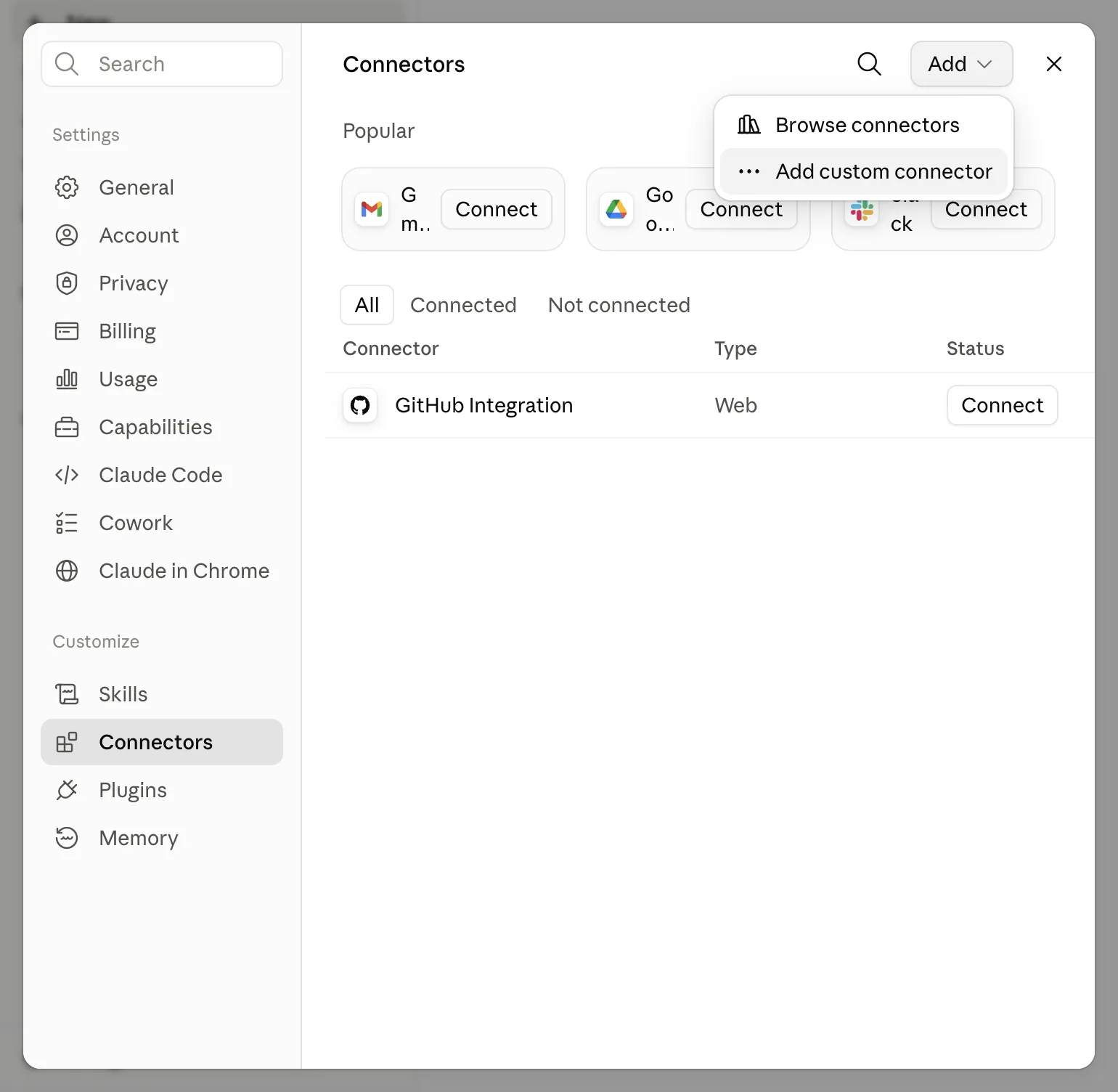
In Claude, open Settings > Connectors and press Add custom connector.
-
Enter
https://routing24.ai/mcpas the URL and Routing24 as the name. Press Continue.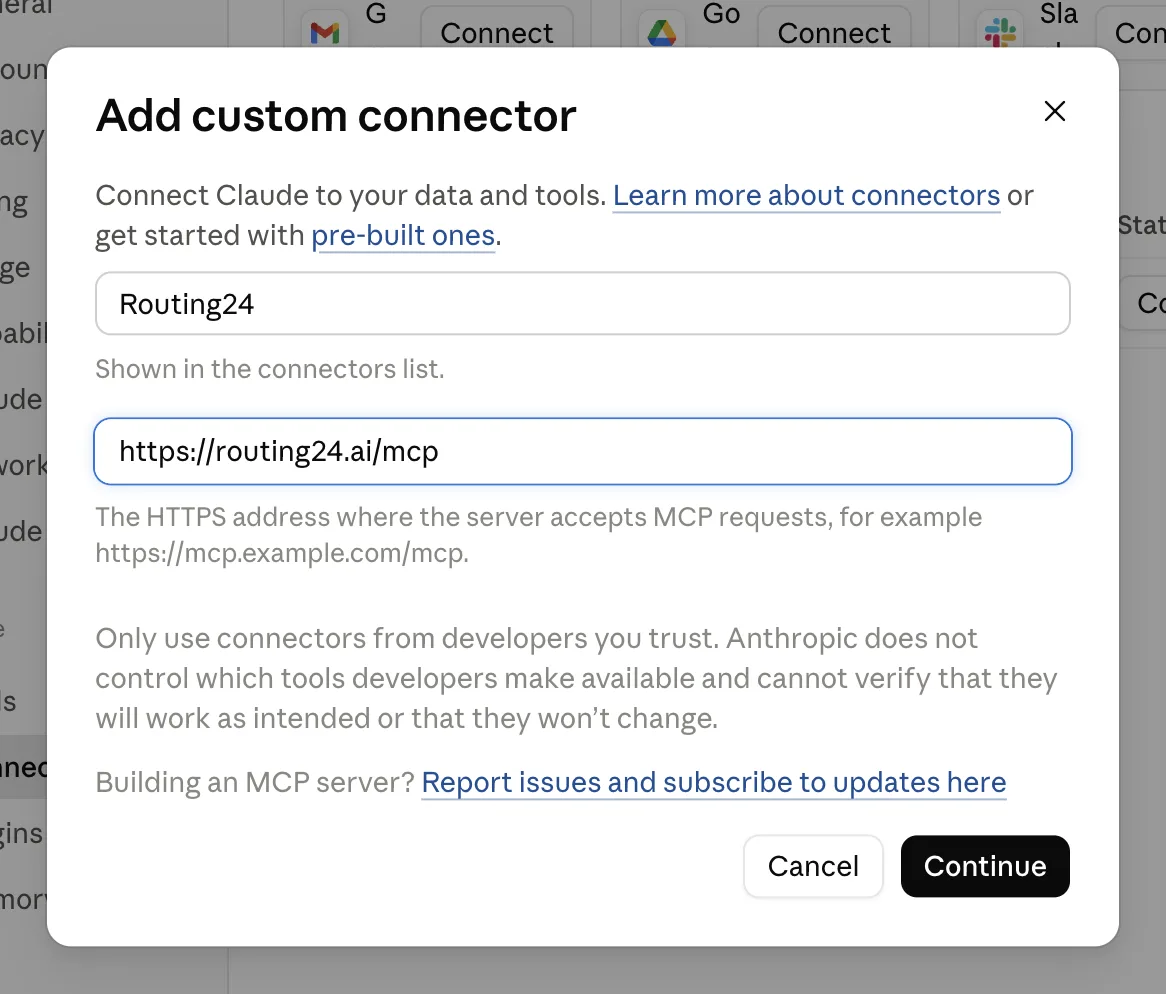
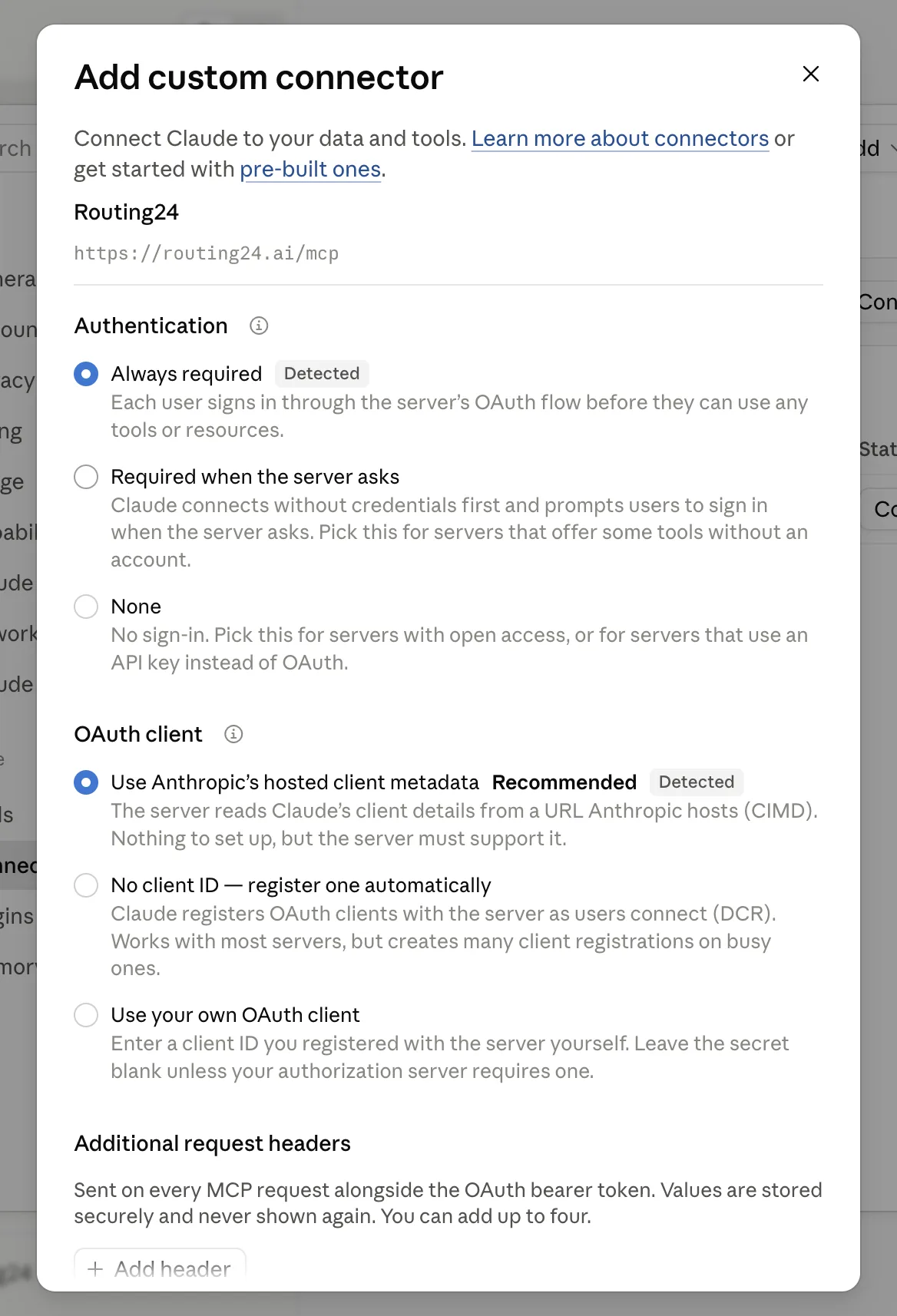
The settings are all defaults. Scroll down and press Add.
-
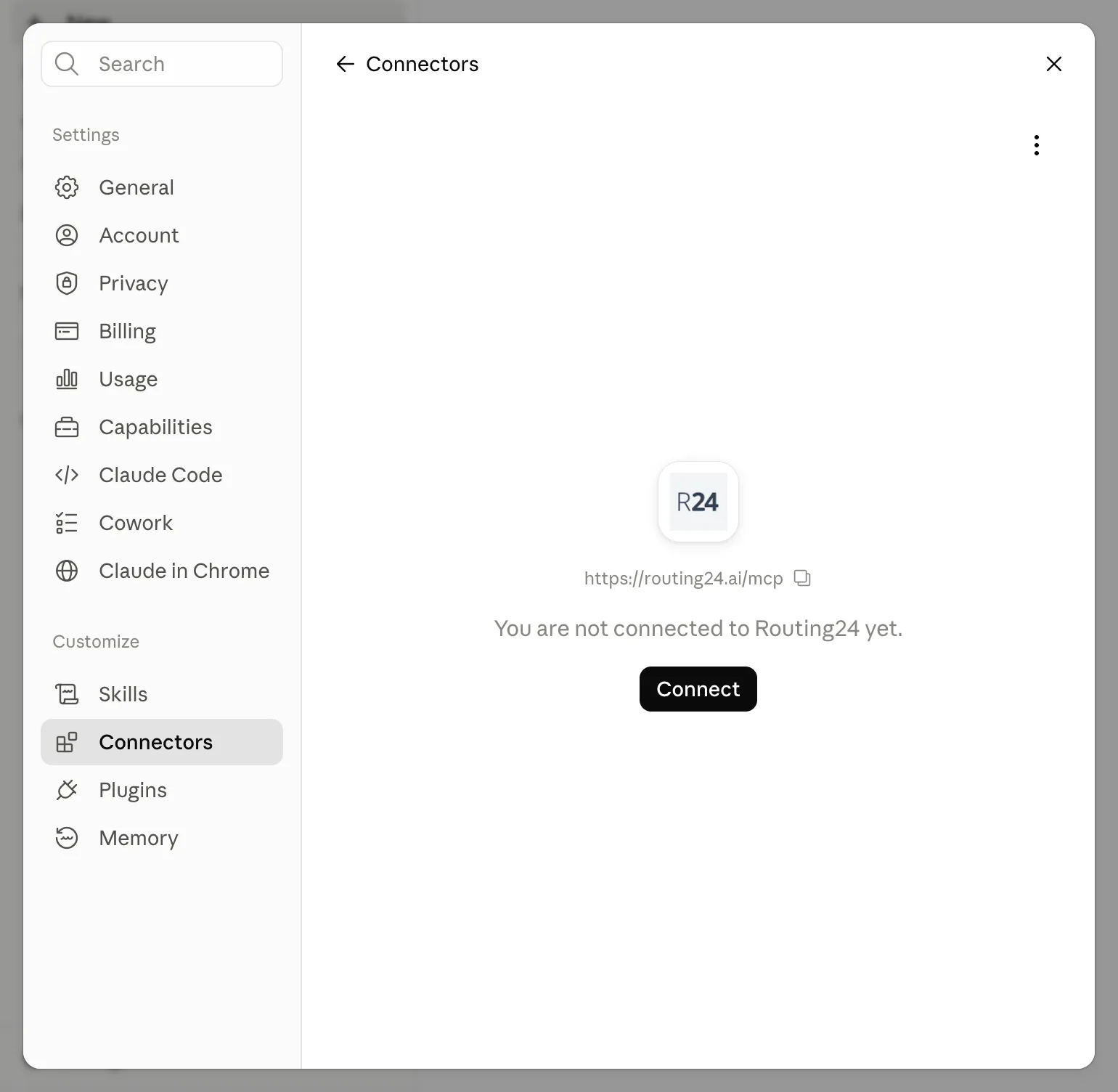
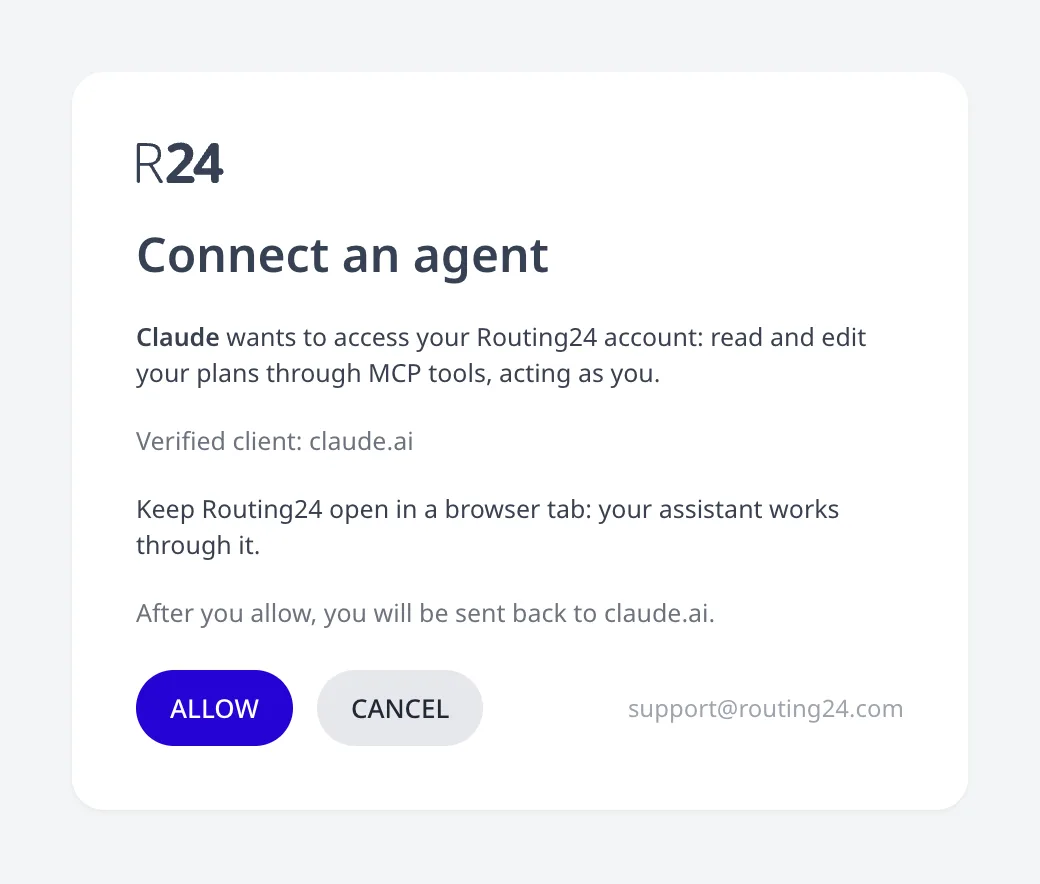
Press Connect on the connector. Claude sends you to the Routing24 consent screen, described below.
-
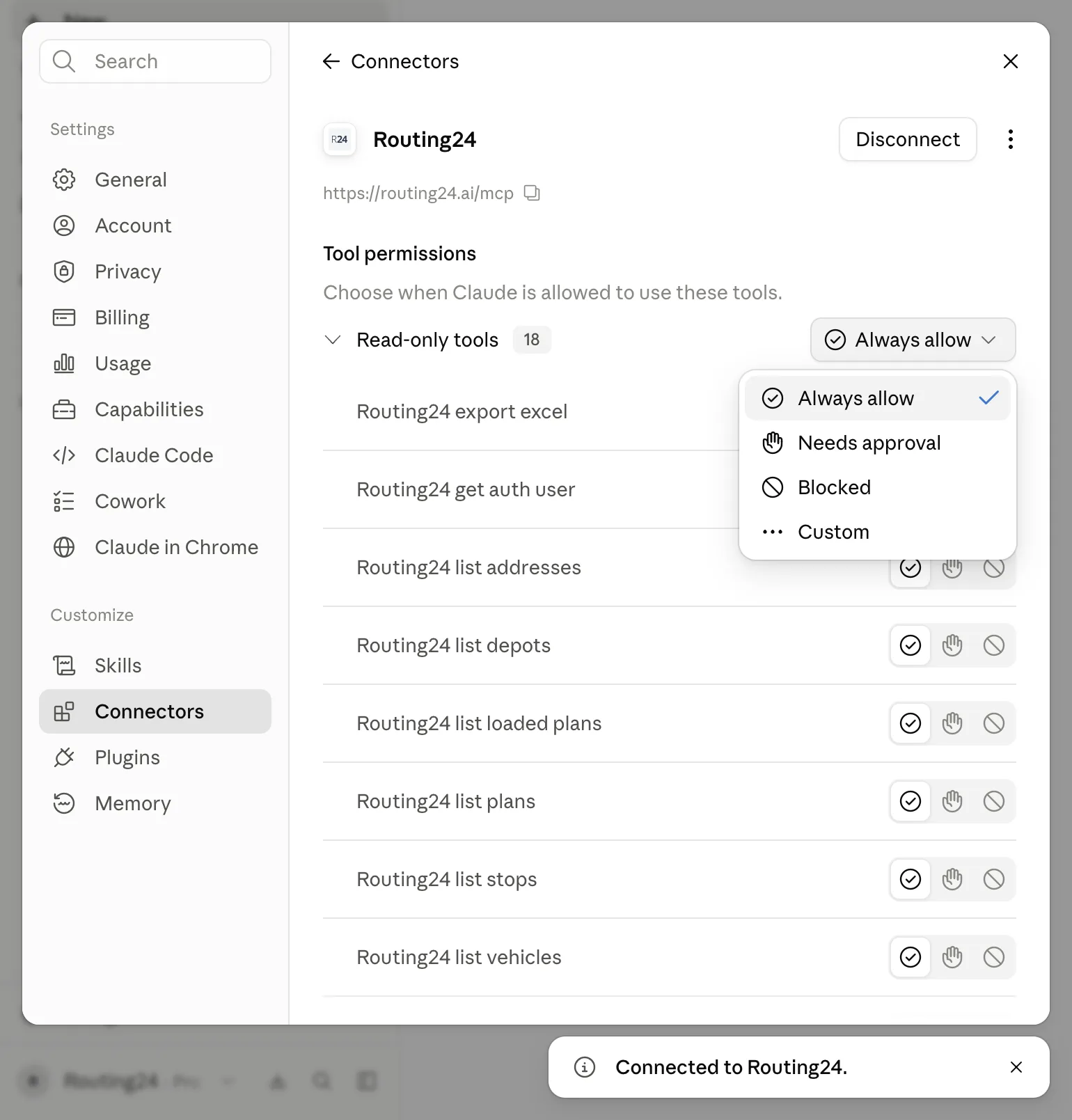
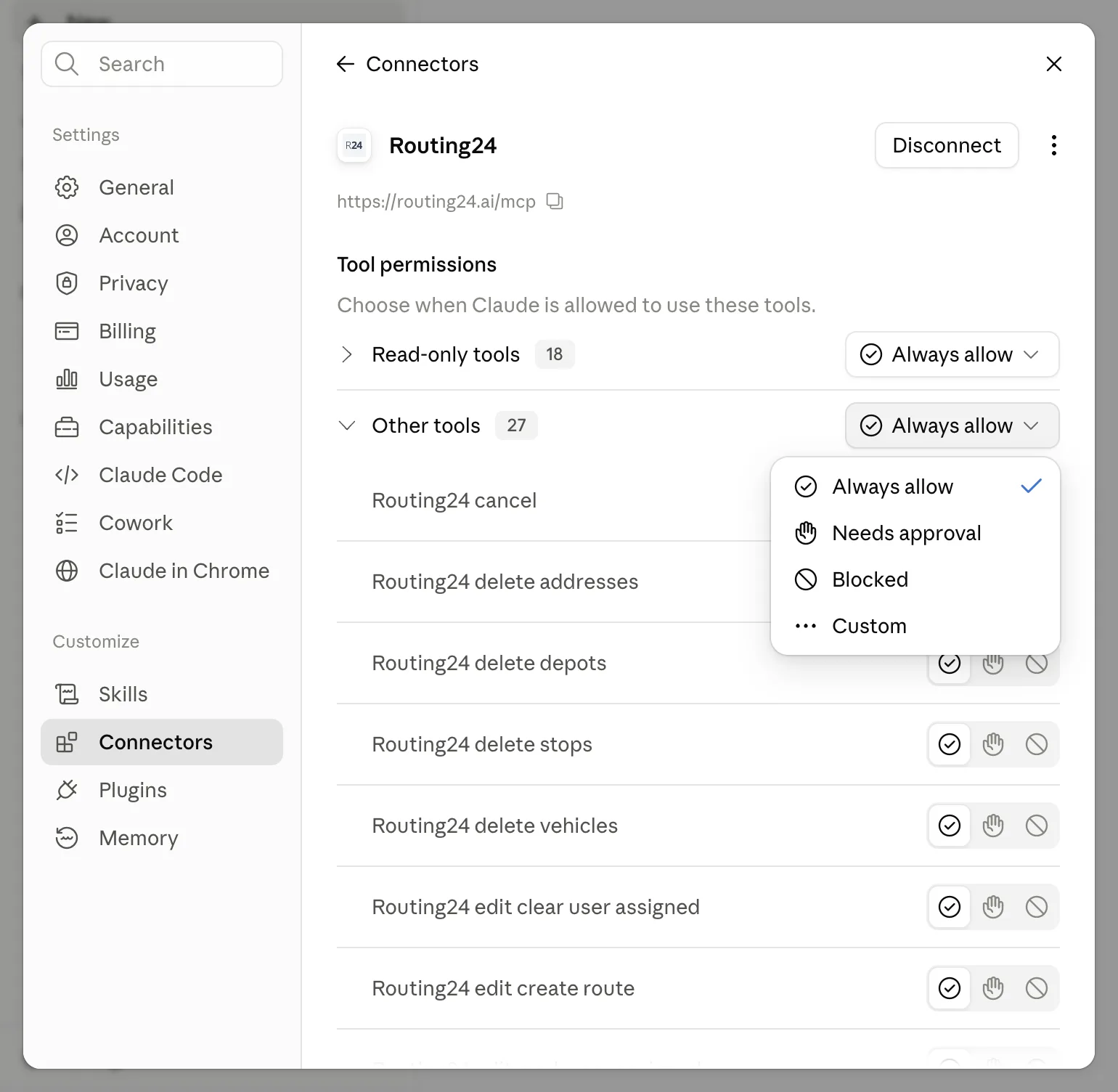
Choose Always allow for Read-only tools and Other tools, or pick the tools you want to confirm explicitly.
The consent screen
When connecting Routing24 to your AI assistant, the consent screen will be shown to you to confirm if you are providing your AI assistant access to your data in Routing24.
If you don't have Routing24 account yet, you will be asked to sign up first, before accepting the consent.
For collaborative access to the same routing plans in your browser, open routing24.com/app in a new separate browser window, and keep it open as the main browser window tab. Routing24 works by connecting an opened browser tab and your AI assistant directly.
Tool permissions
Routing24 exposes MCP tools for Claude or OpenAI in two groups: Read-only tools that can answer questions and inspect data, and Other tools that can create, update or delete anything in Routing24, including plans and settings.
We recommend to start from Always allow for both tool groups if you are using a frontier AI model (Claude Opus 4.8 or higher, or similar), and Needs Approval for Other tools for less capable models.
Downloads and map images
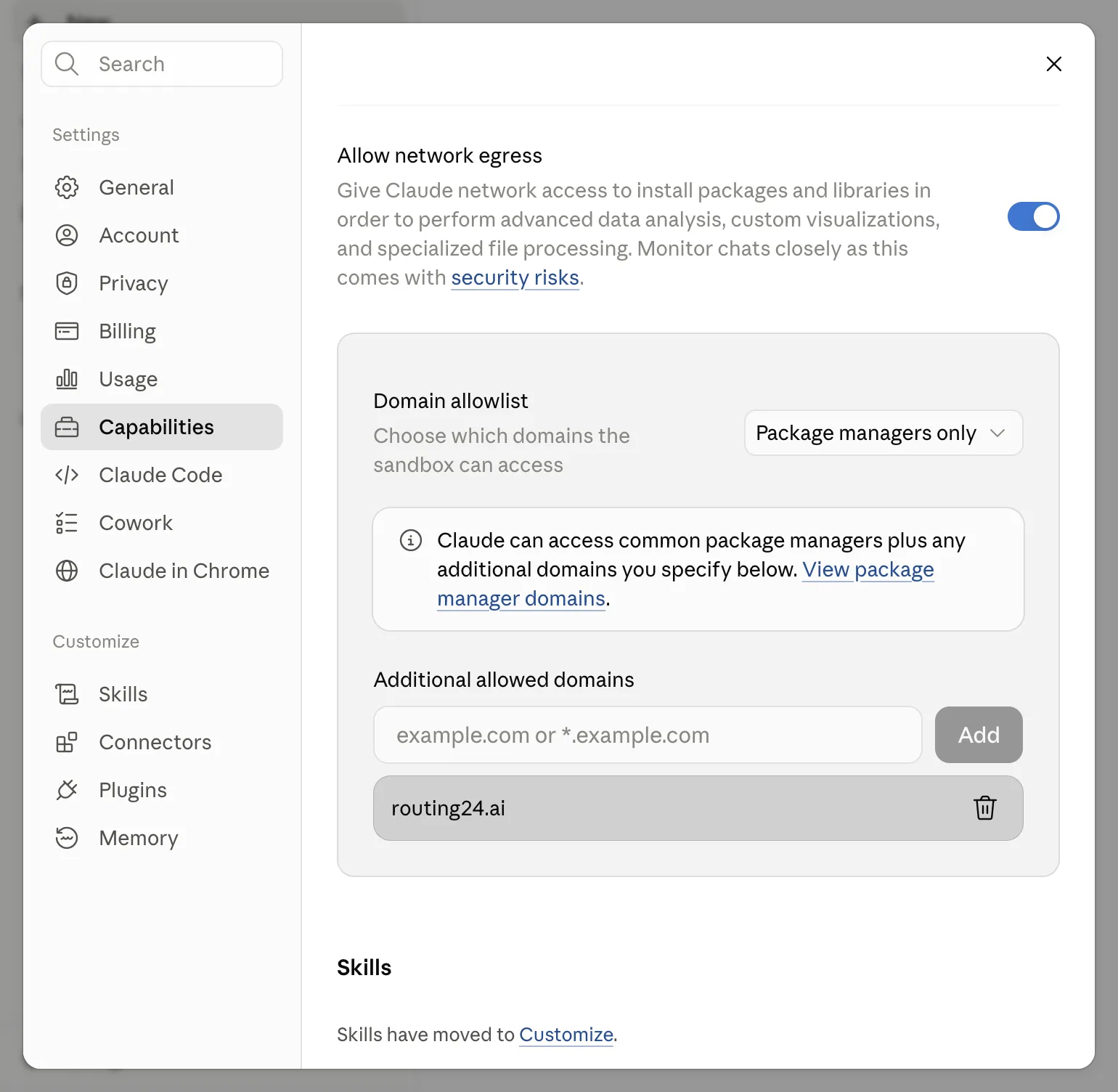
Claude AI works with files that can only be downloaded from whitelisted domain names,
and routing24.ai is not on it. Add it if you want Claude to have access to data
downloadable manually from Routing24, such as JSON or Excel files, or high-resolution
map images of the plan.
Open Settings > Capabilities, and with Allow network egress on, enter
routing24.ai under Additional allowed domains.
Connect ChatGPT
ChatGPT supports custom MCP connectors in developer mode. Enable it,
then add https://routing24.ai/mcp as the connector URL. ChatGPT opens the
same consent screen and lists the Routing24 tools after you press Allow.
Other clients
Any MCP client that supports OAuth connects the same way, with the same URL and the same consent screen. Microsoft Copilot Studio is one. A client that cannot sign in with OAuth cannot connect today.
First run
Keep Routing24 in a browser window of its own, not in a second tab of the window you chat in. Chrome puts a background tab to sleep to save memory, and a sleeping tab answers nothing. The active tab of a window never sleeps, so the app stays reachable there while you work in another window.
Chrome's split view does the same job in one window. Right-click the tab you chat in, choose New split view with current tab, and open Routing24 in the second pane. Both panes are active, so you watch the app change while you read the assistant's answer beside it.
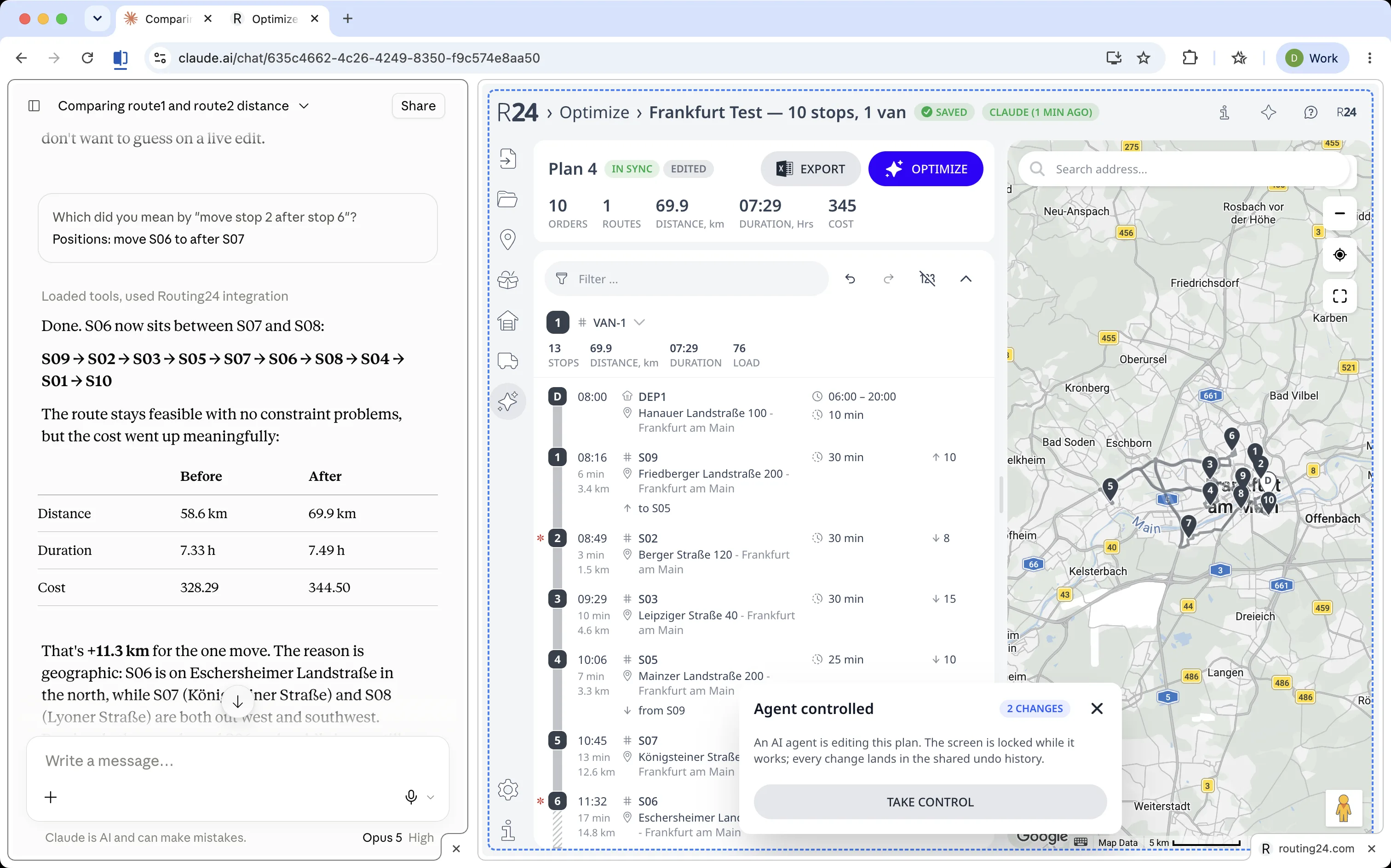
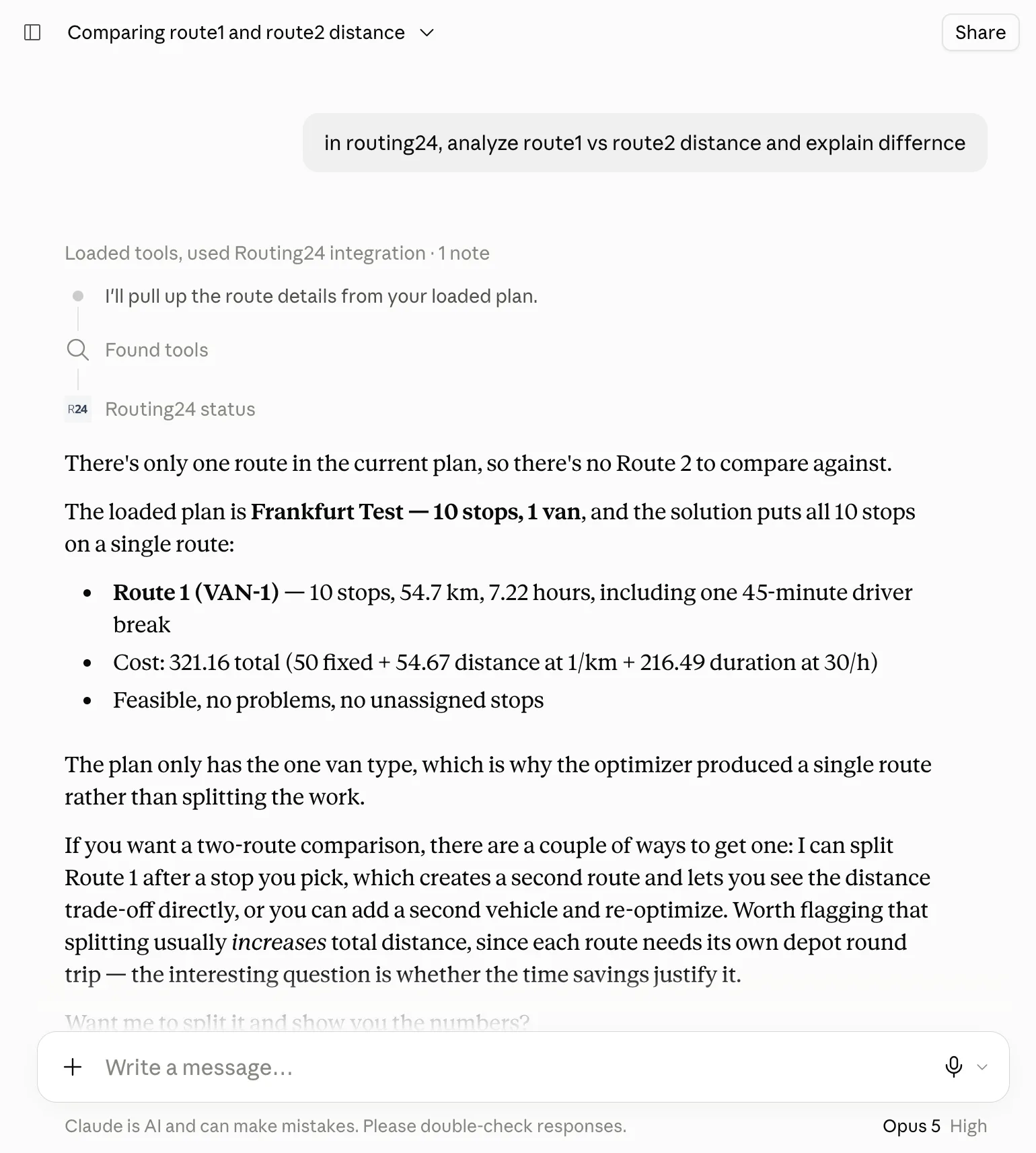
Give the assistant a small task and check the result in your own tab:
Open my Routing24 account, list the tools you have, and tell me how many
plans I have saved and which one is loaded.
On a successful run the assistant reports the tool list and your plans, and
a green badge appears in the Routing24 header reading the client's name and
(now). Press the badge to open the assistant pane and read the log of what
it called.
Then give the assistant real work:
In Routing24, add a van with a 20 pallet capacity working 8:00 to 17:00,
re-optimize, and tell me what changed.
When remote AI agent works on your plan the app displays a "lock" message Agent controlled while data editing or multi-step manipulation is in progress. The data is edited live, and you can watch every action or take control and change anything in parallel with AI.
All changes are live in the browser, see what you see while a connected assistant works.
What the errors mean
Each row below is the remedy. The cause of each is in Routing24 as an MCP server.
| What the assistant reports | What to do |
|---|---|
| No Routing24 browser tab is connected | Open routing24.com/app and sign in |
| No Routing24 app tab is open | The browser is attached but every app tab is closed. Open one |
| The tab closed while running a tool | Reopen the tab, then ask the assistant to re-read the plan before it retries |
| The tab did not answer within 60s | Ask the assistant to check the status rather than repeat the call. A running optimization continues in the tab |
| Another tab took over while this call was running | You approved the connection in a second browser. Work in that browser, or approve again in this one |
| The connector asks for consent again | The connection was revoked. Approve it again |
An assistant that reports the tools are missing is looking at the wrong account or the wrong browser. Check that the browser with your app tab open is the browser you approved the connection in.
Disconnect
Open the assistant pane in Routing24. The bar below the message box reads "Claude is connected to your account". Press Disconnect and confirm. Claude loses access to your Routing24 account and stops working immediately. To use it again, approve the connection from Claude once more.
Removing the connector in Claude or ChatGPT stops that client from calling, but leaves the approval on your account. Each workspace of a client has its own approval, and disconnecting one does not affect the others.
Next step
Routing24 as an MCP server covers what the assistant you just connected can call: the 43 tools, what the app shows while it works, and what each failure means.
FAQ
How do I connect Claude to Routing24?
In Claude, open Settings, then Connectors, and press Add custom connector. Enter https://routing24.ai/mcp as the URL and Routing24 as the name, keep the default settings, and press Connect. Claude sends you to the Routing24 consent screen; approve it once, then choose the tool permissions you want.
Does connecting my own assistant cost extra in Routing24?
No. Connecting an assistant is available on every tier. A connected assistant spends the quota of your own Claude or ChatGPT subscription instead of the AI budget included in your Routing24 plan, and Routing24 only runs the tool calls it asks for. An optimization it starts spends the same allowance as the Optimize button.
Why does my connected assistant say no tab is connected?
Every call runs inside your signed-in app tab, so a closed tab means a failed call. Open routing24.com/app, sign in, and leave the tab open. An assistant that reports the tools are missing is looking at the wrong browser: check that the browser with the app tab open is the one you approved.
How do I disconnect Claude from my Routing24 account?
Open the assistant pane in Routing24. The bar below the message box reads Claude is connected to your account. Press Disconnect and confirm; Claude loses access immediately. Removing the connector on the Claude side stops that client from calling but leaves the approval on your account, so disconnect from Routing24 to revoke it.
Can I connect ChatGPT or another MCP client?
ChatGPT supports custom MCP connectors in developer mode: enable it, add https://routing24.ai/mcp as the connector URL, and approve the same consent screen. Any MCP client that supports OAuth connects the same way, with the same URL; Microsoft Copilot Studio is one. A client that cannot sign in with OAuth cannot connect today.