Google Maps Route Optimization: How to Optimize More Than 10 Stops
The 10-stop-per-route limit in Google Maps explained, a free way to overcome it, and how to automatically rearrange your addresses to save time and distance.
 Nathan Cole||9 min read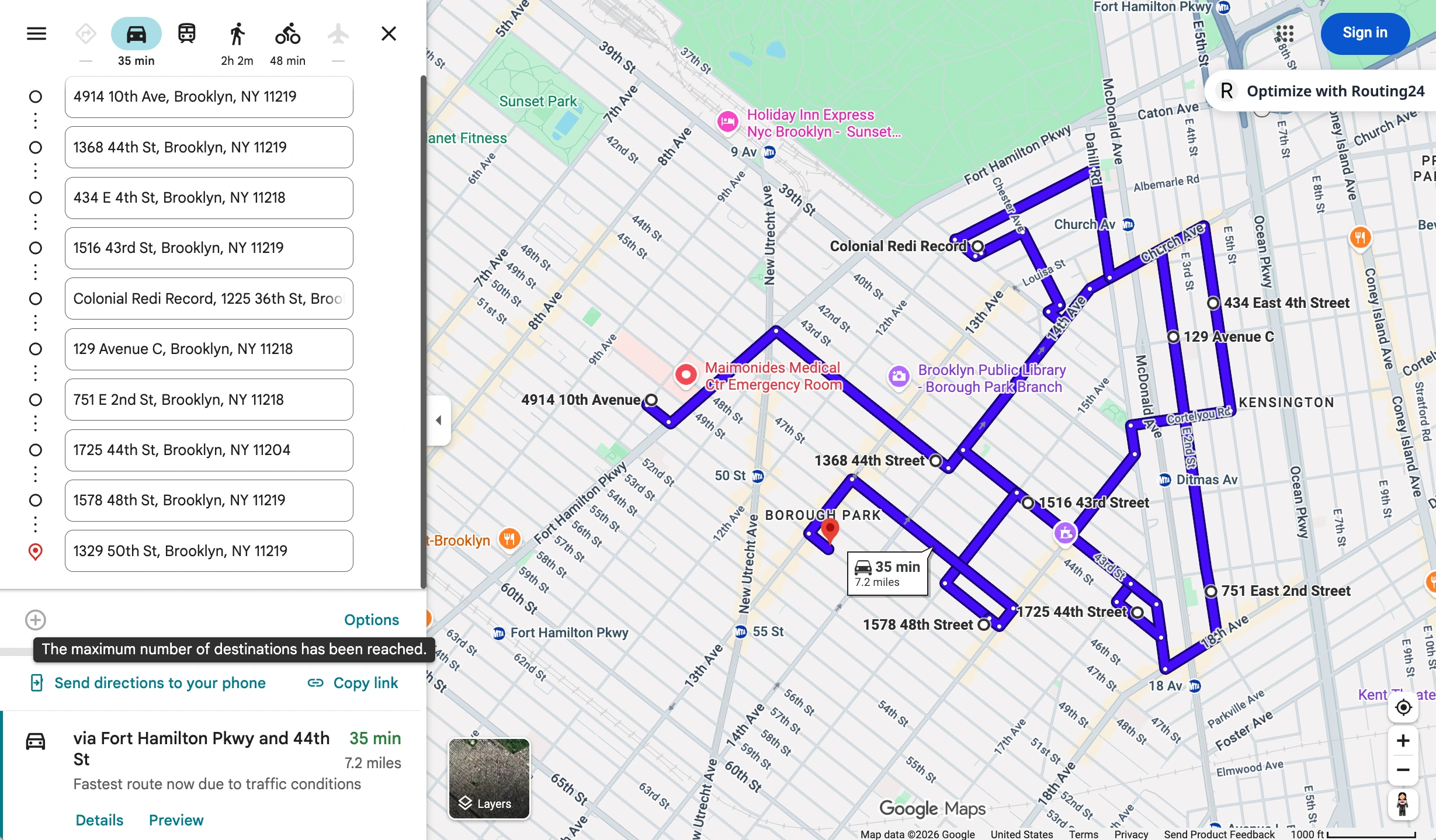
Planning a delivery route in Google Maps is not the same as getting directions. It lets you build a multi-stop route, but it does not tell you which order to visit those stops in, and the order matters. It also caps a route at 10 stops. This article walks through the workarounds, and ends with a free way past both limits.
-
Google Maps limits you to 10 stops. It also never suggests the visit order that would save you time and distance.
-
The workarounds fall short. They leave the ordering problem untouched, or they ask you to pay.
-
The free way is a browser extension. Ours takes up to 500 stops, runs real route optimization without leaving the Google Maps page, and shows the result back on the map.
How multi-stop routes work on Google Maps
When you use Directions in your browser, you normally add the stops one by one, typing in the addresses in some order and checking where they land. Once 10 addresses are in, you cannot add any more. That is the first limitation, and Google's help page does not say what to do next.
The addresses then sit in the route in the order you typed them. Google Maps will never rearrange them into an optimal order, and doing that by hand gets tricky fast, because of the number of possible combinations. Arranging all the stops in an optimal sequence is essentially what route optimization does.
What Google offers instead
Splitting into multiple 10-stop routes
The first workaround is to build routes in several browser tabs. This gives you several routes, and it is a legitimate way to build itineraries longer than 10 stops. There are free tools such as MoreThan10 that make it easier, merging two routes at most so that 20 points show on Google Maps at a time. That merged route, however, still opens on your phone limited to 10 stops.
Overall, this approach only solves the 10-stop limit. It still does not help you put the points in the optimal order to save time and distance.
Using Google My Maps
My Maps is Google's tool for bringing your own custom map data into Google Maps. You can import your addresses in bulk and have them mapped: My Maps allows up to 10,000 addresses per map.
Building routes between the imported addresses, however, is still limited to 10 stops per route, and there is no optimal visit order either.
Writing your own route optimizer
Google sells route optimization as part of Google Maps Platform, through its Route Optimization API. It is a product for application developers. There is no way to open it in a browser and simply use it the way you use Google Maps.
You will need a Google Cloud developer account, a credit card linked to it, and an AI assistant or a hired software engineer to write you an application that re-creates Google Maps. Once that is done, there is still no way to send a route of more than 10 stops to your driver, because the mobile Google Maps app does not support it. In the spirit of do-it-yourself with AI, you can build a mobile app as well: Google has a development kit for that too.
Browser extensions
Browser extensions are a popular way to get around the Google Maps limits. We went to the Chrome Web Store and installed every extension that showed up for the search "route optimizer google maps".
The problem is that most of the time the extension is a marketing tool. Past 10 stops you are usually asked to register and to pay, only to carry on building a simple optimized route.
Here is what we found:
| Extension¹ | Limits | Once limited |
|---|---|---|
| Google Maps Route Optimization by Routific ★ 3.8 (7 000 users) | Up to 10 stops | "Try a free trial at routific", with a Google sign-in to a Routific account |
| Free Google Maps Route Optimization by Upper ★ 4.4 (705 users) | Up to 10 stops | The Upper app, after you sign in with Google |
| Free Route Planner for Google Maps (Zeo) ★ 3.6 (6 000 users) | Up to 10 stops | The Zeo app, and the extension creates an account from your Chrome profile email |
| Routora ★ 3.2 (10 000 users) | Up to 10 stops | Routora Personal at $14.49 a month², "offers in-app purchases" |
| Six small extensions (alecmaly, Timely, Map My Places, QuickMaps, and two named Route Optimizer and Route Planner) ☆ – (35 to 738 users) | Up to 10 stops | Nothing past ten, and one server is gone |
| Google Maps Extended Routes ★ 5.0 (7 000 users) | Any number, but slow after 20 stops (about 7 minutes for 50) | Gets worse after 20 stops |
¹ Names, ratings, user counts and quoted wording are from the
extensions' own Chrome Web Store listings, read on 2026-09-12. Behaviour
and limits are from the extensions' code, read on 2026-09-11.
² Routora pricing is from routora.com/pricing, read on 2026-09-12.
All the extensions work in a similar way. You build a route in Google Maps, the extension sends it to the vendor's server, and a new route opens in Google Maps with the stops rearranged.
Google Maps Extended Routes takes more than 10 stops without asking for money, and falls short in its own way. Past 20 stops the optimization starts to degrade, 50 points can mean a 7-minute wait, and it only ever optimizes for distance, never for total time.
Double-check what an extension actually limits. It is either the number of stops it will optimize, or the functionality you get for free.
Routing24 Route Optimizer for Google Maps
Given all those limitations, we at Routing24 created our own browser extension.
Our objective was a completely free route optimizer, integrated with Google Maps, that just works and can optimize hundreds of stops. We believe this functionality should be an essential part of free Google Maps for everyone.
Here is what we covered, all 100% free:
Adding stops automatically
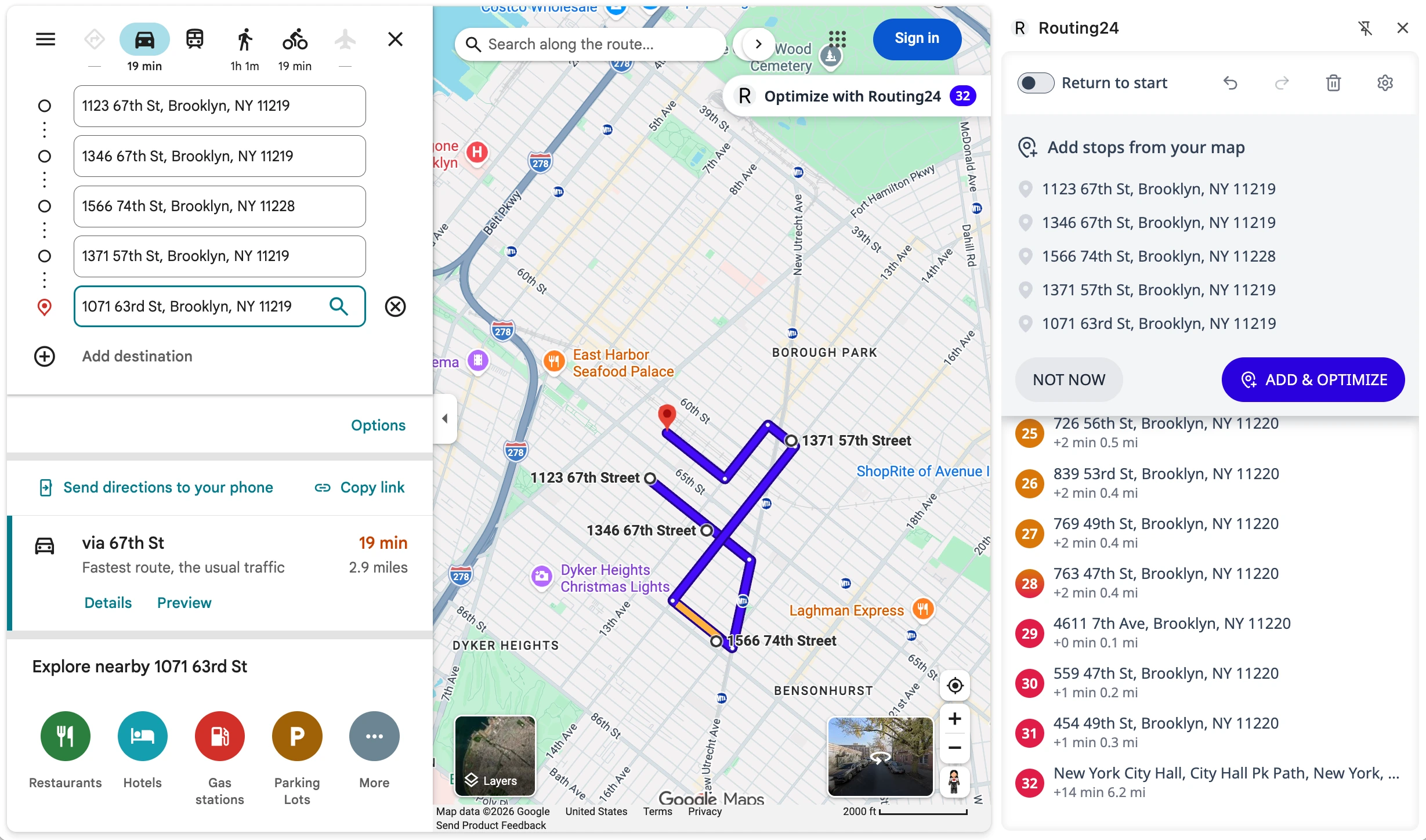
Our extension works in the Google Chrome side panel. When it is open, it detects when you search for directions, addresses or places on Google Maps, and offers to add your search results to its list of stops to optimize.
You can add up to 500 stops to the list, to optimize together as one huge route. If you reload the page or open a new Google Maps tab, the extension keeps your list until you clear it.
Optimizing your route
Our route optimization runs fast, under a second as you add points. The sequence you see in the extension panel is already optimized, automatically.
You can also drag and drop individual stops, as in Google Maps, to see how that increases the total distance and time, or click Optimize to restore the optimized order.
Choosing what to optimize for
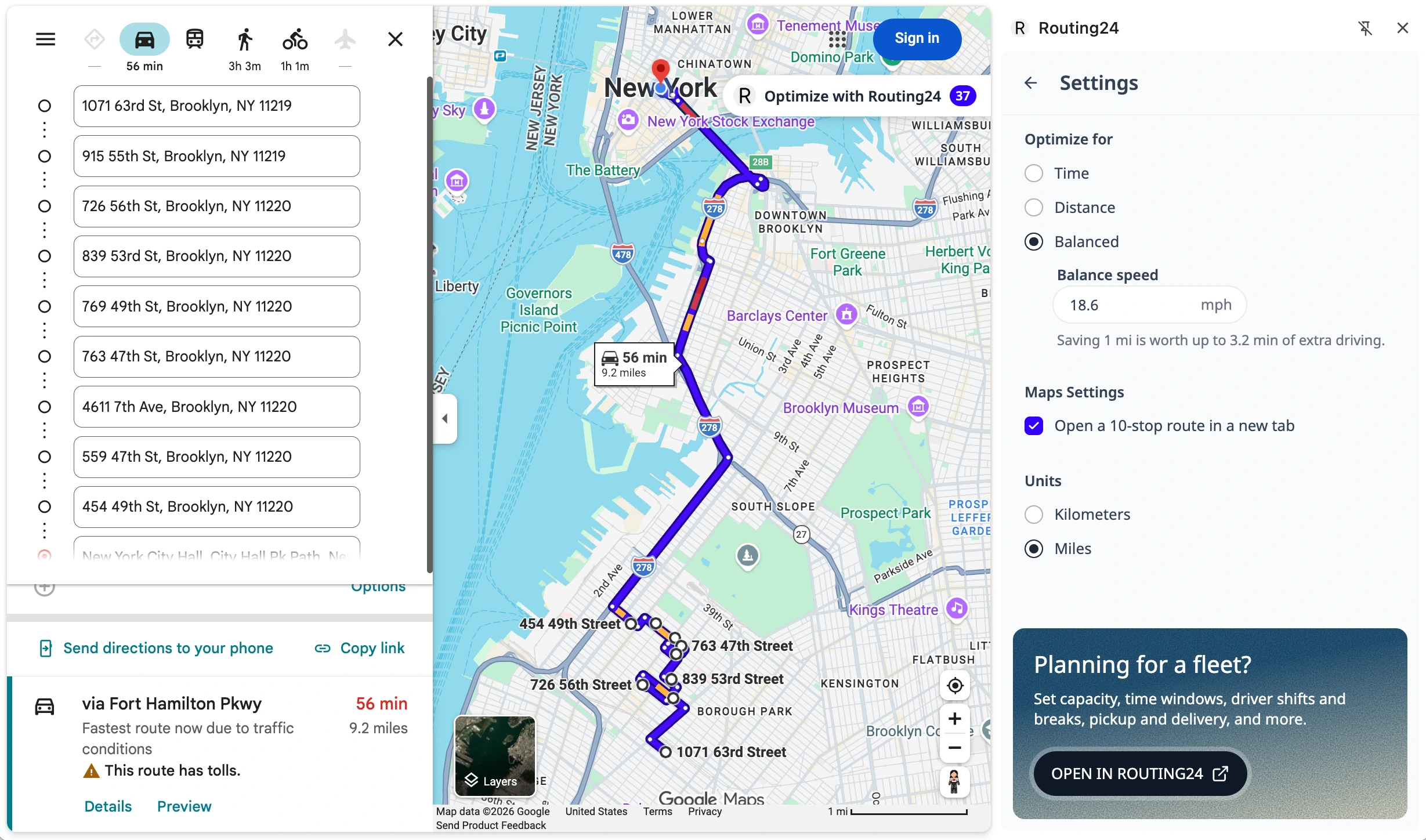
By default the extension optimizes for a combination of time and distance, at an average speed of 30 km/h (about 18.5 mph). That is a typical average speed in a city, taking into account delays in traffic and waiting at signals.
You can choose to optimize strictly for distance (shortest) or for time (fastest), or tune the balance speed to optimize for both with a preference for the shortest or the fastest, while avoiding zig-zag routes.
Opening the optimized route in Google Maps
Once the stops are added and the optimization has run, you can open your optimized route in blocks of 10 stops, arranged in the optimal sequence. With 30 stops the route is organized in 3 colors, and you can open 3 browser tabs, 10 stops each, for the 3 parts of the route.
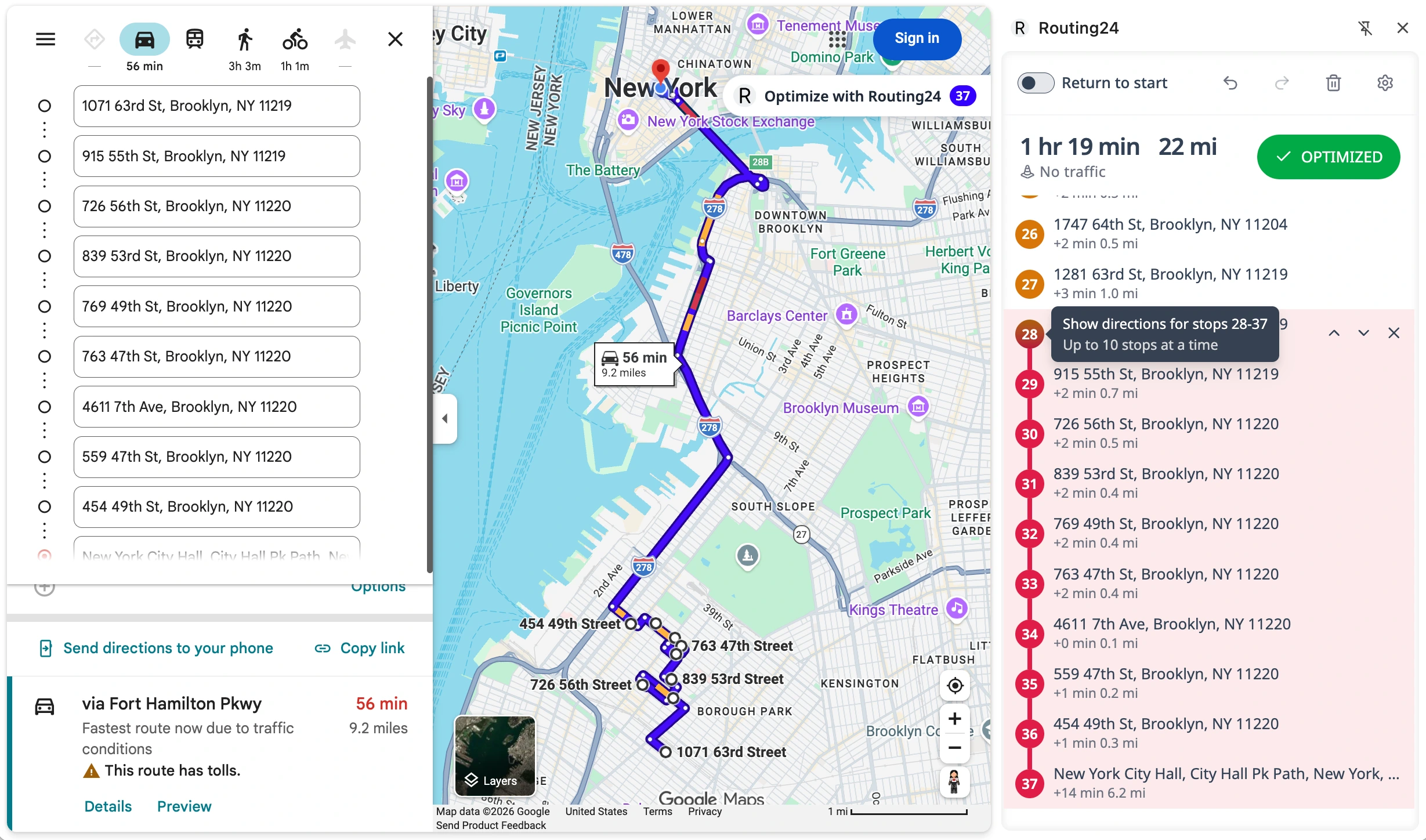
This way you can save the links to the parts of the optimized route, or send them to your phone. Note that we include the last stop of every 10-stop route as the first stop of the next one, so your driving directions are never mixed up when the route is opened on mobile.
Settings
Under Settings you find everything you need to customize your single-vehicle plan: the optimization target, imperial or metric units, and how blocks of 10 stops open, in a new window or the same one.
More than one vehicle?
The Routing24 extension plans one vehicle. When the day needs two vans, or a customer wants you between 14:00 and 16:00, click Open in Routing24 under Settings and your stops move into a Routing24 plan, our commercial product. There you split the route between several vehicles and set vehicle capacity, job and service durations, time windows, driver shifts, pickup and delivery, and United States hours of service or European Union driver breaks.
The Chrome extension works on its own and stays fully free.
Installing the extension
To start using it, visit the official Chrome Web Store and install the published extension, verified by Google:
Install Routing24 Route Optimizer for Google Maps
For more about installing and managing Chrome extensions, see Google's support article.
The installed extension opens from the Chrome extensions menu, or from the badge you will see when you visit Google Maps ("Optimize with Routing24").
FAQ
Can Google Maps do route optimization?
No. Google Maps finds the best road between consecutive stops and lets you drag stops into a different order, but it never chooses the order for you. Optimization comes from a separate tool, such as our extension, which hands the optimized order back to Google Maps.
How many stops can you add on Google Maps?
Ten in one route, counting the start: the start plus nine destinations, on a computer and in the phone app alike. Transit directions take one destination only.
How do I add more than 10 stops on Google Maps?
Google Maps itself will not take them. Either split the list into several ten-stop routes and join their links with a tool such as MoreThan10, or optimize the list in our extension and open it as ten-stop segments that share their boundary stops. The second way also puts the stops in a good order.
Is the Google route optimization API free?
Not in the way a free app is. Google Maps Platform bills the Route Optimization API per request, and using it takes a Google Cloud project with a billing account plus someone to write the code. It is built for companies adding routing to their own software.
Is there a free route planner with unlimited stops?
Most free planners cap the stop count or the number of routes and sell the rest. Our extension is free for one route of up to 500 stops in Google Maps, and there is no cap on the number of routes you can build.
Does the extension work in the Google Maps app on my phone?
The panel runs in Chrome on a computer. The segments it opens are ordinary Google Maps routes, so use Copy link under the stop list and open the link on the phone to navigate.
Keep reading

Pickup and Delivery Routing: Six Ways Goods Move and How Long They Stay on Board
Goods are loaded at the depot, returned to it, carried from one customer to another, delivered along a fixed run, or collected at one of several addresses. What each pattern requires from a route optimizer, and why time on board is a limit of its own.

AI Route Optimization: What Is Real in 2026
A plain-language guide to artificial intelligence in route planning, the optimization behind the label, and how you divide the work with an optimizer and an assistant.
What Is Route Optimization? A Practical Guide for Delivery & Field-Service Teams
Route optimization finds the most efficient set of routes for your whole fleet given real-world constraints. Here is how it works and what it saves.